
Is your Verizon Internet Gateway blinking red, leaving you frustrated and disconnected? You’re not alone, and this blinking red light is a clear sign that something isn’t right with your connection.
But don’t worry—understanding why this happens and how to fix it can get you back online fast. You’ll discover simple steps to troubleshoot the problem, so you can stop stressing and start enjoying your internet again. Keep reading to take control of your connection today.
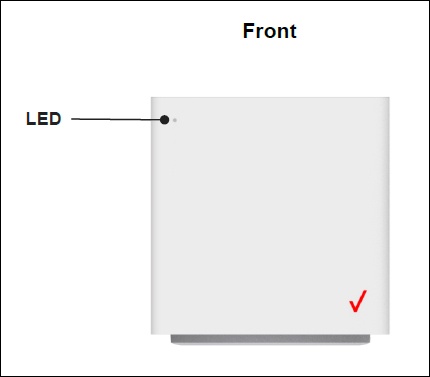
Credit: www.verizon.com
Causes Of Red Blinking Light
The Verizon Internet Gateway blinking red light shows a problem with your internet connection. This warning helps users know when something stops working correctly. Understanding the causes can help you fix the issue faster.
The red blinking light can happen for several reasons. Some are simple and easy to solve. Others need more attention or help from Verizon support. Below are the main causes that lead to this red blinking light.
Power And Connection Issues
Power problems often cause the red blinking light. A loose power cable or a power outage can stop the gateway from working. Check if the power cord is plugged in firmly.
Connection issues like loose Ethernet or coaxial cables also cause blinking red lights. Make sure all cables connect tightly to the device and the wall outlet.
Firmware And Software Glitches
Firmware is the software inside your Verizon Internet Gateway. Sometimes it has bugs or errors. These glitches can cause the red light to blink.
Outdated firmware may also cause problems. Updating the device’s software can fix this. Restarting the gateway often clears minor software issues.
Network Service Interruptions
Service interruptions from Verizon can cause the red blinking light. These might be due to maintenance or technical problems in your area.
Check if Verizon has reported outages near you. This can explain why your gateway is not working properly.
Hardware Failures
Hardware failures inside the gateway can lead to a red blinking light. Faulty parts like the modem or internal circuits may stop working.
Physical damage or wear and tear also cause hardware issues. In some cases, replacing the device is necessary to restore your connection.
Immediate Troubleshooting Steps
Seeing a red blinking light on your Verizon Internet Gateway can be frustrating. It often means the device has trouble connecting to the internet. Quick action can solve many common problems. Follow these immediate steps to get your connection back.
Restart The Gateway
Turn off your Verizon Gateway by pressing the power button. Wait 30 seconds before turning it back on. This simple step clears temporary glitches. It helps the device reconnect to the network. Watch for the lights to stabilize after restarting.
Check Cable Connections
Inspect all cables linked to the Gateway. Ensure each cable is firmly plugged into the right port. Look for any damage or loose ends. A loose cable can cause the red blinking light. Secure connections improve signal strength and stability.
Reset To Factory Settings
Find the reset button on the back of the Gateway. Use a paperclip to hold it down for 10 seconds. This action restores the device to its original settings. You will need to set up your internet again after this step. Only reset if restarting and checking cables does not help.
Advanced Fixes
Advanced fixes help solve stubborn issues with your Verizon Internet Gateway blinking red. These solutions go beyond basic troubleshooting. They require a bit more effort but can restore your connection effectively. Try these steps carefully to improve your internet stability and speed.
Update Firmware Manually
Firmware controls your gateway’s performance. Sometimes, outdated firmware causes errors. Access the gateway’s admin page through your web browser. Find the firmware section and check for updates. Download and install the latest version. This process can fix bugs and improve device stability.
Adjust Gateway Placement
Placement affects signal strength and connectivity. Move the gateway to a central location in your home. Avoid placing it near thick walls or metal objects. Keep it away from other electronics that cause interference. Proper placement can reduce connection drops and stop the red blinking light.
Modify Network Settings
Network settings control how your gateway connects to the internet. Log into the admin panel and review the settings. Change the channel to avoid interference from nearby networks. Set the correct network mode for your devices. Resetting to default settings and reconfiguring might also help.

Credit: www.youtube.com
When To Contact Verizon Support
Knowing when to contact Verizon support is important if your Internet Gateway blinks red. The red light usually means a problem with your internet connection. Some issues you can fix yourself. Others need expert help. Calling support at the right time saves you effort and gets your internet working faster.
Identifying Service Outages
Check if Verizon has a service outage in your area. You can visit their website or use their app to see outage reports. If many people nearby have no internet, the red blinking light may be due to an outage. In this case, Verizon works on fixing the problem. Contacting support helps confirm outages and get updates on repair time.
Scheduling Technician Visits
If the red light stays on after a power cycle, a technician visit may be needed. Sometimes, the issue is with the wiring or external equipment. Verizon can send a technician to check your connection and hardware. Scheduling a visit ensures a professional looks at your setup and solves the problem. This helps avoid guessing and saves time.
Replacing Equipment
Old or faulty equipment can cause the red blinking light. Verizon support can test your Internet Gateway remotely. If the device is damaged or outdated, they may suggest a replacement. You might get a new modem or router to fix the issue. Contacting Verizon ensures you get the right equipment and instructions to install it properly.
Preventive Measures
Preventive measures help keep your Verizon Internet Gateway working smoothly. Taking simple steps can stop issues before they start. These actions save time and avoid frustration. Stay ahead by caring for your device regularly and watching for small problems early.
Regular Gateway Maintenance
Clean the gateway often to prevent dust buildup. Dust can block vents and cause overheating. Restart the device once a week to refresh the connection. Update the gateway’s firmware as soon as updates are available. This keeps security strong and fixes bugs.
Securing Network Connections
Use strong passwords for your Wi-Fi network. Weak passwords allow outsiders to access your connection. Change passwords regularly to keep your network safe. Avoid sharing your Wi-Fi details with many people. Set up a guest network for visitors to limit access.
Monitoring For Early Warning Signs
Watch for blinking red lights or slow internet speeds. These signs may show trouble ahead. Check cables and connections if problems start. Note any new noises or unusual heat from the gateway. Early detection helps you fix issues before they get worse.

Credit: www.youtube.com
Frequently Asked Questions
Why Is My Verizon Internet Gateway Blinking Red?
A red blinking light means your gateway has a connection problem. It may be due to service outages or hardware issues.
How Can I Fix A Verizon Gateway Blinking Red Light?
Try restarting your gateway by unplugging it, waiting 30 seconds, then plugging it back. Check cables and connections too.
Does Blinking Red Light Mean Verizon Internet Is Down?
Often, yes. A red blinking light can signal an internet outage in your area. Contact Verizon for status updates.
Can A Firmware Update Cause Verizon Gateway To Blink Red?
Yes, sometimes updates cause temporary blinking lights. The gateway usually fixes itself after the update finishes.
When Should I Call Verizon Support For Blinking Red Light?
Call support if the red blinking light stays after restarting. They can check for line or hardware problems.
Conclusion
A blinking red light on your Verizon Internet Gateway means trouble. It signals a connection or hardware issue. Restart your device first to see if it clears. Check cables and your internet service status next. If the problem stays, contact Verizon support for help.
Don’t ignore the red light; it shows something needs fixing. Acting quickly keeps your internet running smoothly. Stay calm and follow these easy steps. Your connection will be back soon.