
Have you ever turned on your Mac, only to see a blinking folder with a question mark staring back at you? It’s a frustrating sight that can make you wonder if your computer is broken or your data is lost forever.
But don’t panic just yet. This blinking folder is your Mac’s way of telling you it can’t find its startup disk. You’ll learn exactly why this happens and, more importantly, how to fix it quickly. Keep reading to get your Mac back to normal and avoid losing your important files.
Credit: discussions.apple.com
Causes Of The Blinking Folder
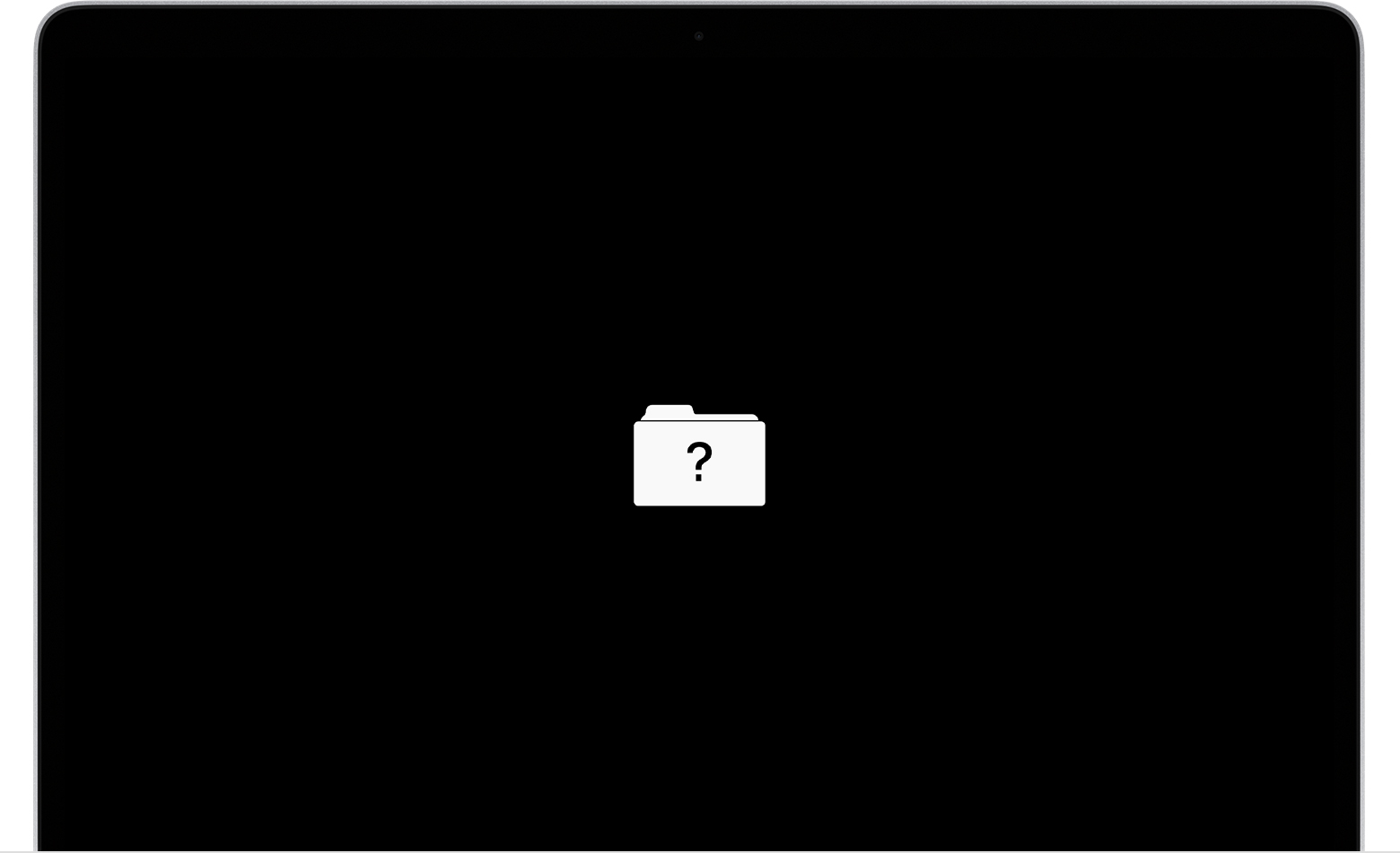
The blinking folder with a question mark on your Mac screen signals a startup problem. This icon means your Mac cannot find the system software it needs. Several factors can cause this issue. Understanding these causes helps you know what to check first.
Startup Disk Issues
Your Mac needs a working startup disk to load macOS. If the disk is damaged or missing, the blinking folder appears. This happens when the disk is not selected properly or corrupted. The Mac cannot find a valid system to start from.
Corrupted System Files
System files control how your Mac boots and runs. If these files get damaged or deleted, the Mac cannot start correctly. Corruption can happen during updates or software installations. This causes the Mac to show the blinking folder icon.
Hardware Problems
Hardware issues can stop your Mac from accessing the startup disk. Faulty hard drives or SSDs often cause this problem. Loose or damaged cables inside the Mac may also prevent normal startup. These hardware faults trigger the blinking folder.
Firmware Glitches
Firmware is the low-level software that helps your Mac start up. Sometimes, firmware bugs or glitches prevent the Mac from reading the startup disk. This leads to the blinking folder symbol. Firmware updates or resets may fix this problem.
Basic Troubleshooting Steps
The blinking folder with a question mark on your Mac signals a startup issue. It means your Mac can’t find its system software. Basic troubleshooting can often fix this problem. Try the steps below to help your Mac start correctly again.
Resetting Nvram/pram
NVRAM and PRAM store important settings for your Mac. Resetting them can clear errors. To reset, shut down your Mac. Then, press and hold Option, Command, P, and R keys together. Keep holding for about 20 seconds. Release the keys and let your Mac restart. This can fix startup problems related to hardware settings.
Safe Mode Boot
Safe Mode starts your Mac with only essential software. It checks your disk and removes some caches. To enter Safe Mode, turn off your Mac. Turn it on and immediately hold the Shift key. Release Shift when the login window appears. Safe Mode can help fix software conflicts causing the blinking folder.
Checking Disk With Disk Utility
Disk Utility can find and repair disk problems. Start your Mac in macOS Recovery by holding Command and R keys during startup. Open Disk Utility from the menu. Select your startup disk and click “First Aid.” Let Disk Utility scan and fix errors. This step ensures your disk is healthy and ready to boot your Mac.
Advanced Fixes
Advanced fixes for the Mac blinking folder with question mark require careful steps. These methods help repair serious system issues. They often restore your Mac without losing data. Follow each step closely for the best results.
Reinstalling Macos
Reinstalling macOS refreshes system files without erasing your data. Restart your Mac and hold Command + R to enter Recovery Mode. Select “Reinstall macOS” and follow the prompts. This process can fix corrupted system files causing the blinking folder issue.
Ensure your Mac is connected to the internet during this step. The download and installation may take some time. Do not turn off your Mac during the reinstall.
Using Terminal Commands
Terminal commands allow you to fix disk or system errors manually. Access Terminal in Recovery Mode by selecting Utilities > Terminal. Commands like diskutil repairDisk check and repair disk problems. Use bless to set the correct startup disk.
Type commands carefully to avoid mistakes. This method is for users comfortable with text-based tools. It may solve the blinking folder problem without reinstalling macOS.
Repairing Disk Via Recovery Mode
Recovery Mode offers Disk Utility to fix disk errors. Restart your Mac, hold Command + R to enter Recovery Mode. Open Disk Utility, select your main disk, then click “First Aid.” This tool scans and repairs disk issues automatically.
Running First Aid can correct directory damage causing the folder icon. Repeat the process if errors persist. This step is essential before reinstalling macOS or using Terminal commands.
Credit: www.reddit.com
When To Seek Professional Help
Seeing a blinking folder with a question mark on your Mac can be stressful. It signals your Mac cannot find the startup disk. Sometimes, you can fix this on your own. Other times, the problem is more serious. Knowing when to seek professional help saves time and prevents data loss.
Identifying Hardware Failures
Hardware issues often cause the blinking folder error. The hard drive might be damaged or disconnected inside the Mac. Signs include strange noises or the Mac not recognizing the disk. Professionals have tools to test and fix hardware problems safely. They can open your Mac without causing more damage. Avoid trying to fix hardware yourself. It may void warranties or cause more harm.
Data Recovery Options
Important files may be at risk if your Mac shows the blinking folder. Professionals offer data recovery services to retrieve lost information. They use special software and hardware to access damaged drives. Attempting recovery alone might erase your data. Experts also advise on the best backup options. This helps prevent future data loss. Trust trained technicians to handle your valuable files carefully.
Preventing Future Issues
The blinking folder with a question mark on your Mac signals a startup problem. Preventing this issue keeps your Mac running smoothly. Taking simple steps can protect your files and avoid future headaches. These practices help your Mac stay healthy and safe.
Regular Backups
Backing up your data is crucial. Use Time Machine or another backup tool. Save copies of important files regularly. This protects your data if your Mac fails. Backups make recovery easy and fast.
System Updates
Keep your Mac’s software up to date. Updates fix bugs and improve system stability. They help your Mac avoid errors like the blinking folder. Check for updates often and install them quickly.
Safe Usage Practices
Use your Mac carefully to avoid damage. Shut down properly and avoid sudden power loss. Don’t install unknown apps or software. Protect your Mac from viruses and malware. These habits reduce the risk of startup problems.
Credit: www.salvagedata.com
Frequently Asked Questions
What Does The Mac Blinking Folder With Question Mark Mean?
The blinking folder means your Mac cannot find its startup disk. It often shows when the system cannot locate the operating system.
How Can I Fix The Mac Blinking Folder Question Mark?
Restart your Mac and hold the Option key to select a startup disk. If that doesn’t work, try booting into Recovery Mode to repair the disk.
Why Does My Mac Show A Blinking Folder After Update?
A software update may have corrupted the startup disk or system files. This causes the Mac to fail in locating the correct boot volume.
Can A Faulty Hard Drive Cause The Blinking Folder Issue?
Yes, a damaged or failing hard drive can cause this problem. The Mac cannot read the disk, so it shows the blinking folder icon.
How Do I Prevent The Blinking Folder Error On Mac?
Keep your macOS updated and back up your files regularly. Avoid sudden shutdowns and check your disk health often to reduce risks.
Conclusion
The blinking folder with a question mark on your Mac signals a startup problem. It means your Mac cannot find the system software. You can try resetting the NVRAM or using Disk Utility to fix the issue. Sometimes, reinstalling macOS solves the problem.
If these steps do not work, professional help may be needed. Acting quickly can prevent data loss. Stay calm and follow the simple steps shared here. Your Mac can be up and running again soon.