
Is your DSL light blinking and you’re not sure what it means? You’re not alone.
That little blinking light on your modem can be confusing and even frustrating when your internet won’t connect. But don’t worry—understanding why your DSL light is blinking can help you fix the problem faster. You’ll discover exactly what those blinking signals mean and how you can get your internet back up and running without stress.
Keep reading to take control of your connection today.
Credit: www.quantumfiber.com
Causes Of Dsl Light Blinking
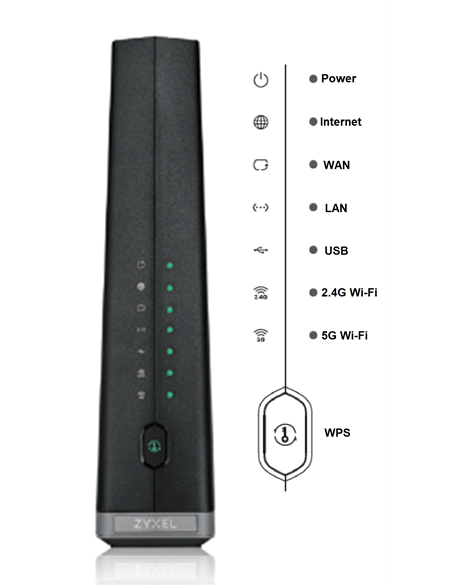
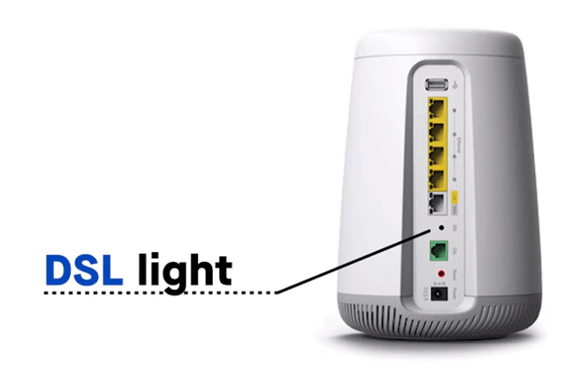
The blinking DSL light on your modem or router shows the connection status. When it blinks, it means the device is trying to connect or reconnect to the internet. Several issues can cause this blinking. Knowing the main causes helps solve the problem faster.
Signal Interference
Signal interference happens when other electronic devices affect your DSL line. Devices like cordless phones, microwaves, or even nearby Wi-Fi can disrupt the signal. This interference weakens the connection and causes the DSL light to blink. Keeping your modem away from these devices can reduce interference.
Loose Or Damaged Cables
Loose or damaged cables often cause connection problems. If cables are not plugged in properly, the signal cannot pass smoothly. Damaged cables with cuts or bends also block the signal. Check all cables for tight connections and replace any damaged wires to fix the blinking light.
Router Or Modem Issues
Sometimes, the problem lies inside the router or modem itself. Outdated firmware, overheating, or hardware failure can cause the DSL light to blink. Restarting the device or updating its software can help. If the device is old, consider replacing it for a better connection.
Isp Service Problems
Your internet service provider (ISP) may have issues on their end. Maintenance work or technical faults can cause temporary disruptions. These problems make the DSL light blink as the modem tries to reconnect. Contact your ISP to check for outages or service problems in your area.
Credit: www.centurylink.com
Basic Troubleshooting Steps
DSL light blinking can signal connection issues. Basic troubleshooting helps identify simple problems. These steps can save time before calling support. Try each step carefully to find the cause.
Check Cable Connections
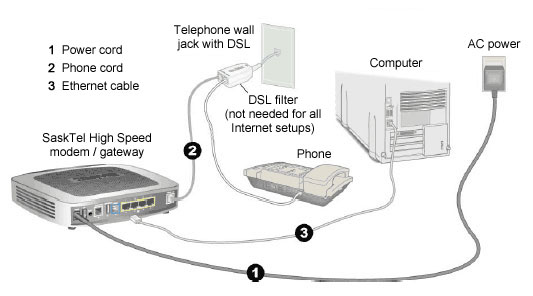
Loose or damaged cables cause blinking DSL lights. Make sure all cables connect tightly to the modem and phone jack. Look for frayed or broken wires. Replace any damaged cables to ensure a strong connection.
Restart Your Modem And Router
Turn off your modem and router. Unplug them from power for 30 seconds. Plug them back in and turn on the devices. Restarting clears minor glitches and resets connections. Watch the DSL light for changes after rebooting.
Inspect Filters And Splitters
Filters and splitters separate DSL and phone signals. Check if filters are installed on all phone devices. Remove and clean splitters if needed. A faulty filter or splitter can cause the DSL light to blink.
Test With A Different Device
Try connecting another device to the modem. This helps check if the problem is with your original device. If the DSL light stops blinking, your first device may need repairs. Testing different devices narrows down the issue.
Advanced Fixes For Dsl Light Blinking
DSL light blinking often signals a deeper issue with your internet connection. Basic fixes might not solve the problem. Advanced steps can help find and fix hidden problems. These methods require careful actions but improve stability and speed.
Update Firmware And Drivers
Check your modem’s firmware regularly. Firmware controls device functions and fixes bugs. Visit the manufacturer’s website for updates. Download and install the latest version carefully. Also, update your computer’s network drivers. Outdated drivers can cause connection issues. Updated software helps smooth communication between devices.
Reset Modem To Factory Settings
Resetting your modem clears all custom settings. It restores the device to its original state. Locate the reset button on your modem. Press and hold it for about 10 seconds. This action deletes all current configurations. You will need to re-enter your ISP settings. This step can fix software glitches causing the blinking light.
Adjust Dsl Settings
Access your modem’s settings page. Find DSL or line settings in the menu. Adjust the settings like interleaving, SRA, or target SNR margin. These tweaks can stabilize the DSL connection. Make small changes and test the connection after each. Proper settings reduce errors and stop the blinking light.
Contact Your Isp For Line Testing
Your internet service provider can test your phone line. They check for noise, signal loss, and physical damage. Request a line test if blinking persists. Technicians may find problems outside your home. Your ISP can schedule repairs if needed. Professional help ensures the best connection quality.
Credit: support.sasktel.com
Preventing Future Dsl Issues
Preventing future DSL issues helps keep your internet stable and fast. Small steps can avoid many common problems. Regular care and smart setup improve your connection quality. Follow these tips to reduce DSL light blinking and enjoy smoother browsing.
Regular Equipment Maintenance
Clean your modem and router often. Dust can cause overheating and slow performance. Turn off devices before cleaning. Check for loose cables and connections. Restart your equipment every few days to refresh settings.
Use Quality Cables And Filters
Choose good quality phone cables and DSL filters. Cheap cables may cause interference and signal loss. Replace old or damaged cables quickly. Use filters on all phone lines sharing the DSL line. This stops noise from affecting your internet.
Position Router For Optimal Signal
Place your router in a central location. Avoid walls and metal objects nearby. Keep it off the floor and away from electronic devices. Higher placement often improves signal strength. This helps reduce connection drops and blinking lights.
Schedule Periodic Isp Checks
Contact your Internet Service Provider regularly for line checks. They can detect and fix issues you cannot see. Ask for updates on network maintenance in your area. Early detection prevents bigger problems later. Stay proactive to keep your DSL stable.
Frequently Asked Questions
Why Is My Dsl Light Blinking Constantly?
A blinking DSL light shows the modem is trying to connect to the internet. This can happen during startup or if the connection is unstable. It often means the modem is syncing with your internet provider.
What Does A Slow Blinking Dsl Light Mean?
A slow blinking DSL light usually means the modem is searching for a stable connection. It may take a few minutes to establish a proper link. Wait and see if it stops blinking and stays solid.
Can A Blinking Dsl Light Cause Slow Internet?
Yes, a blinking DSL light can signal connection issues that slow down your internet. The modem may have trouble syncing, causing delays or drops. Fixing this can improve your internet speed.
How To Fix A Blinking Dsl Light On My Modem?
Try restarting your modem and checking all cable connections first. If the light keeps blinking, contact your internet service provider. They can check for line problems or send a technician.
Does A Blinking Dsl Light Mean A Line Problem?
Often, yes. A blinking DSL light can indicate a problem with the phone line or wiring. It might also mean interference or a service outage. Testing the line can help identify the issue.
Conclusion
A blinking DSL light often signals connection issues. It can mean your internet is trying to connect. Check your cables and restart your modem first. Sometimes, the problem clears up on its own. If blinking continues, contact your internet service provider.
They can help find and fix the issue. Keeping your connection steady is important for smooth internet use. Watch the light to know your modem’s status. Simple steps can save time and frustration. Stay patient, and your connection will improve soon.