
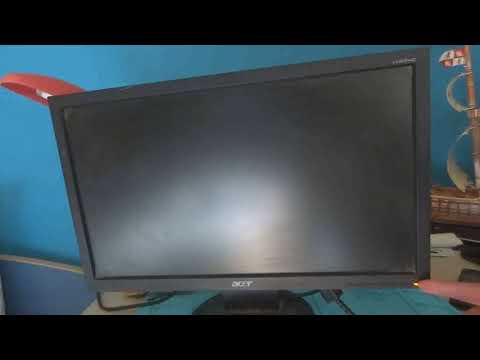
Is your Acer monitor blinking a blue light and leaving you confused? You’re not alone, and it can be frustrating when your screen won’t behave as expected.
That blinking blue light is trying to tell you something important about your monitor’s status. Understanding what it means can save you time, stress, and even money. You’ll discover the common causes behind that blinking blue light and simple steps you can take to fix it quickly.
Keep reading—your perfect display is closer than you think.
Common Causes Of Blinking Blue Light
The blinking blue light on an Acer monitor often signals an issue. Understanding the common causes helps fix the problem fast. This section breaks down the main reasons behind the blinking blue light.
Power Supply Issues
Power supply problems often cause the blinking blue light. A faulty power adapter or unstable power source can trigger this. The monitor may struggle to get enough power to stay on. Checking the power outlet and adapter can help identify this issue.
Loose Or Damaged Cables
Loose or damaged cables can interrupt the monitor’s signal. The blue light blinks when the connection is weak or lost. Inspect the HDMI, DisplayPort, or VGA cables for damage. Ensure all cables are firmly connected to the monitor and computer.
Software And Driver Problems
Outdated or corrupted drivers may cause the blinking light. The monitor might not communicate well with the computer. Installing the latest drivers can solve this problem. Sometimes, a system update may also affect the monitor’s behavior.
Hardware Malfunctions
Hardware faults inside the monitor can trigger the blinking blue light. This includes issues with the display panel or internal circuits. Physical damage or wear and tear can cause hardware failures. Professional repair may be necessary to fix these problems.

Credit: community.acer.com
Simple Steps To Fix Blinking Light
The blinking blue light on your Acer monitor can signal a small problem. Fixing it does not require expert skills. Try some simple steps to solve the issue quickly. These steps help you check the power, cables, and software settings. Follow each one carefully for the best results.
Check Power Connections
First, make sure the power cable is properly plugged in. Check the outlet for power by using another device. If the outlet works, confirm the cable is firmly connected to the monitor. A loose connection can cause the blinking light. Switch to a different power cable if needed.
Inspect And Secure Cables
Look at all cables connected to the monitor. Loose or damaged cables can cause blinking. Unplug and reconnect each cable tightly. Check the video cable between the monitor and computer. Replace any worn or broken cables to ensure a steady signal.
Restart The Monitor And Pc
Turn off both the monitor and the computer. Wait about 30 seconds. Power them back on to reset the devices. This can clear temporary glitches causing the blinking light. Restarting often restores normal function quickly.
Update Monitor Drivers
Outdated drivers may cause display issues. Visit Acer’s official website to download the latest drivers for your monitor. Install the updates following the instructions provided. Updated drivers improve communication between your monitor and PC. This step can stop the blinking light if it’s a software problem.
Advanced Troubleshooting Techniques
Advanced troubleshooting techniques help fix complex Acer monitor issues. These methods go beyond basic checks. They focus on deeper system resets, hardware tests, and software updates. Use these steps to solve the blinking blue light problem effectively.
Reset Monitor To Factory Settings
Resetting the monitor clears custom settings that may cause problems. The process returns all options to default. This often solves blinking light issues caused by configuration errors. To reset, access the monitor’s menu using physical buttons. Find the “Reset” or “Factory Reset” option. Confirm the reset and wait for the monitor to restart. Check if the blinking blue light stops.
Test With Different Devices
Testing the monitor with another device helps isolate the problem. Connect the monitor to a different computer or laptop. This step shows if the issue is with the monitor or the original device. Use a new cable for the test if possible. A stable connection without blinking means the first device or cable may be faulty. Replace or fix the device or cable as needed.
Check For Firmware Updates
Firmware controls the monitor’s hardware functions. Outdated firmware can cause blinking lights or other errors. Visit Acer’s official website to find firmware updates. Download the latest version for your model. Follow the instructions carefully to install the update. Firmware updates improve stability and fix bugs. After updating, the blinking blue light may disappear.

Credit: www.youtube.com
When To Seek Professional Help
Knowing when to seek professional help for your Acer monitor blinking blue light is important. Sometimes the problem is simple and can be fixed at home. Other times, it signals a deeper issue that requires expert care. Recognizing the signs can save you time and money. It also helps avoid further damage to your device.
Signs Of Hardware Failure
If the blue light keeps blinking despite all fixes, it may be a hardware problem. Unusual noises or flickering screens show internal damage. The monitor might not turn on at all or shut down suddenly. Loose or damaged cables can cause issues, but persistent problems point to hardware failure. In such cases, professional diagnosis is necessary to avoid worsening the issue.
Warranty And Repair Options
Check if your Acer monitor is still under warranty before attempting repairs. Warranty covers many hardware problems and can save money on repairs. Contact Acer support or the store where you bought the monitor. They can guide you on repair or replacement options. Professional repair ensures the problem is fixed safely and correctly.
Preventing Future Blinking Issues
Preventing future blinking issues with your Acer monitor helps keep your screen clear and stable. Small steps can avoid interruptions and extend your monitor’s life. Follow these simple practices to protect your display from blinking problems.
Regular Maintenance Tips
Clean your monitor screen gently using a soft cloth. Dust and dirt can cause signal problems. Check the power cable and ports for wear or damage. Replace any faulty cables to keep a strong connection. Restart your monitor and computer often to refresh the system. Update your monitor’s drivers regularly to ensure smooth operation.
Proper Cable Management
Organize cables to avoid stress on connectors. Use cable ties or clips to keep wires neat and secure. Avoid bending cables sharply or pulling them tight. Keep cables away from heat sources and sharp edges. Proper cable care reduces loose connections that cause blinking.
Safe Usage Practices
Turn off your monitor when not in use to save energy. Avoid exposing the screen to direct sunlight or extreme temperatures. Use your monitor on a stable surface to prevent movement or vibration. Do not press hard on the screen or buttons. Safe habits protect your monitor from damage and blinking issues.
Credit: community.acer.com
Frequently Asked Questions
Why Is My Acer Monitor Blinking A Blue Light?
A blinking blue light usually means the monitor is in sleep mode or not receiving a signal. Check your computer and cable connections to fix this issue.
How Can I Stop The Blue Light From Blinking On Acer Monitor?
Make sure all cables are securely connected and the computer is turned on. Restarting both devices often stops the blinking light.
Does A Blinking Blue Light Mean My Acer Monitor Is Broken?
Not always. A blinking blue light often shows a signal or power issue, not a hardware failure. Try basic troubleshooting first.
Can A Loose Cable Cause Acer Monitor Blue Light To Blink?
Yes, loose or damaged cables can cause the blinking blue light. Ensure HDMI or VGA cables are firmly plugged in.
What Does A Steady Blue Light On Acer Monitor Indicate?
A steady blue light means the monitor is powered on and receiving a signal. It shows the monitor is working normally.
Conclusion
A blinking blue light on your Acer monitor can signal various issues. Check the power connection and cables first. Try restarting your monitor and computer. Adjusting the display settings might help as well. If the problem continues, contacting Acer support is a good step.
Taking quick action can save you time and frustration. Keep your monitor clean and updated for better performance. Small fixes often solve common blinking light problems. Stay patient and follow simple troubleshooting steps to fix your Acer monitor.