
Is your Xfinity Gateway blinking green and you’re not sure what it means? You’re not alone.
That blinking light can be confusing and even frustrating when you need your internet to work smoothly. But don’t worry—understanding why your gateway is blinking green can help you fix the issue fast. You’ll discover simple steps to get your connection back on track.
Keep reading to take control of your network and stop that blinking light from slowing you down.

Credit: www.youtube.com
Why The Xfinity Gateway Blinks Green
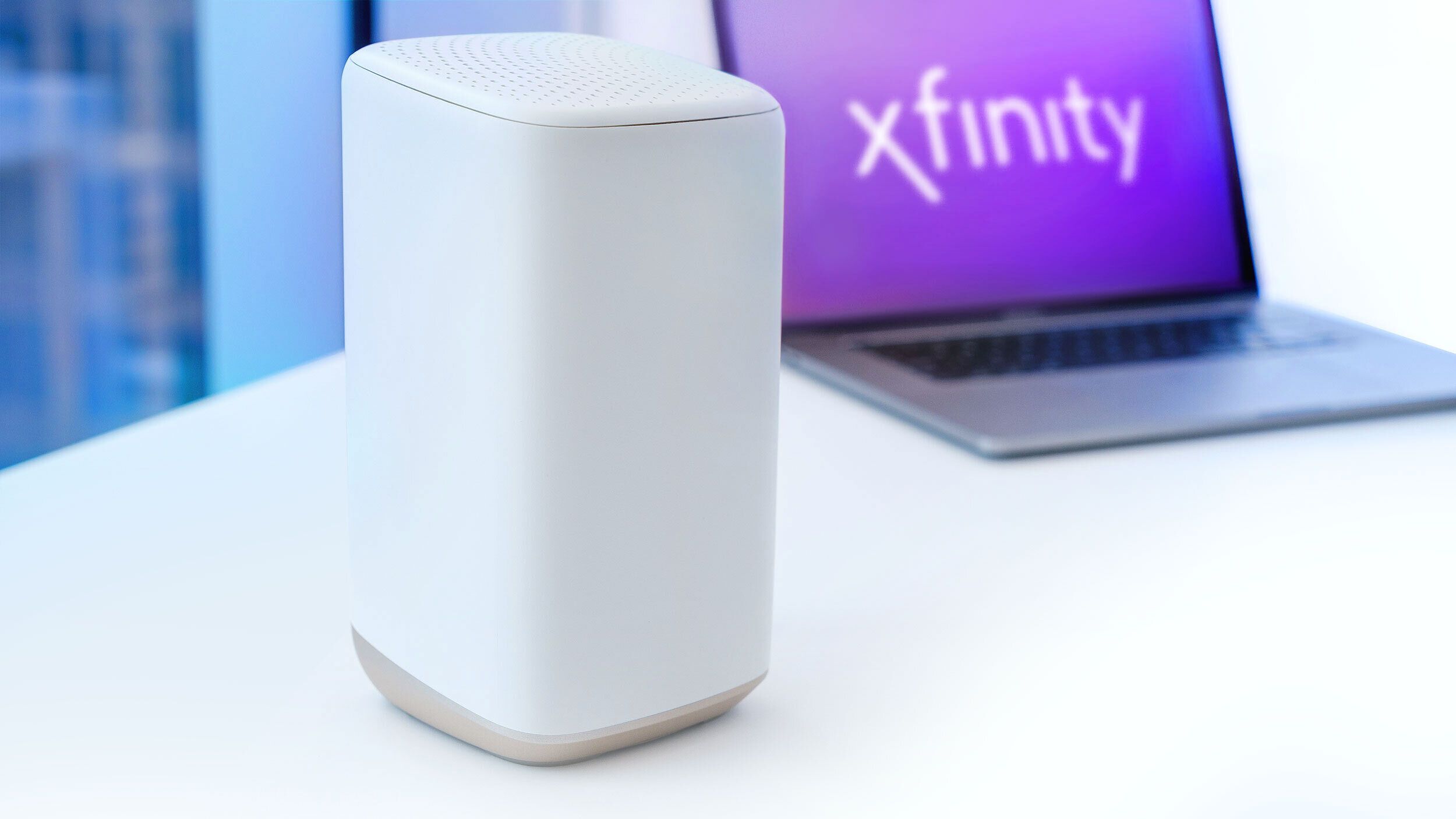
The Xfinity Gateway blinking green can mean different things. This light signals the device’s status and helps users understand what is happening. Knowing why the green light blinks avoids confusion and guides you toward the right action.
Sometimes, it is a normal part of the device’s operation. Other times, it points to issues or updates. Let’s explore the main reasons behind the green blinking light on your Xfinity Gateway.
Normal Startup Process
When you first turn on your Xfinity Gateway, the green light may blink. This means the device is powering up and checking its systems. The blinking should stop once the startup finishes. The gateway prepares to connect to the internet during this time. A blinking green light here is normal and shows the device is working.
Connection Issues Indicated By Green Blinking
A blinking green light can also signal connection problems. It might mean the gateway is trying to establish a link but cannot complete it. This can happen if the cables are loose or the internet service is down. The device blinks green to alert you that it needs attention. Checking the cables and service status can help solve this issue.
Firmware Updates And Their Impact
The Xfinity Gateway sometimes updates its software automatically. During these updates, the green light may blink. This blinking shows the device is installing new firmware. It usually stops after the update finishes. Interrupting this process can cause problems. Patience is key while the gateway updates itself.
Basic Troubleshooting Steps
When your Xfinity Gateway blinks green, start with basic troubleshooting steps. These simple checks often fix the issue fast. They help you avoid calling support and save time. Follow these steps carefully for better results.
Restarting The Gateway
Turn off your Xfinity Gateway first. Unplug it from the power source. Wait for about 30 seconds. Plug it back in and turn it on. This clears minor glitches and refreshes the connection. Watch the lights after restarting. The green blinking should stop soon.
Checking Cable Connections
Check all cables connected to your Gateway. Make sure the coaxial cable is tight and secure. Inspect the power cable for any damage. Loose or damaged cables cause connection problems. Secure all cables firmly and see if the green light stops blinking.
Verifying Service Outages
Service outages can cause the Gateway to blink green. Check for outages in your area on the Xfinity website or app. You can also call customer service for updates. If there is an outage, wait until it is fixed. Your Gateway will return to normal afterward.
Advanced Fixes For Persistent Green Blinking
The persistent green blinking on your Xfinity Gateway can signal deeper issues. Basic steps might not fix it. Advanced fixes help solve stubborn problems. These methods require careful handling but often bring success. Proceed with clear instructions for best results.
Resetting The Gateway To Factory Settings
Resetting the gateway clears all settings. It returns the device to its original state. Use a small pin to press the reset button. Hold it for about 10 seconds. Release and wait for the gateway to restart. This can fix software glitches causing the green blink.
Updating Gateway Firmware Manually
Firmware controls the gateway’s functions. Outdated firmware may cause blinking lights. Access the gateway’s admin page via a browser. Check for available firmware updates. Download and install the latest version. This update can improve performance and fix bugs.
Adjusting Network Settings
Network settings affect the gateway’s connection. Login to the admin panel to change settings. Adjust channel frequencies to avoid interference. Change IP settings if conflicts appear. Save changes and reboot the gateway. Proper settings can stop the green blinking.
When To Contact Xfinity Support
The Xfinity Gateway blinking green can signal various issues. Knowing when to contact Xfinity support saves time and frustration. Some problems require professional help beyond basic troubleshooting. Here is how to decide the right moment to reach out to Xfinity support.
Identifying Hardware Problems
Hardware issues often cause the blinking green light on the gateway. If the device shows no signs of power or the lights stay green for too long, it might be faulty. Try restarting the gateway first. If the issue continues, it may indicate damaged hardware. In such cases, contacting Xfinity support is necessary to diagnose the problem accurately.
Scheduling A Technician Visit
Sometimes, the problem needs a technician’s visit. If remote troubleshooting fails, Xfinity support can arrange a service call. The technician checks the gateway and other equipment on-site. They can fix wiring, replace parts, or test the connection. Scheduling a visit ensures expert help and faster problem resolution.
Exploring Replacement Options
A blinking green light could mean the gateway needs replacement. Xfinity support can confirm if the device is outdated or damaged. They offer replacement options, often with new models or upgraded devices. Contacting support helps find the best solution and keeps your internet running smoothly.
Preventing Future Connection Issues
Preventing future connection issues with your Xfinity Gateway keeps your internet steady. Small steps can stop problems before they start. Focus on where you place your device, keep its software up to date, and watch how your network performs.
Proper Gateway Placement
Place the gateway in an open, central spot in your home. Avoid corners, walls, or metal objects nearby. These block signals and cause weak connections. Keep the device off the floor and away from other electronics. This helps it send and receive signals clearly.
Regular Firmware Updates
Update your gateway’s firmware regularly. These updates fix bugs and improve performance. Check the Xfinity app or website for new versions. Installing updates keeps your device secure and running smoothly. Set reminders to check for updates monthly.
Monitoring Network Performance
Watch your network’s speed and uptime often. Use tools in the Xfinity app to track performance. Spot slowdowns early to fix them fast. Note the times issues happen to find patterns. Good monitoring helps you keep your internet reliable.
Credit: www.androidpolice.com
Credit: www.localcabledeals.com
Frequently Asked Questions
What Does A Blinking Green Light On Xfinity Gateway Mean?
A blinking green light shows the gateway is starting up or syncing with the network. It means the device is not fully ready yet. Wait a few minutes for it to stop blinking.
How Long Should Xfinity Gateway Blink Green Before Working?
The blinking green light usually lasts 5 to 10 minutes during startup. If it blinks longer, there might be a connection or hardware problem. Restarting the device can help fix this.
Can Blinking Green Light Indicate An Internet Outage?
Yes, a blinking green light can signal a temporary internet outage. The gateway tries to reconnect to the network during this time. Check with Xfinity to confirm if there is an outage.
How Do I Fix Xfinity Gateway Blinking Green Light Issue?
Try restarting your gateway by unplugging it, waiting 30 seconds, then plugging it back in. Ensure all cables are secure and undamaged. If blinking continues, contact Xfinity support for help.
Does Blinking Green Light Affect Internet Speed Or Service?
A blinking green light means the gateway is not fully connected, so internet may be slow or unavailable. Once the light turns solid green, your service should return to normal.
Conclusion
A blinking green light on your Xfinity Gateway means it is trying to connect. This can happen for many reasons. Restart the gateway first to see if it helps. Check cables and internet service status next. If the light keeps blinking, contact Xfinity support for help.
Staying calm and patient works best. Your internet will be back soon. Understanding this simple signal can save time and stress. Keep these tips in mind for a smoother connection.