Is your Rollo printer blinking red and you’re not sure what it means? This simple flashing light can be frustrating, especially when you have labels to print right now.
But don’t worry—understanding why your printer is signaling you can save you time and keep your tasks on track. You’ll discover the common reasons behind that blinking red light and easy steps you can take to fix it quickly. Keep reading, and you’ll have your Rollo printer back up and running in no time.
Common Causes Of Red Blinking
The red blinking light on your Rollo printer signals a problem. It warns you that the printer needs attention. Understanding the common causes helps solve the issue fast.
Several reasons can trigger the red blinking light. Knowing each cause can guide you to fix the printer and get back to work quickly.
Power Supply Issues
One common cause is a power supply problem. The printer may not get enough power. Check the power cable is firmly plugged in. Also, verify the outlet works by testing another device. A loose or faulty power source can cause the light to blink red.
Paper Jam Problems
Paper jams often cause red blinking. Paper stuck inside blocks the printer’s mechanism. Open the printer carefully and remove any jammed paper. Use gentle hands to avoid damage. Clearing jams usually stops the blinking light.
Connectivity Errors
Connectivity issues can make the printer blink red. The printer may lose connection with your computer or network. Check cables or wireless settings. Reconnect the printer to the device. A stable connection helps the printer work smoothly.
Firmware Glitches
Firmware glitches sometimes cause red blinking. The printer’s software may have a bug or error. Restart the printer to reset it. Updating the firmware to the latest version can fix bugs. This keeps the printer running without errors.
Simple Troubleshooting Steps
Simple troubleshooting steps can fix many Rollo printer issues. The red blinking light often means the printer needs attention. Follow these easy steps to get your printer working again fast.
Try each step carefully. This can save time and avoid extra problems. These tips are useful for most common printer errors.
Check Power And Cables
Make sure the printer is plugged in. The power cable should be secure in the outlet and printer. Check the USB or network cable. It must connect tightly to both devices. Loose cables cause errors and blinking lights.
Clear Paper Jams
Open the printer cover. Look inside for stuck paper. Gently remove any jammed sheets. Be careful not to tear the paper. Paper jams block the rollers and cause the red light.
Reset The Printer
Turn off the printer. Unplug it from the power source. Wait about 30 seconds. Plug it back in and turn it on. Resetting clears minor errors and resets the printer’s system.
Update Firmware
Visit the official Rollo website. Download the latest firmware for your printer model. Follow the instructions to update. Firmware updates fix bugs and improve printer performance. This step often stops the red blinking light.
Advanced Fixes
Advanced fixes help solve complex issues causing the Rollo printer to blink red. These steps go beyond basic checks. They dig deeper into software and hardware problems. Follow each method carefully to avoid damage.
Reinstall Printer Drivers
Printer drivers control how your computer talks to the printer. Corrupt or outdated drivers can cause errors. Uninstall the current drivers first. Download the latest version from the official Rollo website. Install the new drivers and restart your computer. This often stops the red light from blinking.
Inspect Internal Components
Open the printer case carefully. Look for loose cables or parts inside. Check the print head and rollers for dust or damage. Use a soft cloth to clean dirty parts. Make sure everything fits tightly. Internal faults often cause blinking red lights.
Test With Different Devices
Connect the Rollo printer to another computer or device. This helps check if the issue is with the printer or your original device. Use a different USB cable if possible. If the printer works fine on a new device, the problem is likely with your first computer.
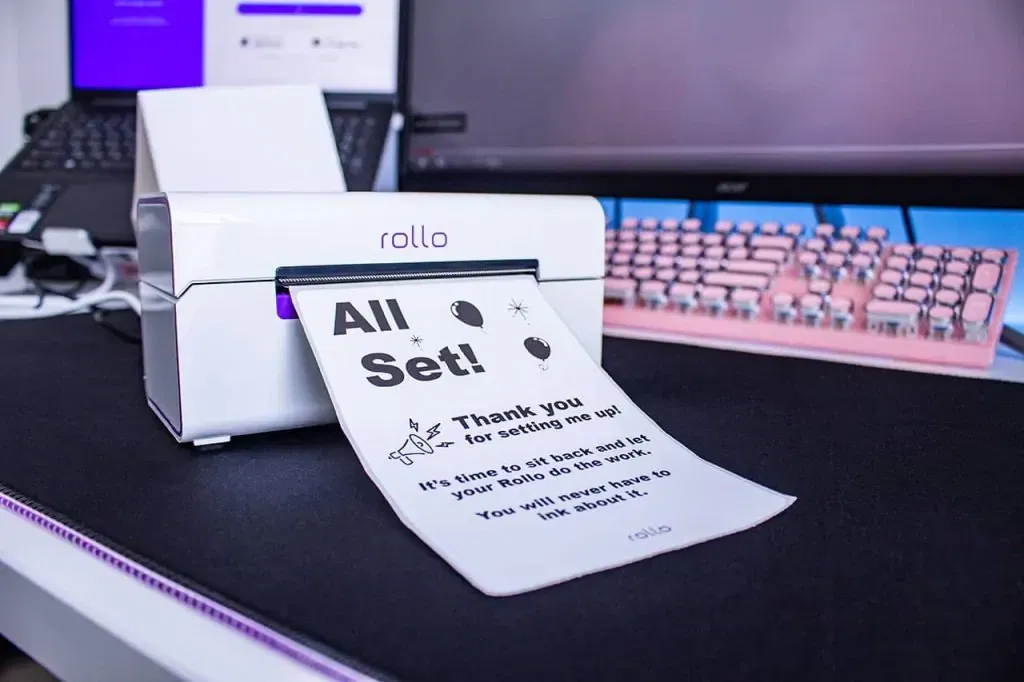
Credit: www.rollo.com
Preventive Measures
Preventing the Rollo printer from blinking red helps keep it working well. Simple steps can stop many common problems. Careful use and regular checks reduce errors. Follow these tips to avoid printer issues and save time.
Regular Maintenance Tips
Clean the printer regularly to avoid dust build-up. Use a soft cloth to wipe the exterior. Clear any paper scraps inside the printer. Check the rollers for dirt and clean them gently. Regular maintenance keeps the printer running smoothly and stops blinking errors.
Proper Paper Loading
Load the paper correctly to prevent jams and errors. Align labels or rolls straight in the tray. Avoid overfilling the paper slot. Use the recommended paper type for your Rollo printer. Proper loading reduces stress on the printer and stops blinking red lights.
Safe Firmware Updates
Keep your printer’s firmware up to date for best performance. Download updates only from the official Rollo website. Follow update instructions carefully to avoid mistakes. Do not turn off the printer during updates. Safe firmware updates fix bugs and improve printer stability.
When To Contact Support
Knowing when to contact support for your Rollo printer blinking red light saves time. It helps avoid unnecessary troubleshooting steps. This section guides you on when to reach out for professional help. It focuses on spotting hardware failures and understanding repair options.
Identifying Hardware Failures
Not all blinking red lights mean hardware failure. But persistent blinking after basic checks may signal a problem. Signs include unusual noises, failure to print, or paper jams. If the printer does not respond after power cycling, it might need support. Hardware issues often need expert diagnosis and repair.
Warranty And Repair Options
Check your Rollo printer warranty before contacting support. Most printers come with a one-year warranty covering defects. Support can guide you through repair or replacement steps. Authorized service centers handle warranty repairs to keep your coverage valid. Outside warranty, support can still offer repair advice or paid services.

Credit: sites.google.com
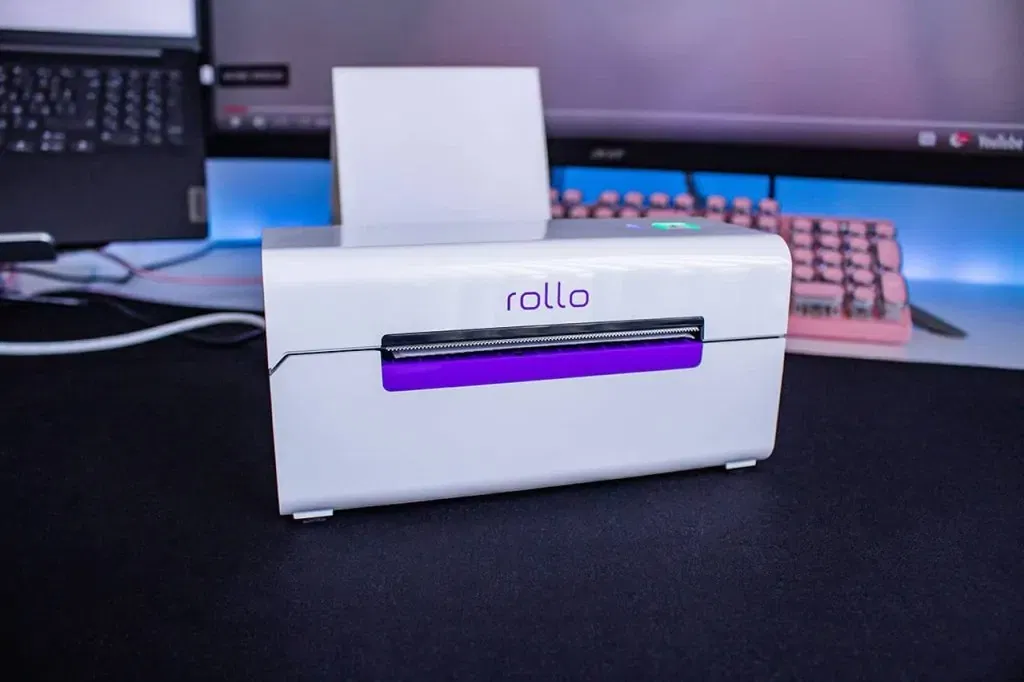
Credit: www.rollo.com
Frequently Asked Questions
Why Is My Rollo Printer Blinking Red?
A blinking red light means an error or problem with the printer. Check paper jams, power connection, and label roll placement.
How Can I Fix A Red Blinking Light On Rollo Printer?
Turn off the printer, check for paper jams, and reload the labels. Restart the printer to see if the light stops blinking.
What Does A Solid Red Light On Rollo Printer Mean?
A solid red light usually shows a serious hardware or connection issue. Check USB or power cables and try a different outlet.
Does Rollo Printer Blink Red When Out Of Labels?
Yes, the printer blinks red if there are no labels or if labels are loaded incorrectly. Make sure labels are properly aligned.
Can Firmware Cause Rollo Printer To Blink Red?
Outdated firmware may cause errors and blinking lights. Update the firmware using Rollo’s official website to fix bugs and improve performance.
Conclusion
A blinking red light on your Rollo printer signals a problem. Check the paper, power, and connections first. Make sure the printer is clean and free of jams. Restarting the printer can often clear errors quickly. If the light stays red, consult the manual or support.
Taking these steps helps keep your printer running smoothly. Don’t ignore the warning light; act fast to avoid delays. Your Rollo printer works best when maintained properly. Simple fixes often solve blinking red light issues. Stay patient and follow the steps carefully.