
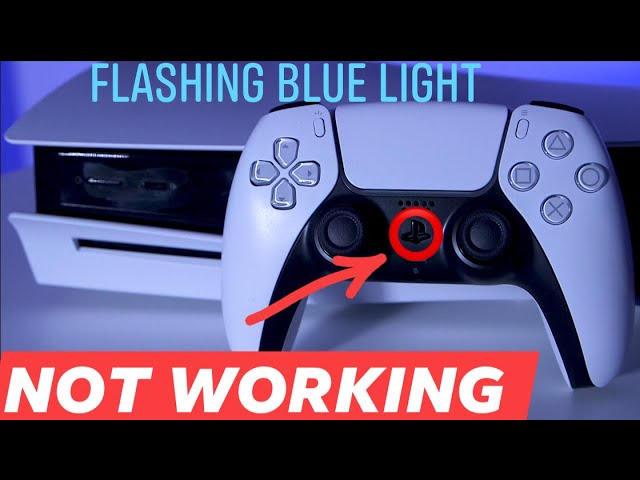
Are you staring at your PS5 controller, wondering why it keeps blinking blue? It’s frustrating when your gaming session is interrupted by a flashing light you don’t understand.
But don’t worry—this blinking blue light is trying to tell you something important about your controller. You’ll discover exactly what causes this issue and how you can fix it quickly. Keep reading, and you’ll be back to gaming without any hassle.
Credit: www.youtube.com
Reasons For Blinking Blue Light
The blinking blue light on your PS5 controller can be confusing. This light signals that something is not working right. Understanding the reasons behind the blinking helps fix the issue quickly. Here are the main causes of the blinking blue light.
Connection Issues
The controller might not connect properly to the console. Wireless interference can disrupt the signal. Sometimes, the controller is too far from the PS5. The Bluetooth connection may also fail to pair. These problems cause the blue light to blink.
Firmware Glitches
The controller’s software may have bugs. Outdated firmware can cause the light to flash. A glitch might stop the controller from syncing. Updating the controller’s software can fix this. Firmware problems often make the light blink continuously.
Battery Problems
A low battery can trigger the blinking light. The controller may not charge correctly. Damaged cables or charging ports cause power issues. The blinking blue light shows the controller needs power. Checking the battery status helps find this problem.
Hardware Malfunctions
Internal hardware faults can cause the blinking. Loose connections inside the controller may trigger the light. Damage from drops or spills affects performance. Faulty components prevent normal operation. The blinking blue light warns about these hardware issues.
Basic Troubleshooting Steps
When your PS5 controller blinks blue, it usually means the controller is trying to connect. This can happen for many reasons. Basic troubleshooting can often fix the issue quickly. Follow these simple steps to get your controller working again.
These easy checks help solve common connection problems. They take just a few minutes and need no special tools. Try them one by one to find the cause.
Restart The Controller
Turn off the controller by holding the PS button for 10 seconds. Wait a few seconds, then press the PS button again. This simple restart can clear small glitches causing the blue light.
Reboot The Console
Turn off your PS5 completely. Wait 30 seconds before turning it on again. Restarting the console resets its system and helps fix connection issues with the controller.
Check The Usb Cable
Use the original USB cable that came with your PS5. Inspect the cable for damage or wear. A bad cable can stop the controller from syncing properly. Try a different cable if you suspect a problem.
Charge The Controller Fully
Connect the controller to the console and let it charge. The blue light may blink if the battery is low. Charging it fully can stop the blinking and improve connection stability.
Resetting The Ps5 Controller
Resetting the PS5 controller can fix many connection problems. This step helps when the controller keeps blinking blue and won’t connect properly. The process is quick and easy, and you do not need any special tools. Follow the instructions below carefully to reset your controller and restore its normal function.
Locate The Reset Button
Turn the controller over to see the back side. Look near the L2 button area. You will find a small hole there. This hole holds the reset button inside. Use a thin object like a paperclip to press it. Do not use anything sharp or large.
Performing The Reset
Press and hold the reset button inside the hole for about 5 seconds. Release the button after this time. The controller will power down and reset its settings. This clears any errors causing the blinking blue light.
Re-pairing With The Console
Connect the controller to the PS5 using a USB cable. Press the PS button on the controller. The light should stop blinking and stay solid. This means the controller is paired with the console. You can now use it as normal.
Updating Controller Firmware
Updating the firmware of your PS5 controller can fix many common issues. One such issue is the controller blinking blue. This blinking often signals a connection or software problem. Keeping your controller’s firmware updated ensures better performance and fewer glitches. The process is simple and helps maintain a smooth gaming experience.
Checking For Updates
Turn on your PS5 console and connect your controller. Go to the Settings menu. Select “Accessories” and then “Controllers.” Choose “Wireless Controller Device Software.” Here, you will see if an update is available. If there is an update, the system will prompt you to install it. Checking regularly keeps your controller’s software current.
Installing Firmware Updates
Once an update is found, select “Update.” The controller will start downloading the new firmware. Do not turn off the console or disconnect the controller during this process. The update may take a few minutes. After the update finishes, the controller will restart automatically. This step can resolve the blinking blue light problem.
Ensuring Stable Connection
Use a good quality USB cable to connect the controller. Avoid using damaged or loose cables. Keep the controller close to the console during updates. A strong connection prevents interruption during firmware installation. After updating, test the controller by disconnecting and reconnecting wirelessly. Stable connections reduce blinking light issues.
Advanced Fixes For Persistent Issues
Some PS5 controller issues need deeper solutions. Simple resets may not fix blinking blue lights. Advanced fixes help solve these persistent problems. They can restore normal function without extra cost.
Try these steps carefully. Each method targets different causes. Follow the instructions to improve your controller’s connection and power.
Using Safe Mode On Ps5
Safe Mode helps fix software glitches affecting controllers. Turn off your PS5 completely. Press and hold the power button for seven seconds until you hear two beeps.
Connect the controller with a USB cable. Choose “Rebuild Database” or “Reset PS5” from the menu. This clears corrupted files that may cause blinking blue lights. Restart the console and test the controller.
Testing With Another Controller
Check if the problem is with the controller or console. Connect a different PS5 controller to your console. Observe if it also blinks blue.
If the second controller works fine, your first controller may be faulty. This narrows down the problem to the device itself, not the console or software.
Replacing The Battery
A weak or damaged battery can cause blinking blue lights. Buy a replacement battery suitable for PS5 controllers. Open the controller carefully using the right tools.
Remove the old battery and insert the new one. Reassemble the controller and charge it fully. Test the controller to see if the blinking stops.

Credit: www.wikihow.com
Preventing Future Blinking Issues
Preventing future blinking issues with your PS5 controller helps keep your gaming smooth. The blinking blue light often signals a connection or power problem. Taking care of your controller can stop these problems before they start. Simple steps can make a big difference in your controller’s performance and lifespan.
Proper Charging Habits
Charge your PS5 controller regularly but avoid overcharging. Use the original charging cable for the best results. Do not leave the controller plugged in for days at a time. Charge it until full, then unplug it to protect the battery. Avoid using cheap or damaged chargers. These can cause power issues and blinking lights.
Keeping Firmware Updated
Keep your PS5 and controller firmware up to date. Firmware updates fix bugs and improve performance. Connect your controller to the console and check for updates often. Updated software helps prevent blinking blue light problems. Updates also improve battery management and connectivity.
Avoiding Physical Damage
Handle your controller with care to avoid damage. Don’t drop or hit it against hard surfaces. Keep it away from water and extreme temperatures. Physical damage can cause internal faults that trigger blinking lights. Store the controller in a safe place when not in use. Using a protective case can help prevent accidents.

Credit: www.wikihow.com
Frequently Asked Questions
Why Is My Ps5 Controller Blinking Blue?
A blinking blue light means the controller is trying to connect to the PS5. It could be pairing or waiting for connection.
How Do I Fix A Ps5 Controller Blinking Blue?
Try resetting the controller using a small pin in the reset hole. Then, reconnect it to the console via USB cable.
Does Blinking Blue Light Mean Low Battery On Ps5 Controller?
No, blinking blue light usually signals connection issues, not battery level. Low battery shows a red or orange light.
Can Bluetooth Cause Ps5 Controller To Blink Blue?
Yes, Bluetooth connection problems can make the controller blink blue. Re-pairing the controller often fixes this issue.
Will Updating Ps5 Fix Blinking Blue Controller Light?
Sometimes, updating the PS5 system software helps fix controller connection bugs. Always keep your console updated for best performance.
Conclusion
A blinking blue light on your PS5 controller signals connection issues or charging needs. Try resetting the controller or reconnecting it to the console. Check the USB cable and charging port for problems. Sometimes, a simple restart of the console fixes the issue.
Keep your controller updated with the latest firmware. If the blinking continues, the controller might need repair or replacement. These steps help keep your gaming smooth and uninterrupted. Stay patient and follow these tips for a better gaming experience.