
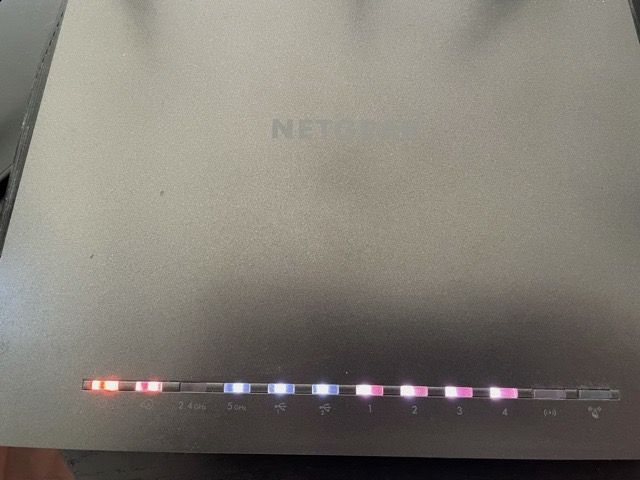
Is your Netgear router blinking orange and leaving you frustrated? You’re not alone.
That blinking orange light can feel like a warning sign, making you wonder if your internet is about to go down or if something is seriously wrong. But don’t panic just yet. Understanding what that orange light means and how to fix it can save you time and stress.
You’ll discover simple steps to get your router back to normal, so you can enjoy a smooth, reliable connection again. Keep reading—you’re closer to solving the problem than you think.

Credit: www.youtube.com
Causes Of Orange Blinking Light
The orange blinking light on a Netgear router signals a problem. Understanding the causes helps fix the issue faster. This light warns about power, firmware, network, or service troubles. Knowing what triggers the blinking guides the right solution.
Power And Hardware Issues
A weak power supply can cause the orange light to blink. Loose cables or faulty adapters disrupt the router’s function. Overheating or internal hardware faults may also trigger the warning. Check all connections and ensure the router is cool and stable.
Firmware Problems
Outdated or corrupted firmware often causes the router to blink orange. Firmware controls how the router works and connects to the internet. Errors during updates or bugs can stop the router from working properly. Updating or reinstalling firmware can clear this problem.
Network Connection Errors
Network issues like poor signal or wrong settings cause the orange light. The router may fail to connect with the modem or other devices. Faulty cables or wrong IP settings also block proper communication. Fixing these errors restores the network and stops the blinking.
Isp Service Interruptions
The orange blinking can mean your internet service provider has a problem. Service outages or maintenance work disrupt the internet signal. The router blinks as it tries to reconnect to the ISP. Confirm with your provider if their service is down in your area.
Credit: community.netgear.com
Basic Troubleshooting Steps
When a Netgear router blinks orange, it signals a problem with the connection. Basic troubleshooting steps help fix this issue. These steps are simple and do not need special tools. Follow each step carefully to find the cause.
Restarting The Router
Turn off your router by pressing the power button. Wait for 30 seconds. This pause lets the router clear its memory and reset. Turn the router back on. Watch if the orange light stops blinking. Restarting often solves minor software glitches.
Checking Cable Connections
Check all cables connected to your router. Make sure the Ethernet cable is firmly plugged into the correct port. Inspect the cables for any visible damage or wear. Loose or damaged cables can cause connection issues. Secure all cables tightly and see if the light changes.
Verifying Power Supply
Confirm the power adapter fits well into the router and the power outlet. A loose or faulty power supply can cause the orange blinking light. Try using a different power outlet. If possible, test with another compatible power adapter. Stable power is crucial for router performance.
Resetting The Router
Resetting your Netgear router is a common way to fix the blinking orange light. It clears minor issues that may cause connection problems. There are two types of resets: soft reset and factory reset. Each serves a different purpose.
Soft reset helps refresh the router without deleting your settings. Factory reset restores the router to its original state. Knowing when to use each reset is important for solving network issues effectively.
Soft Reset Procedure
To perform a soft reset, locate the power button on your Netgear router. Turn off the router and wait for 10 seconds. Turn it back on and wait for the lights to stabilize. This process refreshes the router’s system without erasing any settings.
Factory Reset Method
Factory reset deletes all custom settings and returns the router to default. Find the reset button, usually a small hole at the back. Use a paperclip to press and hold it for 10 seconds. Release the button and wait for the router to restart. After this, reconfigure your router’s settings.
When To Reset
Try a soft reset first if the orange light blinks briefly. Use a factory reset if the light keeps blinking after a soft reset. Reset the router if you change network settings and face issues. Factory reset works well when you forget your password or settings.
Updating Firmware
Updating your Netgear router’s firmware can fix many issues, including a blinking orange light. Firmware is the software inside the router. It controls how the device works. Keeping firmware updated helps improve performance and security. Follow the steps below to update your router’s firmware safely.
Checking Current Firmware Version
Start by finding your router’s current firmware version. Open a web browser on a device connected to your router. Type the router’s IP address into the address bar, usually 192.168.1.1 or 192.168.0.1. Log in with your username and password. Navigate to the “Firmware” or “Router Update” section. Note the version number shown there. This tells you if you need an update.
Downloading Updates
Visit the official Netgear support website. Enter your router’s model number in the search box. Download the latest firmware file available. Make sure it matches your exact router model. Save the file to a location you can easily find on your computer.
Installing Firmware Safely
Return to the router’s web interface. Go to the firmware update section. Click the option to upload the file you downloaded. Select the firmware file and start the update process. Do not turn off the router or disconnect it from power. Wait patiently until the update finishes. The router will restart automatically. Check if the blinking orange light stops after the update.
Advanced Fixes
The blinking orange light on your Netgear router can signal deeper issues. Basic fixes might not always work. Advanced fixes target the router’s settings and environment. These steps help restore a steady connection and improve network performance.
Adjusting Router Settings
Access the router’s admin panel using its IP address. Login with your username and password. Look for firmware updates and install them. Update can fix bugs causing the orange blinking. Check the DHCP settings. Ensure it is enabled to assign IP addresses properly. Reset any custom settings that might cause conflicts. Save changes and reboot the router.
Changing Wireless Channels
Wireless interference often causes connection problems. Routers broadcast on specific channels. Changing the channel can reduce signal overlap from neighbors. In the router settings, find the wireless channel option. Select a less crowded channel like 1, 6, or 11. Save the settings and restart the router. Test if the blinking orange light stops after this change.
Checking For Interference
Physical objects and electronic devices can interfere with Wi-Fi signals. Place the router away from walls, metal objects, and microwaves. Avoid positioning it near cordless phones or baby monitors. Thick walls also block signals. Try moving the router to a central, open location. Remove any nearby devices that cause interference. Check the connection again after repositioning.
When To Contact Support
Knowing when to contact support for a Netgear router blinking orange helps solve issues faster. Sometimes, the problem is simple and can be fixed at home. Other times, support is needed to avoid more problems. Recognizing the right moment to reach out saves time and stress.
Identifying Persistent Issues
If the orange light blinks for a short time, wait a few minutes. The router may be updating or restarting. But if the light keeps blinking for hours, the problem is persistent. Also, if your internet stops working or slows down, it is a sign. Try basic fixes first. When these do not work, note the issue.
Gathering Information Before Calling
Before calling support, collect details about your router and network. Know the router model and firmware version. Write down the exact blinking pattern of the orange light. Check if other devices have connection problems. Note any recent changes in your setup. This information helps support find a solution faster.
What To Expect From Support
Support will ask about your problem and the details you gathered. They guide you through steps to fix the issue. Sometimes, they may ask you to reset the router or update firmware. If needed, they can arrange a replacement. Support aims to restore your internet quickly and clearly.
Credit: www.reddit.com
Frequently Asked Questions
What Does A Blinking Orange Light On Netgear Router Mean?
A blinking orange light on a Netgear router usually signals a connection issue. It often means the router is trying to connect to the internet but fails. This can happen due to network or hardware problems.
How Can I Fix My Netgear Router Blinking Orange?
Restart the router by unplugging it for 30 seconds, then plug it back in. Check all cables to ensure they are secure. Resetting the router to factory settings can also help.
Is Blinking Orange Light A Sign Of Internet Outage?
Yes, a blinking orange light often indicates no internet connection. It shows the router is powered but cannot connect to the internet. Check with your internet provider to confirm outages.
Can Firmware Updates Fix Netgear Router Blinking Orange?
Updating the firmware can fix bugs that cause the blinking orange light. Visit Netgear’s support website to download the latest firmware. Follow the update instructions carefully to avoid issues.
Should I Replace My Netgear Router If Orange Light Blinks?
Not always. Try troubleshooting steps first, like restarting or resetting the router. Replace it only if problems persist after multiple attempts to fix it.
Conclusion
A blinking orange light on your Netgear router signals a problem. It could mean a firmware update, connection issue, or hardware fault. Try restarting your router first to clear simple errors. Check cables and internet service if the light stays orange.
Resetting to factory settings might help if nothing else works. Keep your router’s firmware updated for best performance. Understanding these steps can save time and frustration. Stay patient; most issues fix quickly with basic troubleshooting. Your internet should be back to normal soon.