
Are you staring at your Lenovo laptop, worried because the Esc, F1, and F4 keys are blinking nonstop? This flashing light can feel like a warning sign, leaving you unsure about what’s wrong or how to fix it.
But don’t panic—this blinking usually means your laptop is trying to tell you something important. You’ll discover exactly why those keys are blinking and what simple steps you can take to get your Lenovo back to normal fast. Keep reading to take control and save yourself time and frustration.
Causes Of Esc F1 F4 Blinking
The Esc F1 F4 blinking on Lenovo laptops is a common issue. It signals that something is wrong with your device. Understanding the causes helps you fix it faster. The blinking can stem from hardware, software, or BIOS problems.
Hardware Issues
Hardware problems often cause the Esc F1 F4 lights to blink. Faulty RAM or a loose connection can trigger this warning. A failing hard drive or damaged motherboard also leads to blinking. Physical damage or dust inside the laptop may cause hardware failure.
Software Glitches
Software errors can make the Esc F1 F4 lights blink. Corrupted system files or bad drivers cause these glitches. Conflicts between installed programs can also create this issue. Malware or viruses sometimes interfere with normal operation.
Bios And Firmware Problems
BIOS or firmware issues often cause the blinking lights. Outdated or corrupted BIOS can trigger error signals. Incorrect BIOS settings may also lead to this problem. A failed BIOS update can stop the laptop from working properly.
Basic Troubleshooting Steps
Basic troubleshooting steps can help fix the Esc F1 F4 blinking issue on Lenovo laptops. These steps are simple and quick. They often solve the problem without needing expert help. Follow these steps carefully to check your device.
Restart Your Lenovo Device
Turn off your Lenovo laptop completely. Wait for 10 seconds before turning it back on. Restarting clears temporary glitches in the system. This can stop the blinking lights from appearing. Make sure to save your work before restarting.
Check Keyboard Connections
Loose or damaged keyboard connections cause blinking issues. Turn off your laptop and unplug it from power. If you use an external keyboard, disconnect it. For built-in keyboards, gently press around the edges to check if it’s loose. Reconnect the keyboard firmly to fix any connection problems.
Remove External Devices
External devices like USB drives and mice can cause conflicts. Remove all connected devices from your Lenovo laptop. Restart the laptop after removal. Check if the blinking stops. Plug devices back one by one to find the problem source. This helps identify the faulty device causing the issue.
Bios And Firmware Updates
BIOS and firmware updates can fix many issues with Lenovo laptops. They often solve problems like Esc F1 F4 blinking errors. Updating these system components keeps your laptop stable and secure. This section explains how to access, update, and reset BIOS safely.
Accessing Bios Settings
Turn off your Lenovo laptop first. Press the power button and quickly hit the F2 or Delete key. This opens the BIOS menu. Some models use the Novo button instead. Look for the BIOS setup option. Use arrow keys to move through menus. Do not change settings without knowing their purpose.
Updating Bios Safely
Visit the official Lenovo support website. Enter your laptop model and download the latest BIOS update. Save the file to a USB drive or your desktop. Make sure your laptop is plugged into power. Run the update tool and follow the on-screen steps. Do not turn off or restart the laptop during update. Interrupting the process can cause serious damage.
Resetting Bios To Default
Access BIOS settings again. Find the option labeled “Load Setup Defaults” or “Reset to Default.” Select it and confirm your choice. This resets all BIOS settings to factory values. Use this step if your laptop has strange errors or won’t start properly. Save changes and exit BIOS. The laptop will restart with default settings.

Credit: www.reddit.com
Keyboard And Hardware Checks
Checking the keyboard and hardware is important when the Esc, F1, or F4 keys blink on a Lenovo laptop. Problems might come from physical damage, dirt, or internal issues. These checks help find the cause and decide the next steps.
Inspecting For Physical Damage
Look closely at the keyboard for any cracks or broken keys. Check if any keys are stuck or loose. Bent or damaged keycaps can cause blinking issues. Also, inspect the laptop body near the keyboard for dents or bends. Damage might affect the keyboard’s connection to the laptop.
Cleaning The Keyboard
Dust and debris can cause keys to act weird. Use a soft brush or compressed air to clean between the keys. Wipe the keyboard with a dry, soft cloth. Avoid using liquids directly on the keyboard. Keeping the keyboard clean helps prevent blinking problems.
Testing With External Keyboard
Connect an external USB keyboard to the laptop. Check if the Esc, F1, and F4 keys blink on the external keyboard. If the blinking stops, the built-in keyboard might have a fault. If blinking continues, the problem could be inside the laptop’s hardware or software.
Software Fixes And Driver Updates
Software problems often cause the Esc F1 F4 blinking issue on Lenovo laptops. Updating drivers and running diagnostics can fix the problem. These steps help the system understand the keyboard better. They also detect hidden errors affecting keyboard function.
Using the right tools from Lenovo can make troubleshooting easier. Below are simple software fixes and driver update methods to try.
Updating Keyboard Drivers
Keyboard drivers control how your laptop reads key presses. Old or corrupted drivers can cause blinking lights. Update your drivers by opening Device Manager. Find the keyboard device, right-click, and select “Update driver.”
Choose “Search automatically for updated driver software.” Windows will find and install the latest driver. Restart your laptop after the update to apply changes. This process often stops the blinking issue.
Running System Diagnostics
System diagnostics check your laptop’s hardware and software health. Lenovo laptops have built-in diagnostic tools. Restart your laptop and press the F10 or F12 key during boot. Select the diagnostics option from the menu.
Run a full keyboard test. The tool will find any faults causing the blinking. Follow the on-screen steps to fix detected problems. Diagnostics help reveal issues not obvious in normal use.
Using Lenovo Support Tools
Lenovo offers support tools that simplify maintenance. Tools like Lenovo Vantage provide updates and system checks. Install Lenovo Vantage from the Microsoft Store if not already present.
Open the app and check for system and driver updates. Use its hardware scan to diagnose keyboard problems. This software keeps your laptop updated and stable, reducing blinking errors.
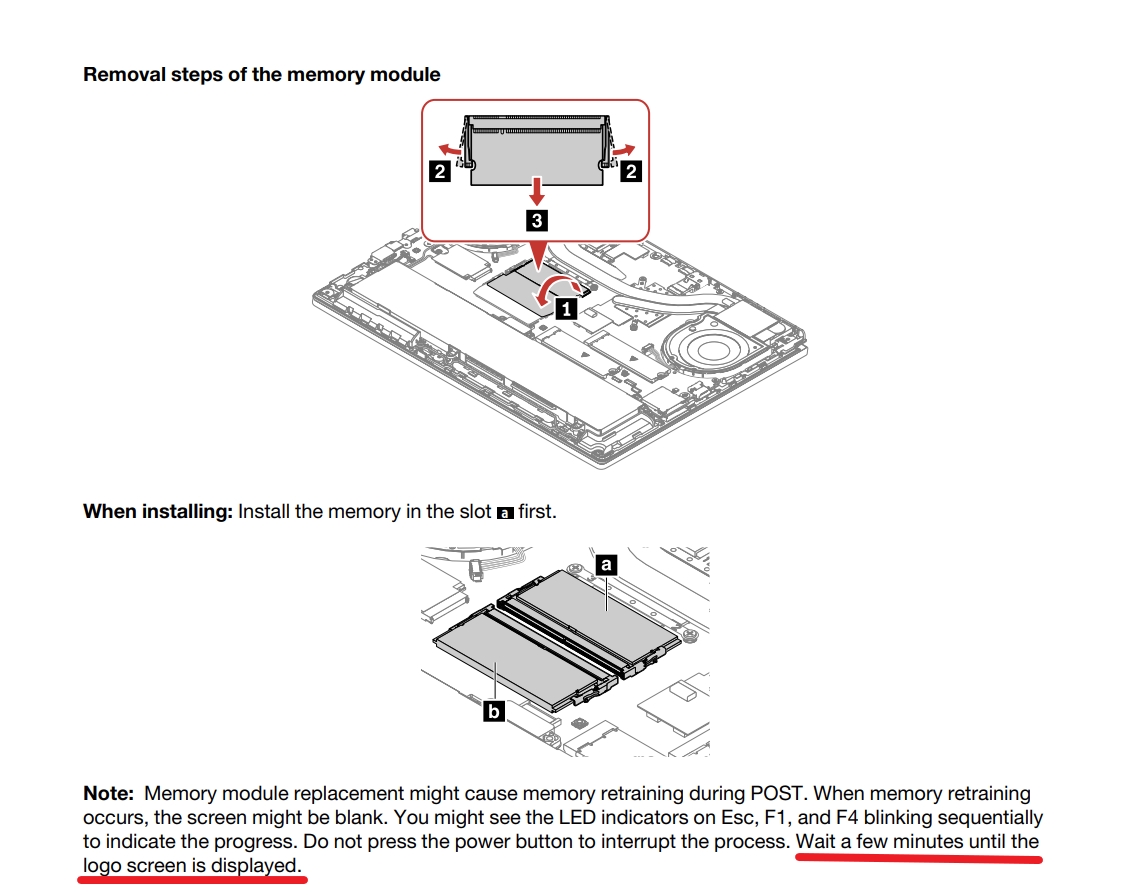
Credit: www.informaticar.net
When To Seek Professional Help
The blinking of the Esc, F1, and F4 keys on a Lenovo laptop signals an issue. Sometimes, it stops after a quick fix. Other times, the problem remains. Knowing when to get professional help can save time and frustration.
Professional technicians have the tools and knowledge to diagnose deep problems. They also offer solutions that might not be obvious to users. This section guides you on when to seek their help.
Identifying Persistent Issues
Persistent blinking means the issue is not simple. It may happen even after restarting the laptop. Or, the keys blink during normal use without any reason.
Other signs include slow performance, crashes, or error messages. These signs point to hardware or firmware problems. Persistent issues need professional diagnosis to avoid damage.
Contacting Lenovo Support
Lenovo offers expert help for hardware and software problems. Their support team can guide you through troubleshooting steps. They also provide warranty and repair information.
Contacting support early can prevent further damage. Use Lenovo’s official website or phone numbers to reach them. Have your laptop’s model and serial number ready.
Repair And Replacement Options
Technicians may suggest repairing specific components causing the blinking. This could involve keyboard replacement or motherboard fixes. Repair costs vary depending on the issue.
In some cases, replacement of parts or the entire device may be necessary. Lenovo support will explain warranty coverage and service options. Professional repairs ensure your laptop works safely and correctly.

Credit: www.reddit.com
Frequently Asked Questions
What Does Esc F1 F4 Blinking Mean On Lenovo?
The blinking Esc, F1, and F4 keys usually signal a hardware error. It often means a keyboard or system issue needs checking.
How To Fix Esc F1 F4 Blinking On Lenovo Laptops?
Restart the laptop and check for stuck keys or debris under them. Updating the keyboard driver can also help solve the problem.
Can Esc F1 F4 Blinking Cause Laptop Boot Failure?
Yes, this blinking can stop your laptop from starting properly. It indicates a critical error that needs fixing before booting.
Is Esc F1 F4 Blinking Related To Bios Issues?
The blinking keys may point to BIOS errors or failed hardware tests. Resetting or updating BIOS might resolve the issue.
When Should I Contact Lenovo Support For This Blinking?
Contact support if restarting or driver updates don’t fix the blinking. Persistent blinking often means hardware repair or replacement is needed.
Conclusion
The Esc F1 F4 blinking on your Lenovo can be annoying. It often signals hardware or software issues. Restart your laptop to check if the problem stops. Try updating your drivers or BIOS for better performance. Cleaning the keyboard might help if dirt causes the blinking.
If the problem stays, ask a technician for help. Fixing these issues keeps your Lenovo working well. Don’t ignore the blinking lights—they warn of deeper problems. Stay patient and follow simple steps to solve the issue. Your Lenovo will thank you with smooth use.