
Is your Dell Optiplex showing a blinking orange light and you’re not sure what it means? That little light might seem harmless, but it’s actually trying to tell you something important about your computer’s health.
Ignoring it could lead to bigger problems down the line. You’ll discover exactly why that orange light is flashing and what you can do to fix it quickly. Keep reading to take control of your Dell Optiplex and avoid unexpected crashes or costly repairs.
Blinking Orange Light Meaning
The blinking orange light on a Dell Optiplex signals an issue inside your computer. It acts as a warning to help you identify hardware problems. This light is not random. It follows specific blink patterns that point to different errors.
Understanding the meaning of this blinking orange light helps you fix problems faster. It saves time and prevents further damage. Let’s explore what causes this light to blink and how to read its error codes.
Common Causes
The blinking orange light often appears due to hardware failures. Power supply issues are a frequent cause. Faulty memory modules can trigger the warning. Sometimes, the motherboard or CPU may have problems. Loose or damaged cables also lead to this signal. Dust and overheating might cause temporary errors. Checking these areas first can help identify the root cause.
Error Code Patterns
Dell Optiplex uses specific blink patterns to show error codes. The number of blinks and pauses between them carry meaning. For example, two blinks often indicate memory failure. Three blinks might point to a motherboard problem. Five blinks can mean a CPU error. Counting these blinks carefully is important. Each pattern guides you to the exact faulty part. This helps in ordering correct replacement parts or seeking proper repair advice.
Initial Troubleshooting Steps
The Dell Optiplex blinking orange light signals a hardware or power issue. Start with simple checks to find the problem. These steps help avoid unnecessary repairs. Follow each step carefully to understand the cause.
Power Cycle The System
Turn off the Dell Optiplex completely. Unplug the power cable from the wall socket. Press and hold the power button for 15 seconds. This drains any leftover power from the system.
Wait for about 30 seconds. Plug the power cable back in. Turn on the system and watch the lights. This reset often fixes minor hardware glitches.
Check Power Connections
Check the power cable for damage or loose ends. Ensure the cable is firmly plugged into the computer and power outlet. Use a different power outlet if possible.
Inspect the power supply unit inside the system. Make sure all internal cables connect tightly. Loose connections can cause blinking orange lights.
Hardware Checks
Hardware checks help find physical problems causing the Dell Optiplex blinking orange light. This light often signals issues inside the computer. Simple hardware tests can reveal faulty parts. Start with basic inspections before trying advanced fixes. These steps save time and avoid extra costs.
Inspect Ram Modules
Loose or damaged RAM can cause the orange light error. Open the computer case carefully. Remove each RAM stick one by one. Check for dust or dirt on the contacts. Reinsert the RAM firmly into the slots. Test the system after reseating each module. Replace any RAM that looks cracked or worn.
Examine Internal Cables
Cables connect all parts inside the Dell Optiplex. A loose or broken cable can trigger the orange light. Check power cables to the motherboard and hard drives. Look for bent pins or frayed wires. Secure all connections tightly. Replace damaged cables to restore proper function.
Test Power Supply Unit
The power supply unit (PSU) provides energy to the PC. A failing PSU might cause blinking orange signals. Use a PSU tester or swap in a known good unit. Check the PSU fan for smooth operation. Ensure all PSU cables deliver steady power. Replace the PSU if power issues persist.

Credit: www.reddit.com
Bios And Firmware Updates
BIOS and firmware updates play a key role in fixing hardware issues. They help your Dell Optiplex run smoothly and fix blinking orange light errors. Updating these can improve system stability and performance. It also ensures compatibility with new software and devices.
Accessing Bios Settings
Start by restarting your Dell Optiplex. Press the F2 key as the system boots up. This opens the BIOS setup menu. Use the arrow keys to navigate through options. Look for system information or firmware version details. Avoid changing settings unless you know their function. Press Esc or F10 to exit and save changes.
Updating Firmware Safely
Download the latest firmware from Dell’s official support website. Check your exact model number before downloading. Save the update file on a USB drive or your PC. Close all running programs before starting the update. Follow Dell’s instructions carefully during installation. Do not turn off your computer until the process finishes. A power loss during update can cause serious issues.
Advanced Fixes
Advanced fixes help solve tricky Dell Optiplex blinking orange light problems. These steps go beyond basic checks and need careful handling. They involve opening your computer and touching internal parts. Take your time and follow instructions closely.
These fixes can restore your PC’s normal function. They clear hardware glitches that simple resets cannot fix. Keep tools ready and work in a static-free space. Small actions can make a big difference.
Reseat Internal Components
Reseating means removing and putting back parts inside your PC. Loose connections cause blinking orange lights. Open the case carefully. Find memory sticks and expansion cards. Gently pull them out. Clean contacts with a soft cloth. Push them firmly back into slots.
Check cables inside too. Unplug and reconnect power and data cables. This ensures solid connections. After reseating, close the case. Power on the PC and watch the light. Sometimes, this simple step stops the blinking.
Reset Cmos Battery
The CMOS battery keeps your PC’s settings saved. A weak or dead battery causes errors and blinking lights. Turn off the PC and unplug power. Open the case and locate the round silver battery on the motherboard.
Remove the battery carefully. Wait for five minutes. Put the battery back in the same direction. This resets BIOS settings and clears errors. Close the case and power on. The blinking light may stop after this reset.
When To Contact Support
The Dell Optiplex blinking orange light can signal a hardware problem. Knowing when to contact support saves time and frustration. Some issues need expert help to avoid further damage. Recognizing these signs early helps keep your computer running smoothly.
Identifying Hardware Failures
The blinking orange light often points to hardware failure. Common problems include memory, hard drive, or power supply issues. Pay attention to error codes or beep sounds. These clues help diagnose the exact fault. If you cannot fix the problem with simple steps, contact support. Trying to repair complex hardware problems alone may cause more damage.
Warranty And Service Options
Check your Dell Optiplex warranty status before calling support. Warranty coverage can save repair costs or replacement fees. Dell offers various service plans for different needs. Some plans include on-site repairs or fast replacement parts. Having warranty details ready speeds up the support process. Support teams guide you through repair or replacement under warranty.
Preventive Maintenance Tips
Preventive maintenance helps keep your Dell Optiplex running smoothly. It reduces the chances of hardware failures and error lights like the blinking orange light. Regular care extends your computer’s life and saves time on repairs.
Regular Cleaning
Dust and dirt build up inside your PC over time. This blocks airflow and causes overheating. Clean your Dell Optiplex every few months. Use a soft brush or compressed air to remove dust from vents and fans. Avoid liquids or wet cloths near electronic parts. Keep your workspace clean to reduce dust entering the computer.
Routine System Checks
Run basic system checks often to spot problems early. Use built-in Dell tools to scan hardware components. Check the hard drive for errors and test memory modules. Update drivers and Windows to keep software stable. Monitor system temperatures to avoid overheating. These steps prevent many common issues causing warning lights.

Credit: www.youtube.com
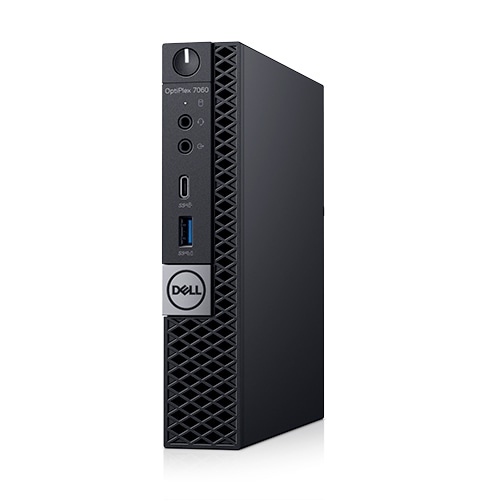
Credit: www.dell.com
Frequently Asked Questions
What Does The Dell Optiplex Blinking Orange Light Mean?
The blinking orange light signals a hardware problem or power issue. It helps identify specific errors by the blink pattern. Checking the manual can decode the exact issue.
How To Fix Dell Optiplex Blinking Orange Light?
Try restarting your computer and checking all power connections. Remove and reseat memory or hardware parts if needed. If it persists, seek professional help or contact Dell support.
Can Blinking Orange Light Damage Dell Optiplex?
The blinking light itself won’t cause damage but shows a problem inside. Ignoring it may lead to hardware failure or data loss. It’s best to address the issue quickly.
Why Does Dell Optiplex Power Light Blink Orange?
It usually means the system is in sleep mode or has a hardware error. Different blink counts can indicate specific hardware faults like RAM or motherboard issues. Check the Dell guide for exact details.
Is Blinking Orange Light Common In Dell Optiplex Models?
Yes, blinking orange lights are common error indicators on many Dell Optiplex models. They help users spot and diagnose hardware or power issues quickly. Knowing the blink code is useful for troubleshooting.
Conclusion
The Dell Optiplex blinking orange light signals a hardware or power issue. Check your connections and power supply first. Resetting the BIOS can also help. If the light keeps blinking, test your memory and hardware components. Small steps often solve the problem.
Staying calm and patient makes troubleshooting easier. Remember, this warning helps protect your computer. Fixing it keeps your Dell Optiplex running smoothly. Don’t ignore the blinking light; act soon. Your computer’s health depends on quick attention.