
Is your PS4 screen blinking and making it hard to enjoy your games? You’re not alone, and it can be really frustrating.
Whether you’re in the middle of an intense game or just trying to navigate the menu, a flickering screen disrupts everything. But don’t worry—this problem usually has simple fixes. Keep reading, and you’ll learn exactly why your PS4 screen is blinking and how you can get it back to normal fast.
Your gaming experience deserves to be smooth and uninterrupted.

Credit: www.youtube.com
Common Causes Of Ps4 Screen Blinking
Screen blinking on a PS4 can disrupt gaming and cause frustration. Understanding common causes helps find quick solutions. Issues may arise from hardware, software, or connection problems. Each cause affects the display differently. Identifying the root cause is the first step to fix the blinking screen effectively.
Hardware Issues
Hardware problems often cause screen blinking on PS4. Faulty graphics processing units (GPU) can create flickering effects. Overheating parts inside the console may also trigger display issues. Damaged cables or connectors inside the system affect video output. Physical wear from heavy use can lead to hardware failure. Regular maintenance reduces chances of hardware-related blinking.
Software Glitches
Software bugs may cause screen flickering on PS4. Outdated system software often leads to display problems. Corrupt game files or updates can affect screen stability. Background apps running simultaneously might create conflicts. Restarting the console can sometimes clear glitches. Keeping software updated minimizes flickering risks.
Hdmi Connection Problems
Loose or damaged HDMI cables cause screen blinking. A poor connection disrupts video signals from PS4 to TV. Using low-quality or worn-out HDMI cables increases flickering chances. Incorrect HDMI ports on the TV may also cause issues. Checking and securing cables often fixes blinking screens quickly.
Display Settings Conflicts
Wrong display settings can cause the PS4 screen to blink. Resolution mismatches between console and TV create flickering. Incorrect refresh rate settings also affect screen stability. Resetting display settings to default often resolves these conflicts. Adjusting settings to match the TV ensures smooth video output.
Credit: support.tcl.com
Quick Fixes For Screen Flickering
Screen flickering on a PS4 can interrupt your gaming experience. Simple fixes often solve this issue quickly. Try these easy steps to stop the screen from blinking.
Restart The Ps4 Console
Turn off your PS4 completely. Wait for about 30 seconds. Turn it back on and check the screen. Restarting clears minor glitches causing flickering.
Check And Secure Hdmi Cables
Unplug the HDMI cable from both the PS4 and TV. Look for any damage or dust. Plug it back firmly. A loose or damaged cable often causes flickering.
Adjust Display Resolution
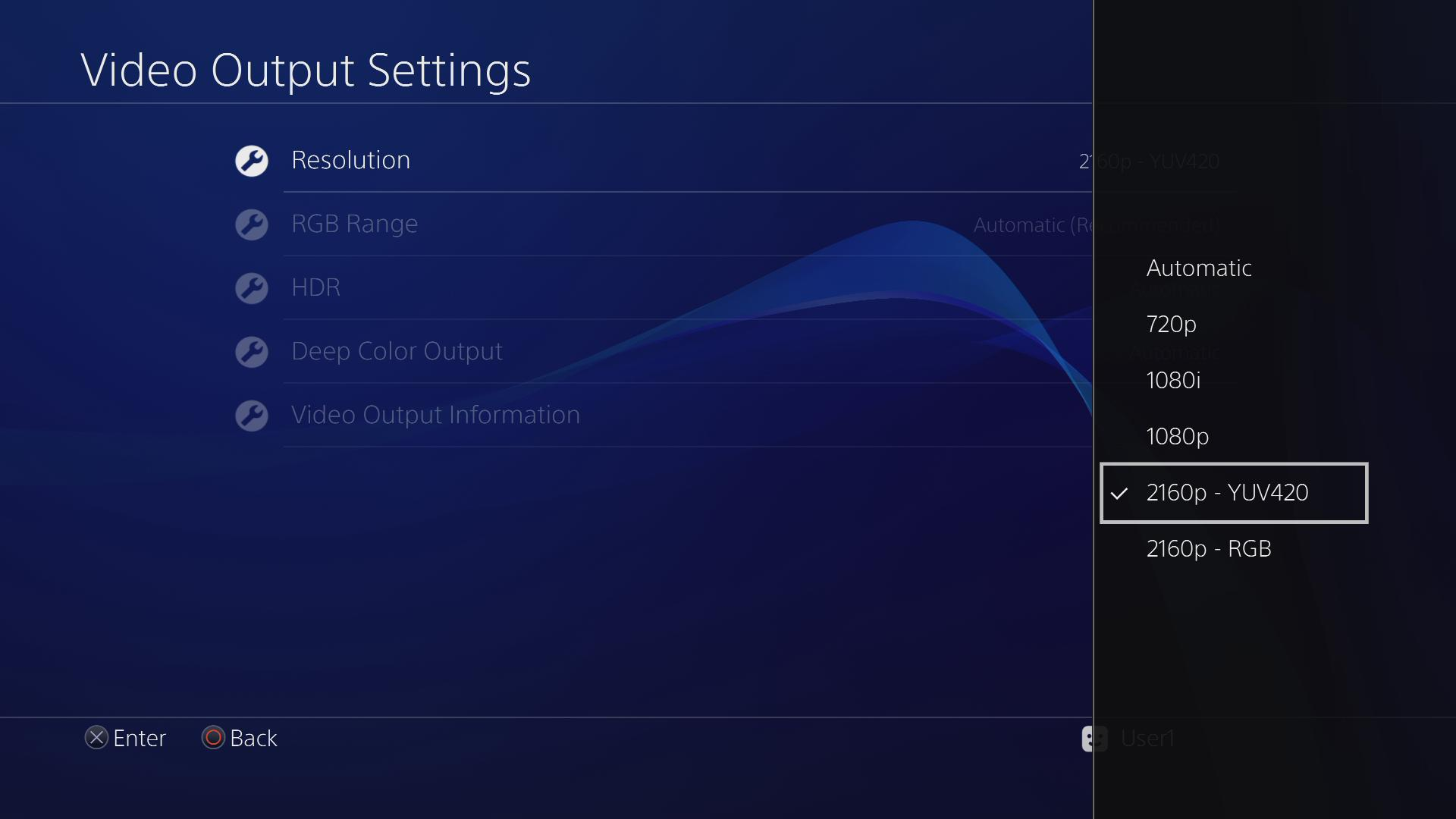
Go to Settings on your PS4. Select Sound and Screen, then Video Output Settings. Change the resolution to match your TV’s support. Wrong resolution can cause screen issues.
Update System Software
Keep your PS4 software up to date. Go to Settings, then System Software Update. Install any available updates. Updates fix bugs that may cause flickering.
Rebuild Ps4 Database
Turn off the PS4. Press and hold the power button until you hear two beeps. Connect your controller with a USB cable. Select Rebuild Database from the menu. This cleans and organizes data, reducing flicker problems.
Advanced Troubleshooting Steps
Advanced troubleshooting helps fix PS4 screen blinking beyond basic steps. It digs deeper into possible causes. These steps can identify if the issue is with hardware or software. Follow these carefully to avoid further problems.
Test With Different Hdmi Port Or Tv
Try connecting your PS4 to another HDMI port. This can rule out a faulty port on your TV. Use a different TV if possible. Sometimes, the TV itself causes the blinking screen. Changing cables may also help.
Boot Ps4 In Safe Mode
Safe Mode loads the PS4 with minimal software running. This mode helps fix software bugs causing screen flicker. To enter Safe Mode, turn off the PS4. Hold the power button until you hear two beeps. From the menu, select options like “Rebuild Database” or “Update System Software.”
Restore Ps4 To Factory Settings
Resetting restores the PS4 to its original state. It removes all settings and data. Backup important files before doing this. Factory reset can fix deep software issues causing blinking. Use this step only if other fixes fail.
Inspect Internal Hardware
Screen blinking may come from hardware damage. Open the PS4 only if you are confident. Look for loose cables or dust inside. Clean the vents and check the HDMI port. Faulty graphics chips or power supply can cause blinking. Contact a technician if unsure.
Preventing Future Screen Flicker
Preventing future screen flicker on your PS4 helps keep gameplay smooth. Flickering can disrupt gaming and damage your eyes. Simple steps reduce the chance of this problem. Follow these tips to protect your console and enjoy uninterrupted gaming sessions.
Regular System Updates
Keep your PS4 software up to date. Updates fix bugs that cause screen flicker. They improve system stability and performance. Check for updates often and install them quickly. This simple habit keeps your console running well.
Proper Ventilation And Maintenance
Place your PS4 in a well-ventilated area. Avoid closed spaces that trap heat. Clean dust from vents and fans regularly. Dust blocks airflow and causes overheating. Good airflow prevents screen flicker caused by heat.
Using Quality Cables
Use high-quality HDMI cables with your PS4. Cheap cables may cause poor signal and flickering. Check cables for damage before use. Replace worn or broken cables immediately. This ensures a clear and stable video signal.
Avoiding Overheating
Overheating leads to hardware problems and screen flicker. Keep your PS4 cool by turning it off after long play. Avoid placing it near heat sources. Use cooling stands or fans if needed. Protect your console from heat to maintain screen quality.
When To Seek Professional Repair
Knowing when to seek professional repair for a PS4 screen blinking issue can save time and prevent further damage. Some problems need expert attention beyond simple fixes. Recognizing these signs helps decide the next step for your console.
Signs Of Hardware Failure
Persistent blinking that does not stop after restarting is a key sign. Flickering during gameplay or menus also suggests hardware trouble. If the screen goes black or shows lines, the internal parts may be damaged. Unusual noises from the console can point to hardware issues too.
Warranty And Support Options
Check if your PS4 is still under warranty before making repairs. Sony offers official support that may cover screen problems. Using authorized service centers keeps your warranty valid. Repairs done outside official channels might void warranty rights.
Cost Considerations
Professional repairs can be costly depending on the damage. Compare repair costs with the price of a new or used PS4. Sometimes, fixing the console is cheaper than replacing it. Ask for a detailed repair estimate before agreeing to the service.

Credit: www.reddit.com
Frequently Asked Questions
Why Is My Ps4 Screen Blinking Randomly?
A blinking PS4 screen often means a loose HDMI cable or poor connection. Check and secure all cables to fix it quickly.
Can A Software Update Fix Ps4 Screen Blinking?
Yes, updating your PS4 system software can solve screen blinking caused by bugs. Always keep your PS4 updated for better performance.
Does Overheating Cause Ps4 Screen Blinking Issues?
Overheating can cause your PS4 screen to blink or flicker. Make sure your console is well-ventilated and clean of dust.
How Do I Reset My Ps4 To Stop Screen Blinking?
A PS4 reset can fix screen blinking by clearing errors. Use Safe Mode to rebuild the database or restore default settings.
Can A Faulty Hdmi Port Cause Ps4 Screen Blinking?
A damaged HDMI port may cause screen blinking or no display. Try using another HDMI cable or port to test the issue.
Conclusion
A blinking PS4 screen can be frustrating and confusing. Try simple fixes like checking cables or restarting the console first. Keep your system updated to avoid issues. If problems continue, seeking professional help might be necessary. Taking quick action can save time and protect your device.
Stay calm and follow easy steps for smooth gaming. Your PS4 will be back to normal soon.