
Have you ever noticed a motion sensor blinking red light and wondered what it means? That little red glow can tell you a lot about your security system or device.
Understanding why it’s blinking can help you make sure your home or office stays safe and works smoothly. If you’re curious about what that red light is trying to say, keep reading—you’re about to learn exactly what to look for and how to respond.
Don’t miss out on these simple tips that could save you time and worry.
Common Causes Of Red Blinking
The red blinking light on a motion sensor often signals an issue. Understanding common causes helps fix problems quickly. This section covers typical reasons for the red blinking light. Knowing these can save time and avoid frustration.
Low Battery Levels
Low battery power is a frequent cause of red blinking. Sensors need enough power to work properly. Weak batteries may cause the light to blink red. Replace batteries to restore full sensor function.
Sensor Obstruction
Objects blocking the sensor’s view can trigger the red blink. Dirt, dust, or furniture may cover the sensor lens. Clear any obstacles to allow the sensor to detect motion. Clean the sensor lens regularly for best results.
Incorrect Installation
Improper setup may lead to the red blinking light. Sensors must be placed at the right height and angle. Follow installation instructions carefully. Double-check wiring and mounting to ensure proper function.
Firmware Or Software Issues
Outdated or corrupted firmware can cause blinking signals. Sensors rely on software for smooth operation. Update the firmware through the device app or website. Restart the sensor after updates to fix errors.
Environmental Interference
Other electronic devices can interfere with sensor signals. Wireless routers, cordless phones, or microwaves may cause blinking. Move the sensor away from strong electronic sources. Choose a location with minimal interference for better performance.
Battery Troubleshooting
Battery issues cause most problems with motion sensor blinking red lights. Troubleshooting the battery is the first step to fix the issue. Checking the battery status helps find out if the battery is low or dead. Replacing batteries safely ensures no damage to the device or yourself. Using the right battery type keeps the sensor working well and avoids further problems.
Checking Battery Status
Start by opening the battery compartment carefully. Look for any signs of corrosion or leaks. Use a battery tester or multimeter to check the voltage. A low reading means the battery needs replacing. Some sensors show battery level on their screen or app. Always check the manufacturer’s instructions for specific details.
Replacing Batteries Safely
Turn off the motion sensor before changing batteries. Remove old batteries gently to avoid damage. Insert new batteries with correct polarity (+ and -). Clean the battery compartment if it looks dirty. Avoid mixing old and new batteries in one device. Dispose of old batteries according to local rules.
Using The Right Battery Type
Use batteries recommended by the sensor’s manufacturer. Alkaline or lithium batteries usually work best. Avoid rechargeable batteries unless the device supports them. The wrong battery type can cause blinking red lights. Check battery size and voltage before buying new ones. Proper batteries ensure longer sensor life and better performance.
Clearing Sensor Blockages
Motion sensors can stop working properly if something blocks their view. Dirt, dust, or even small objects can cause the sensor to blink a red light. Clearing these blockages helps your sensor work better and last longer. Here are some easy steps to check and clean your motion sensor.
Inspecting For Dirt And Debris
Look closely at the sensor lens for any dirt or dust. Check for spider webs, leaves, or tiny bugs that might be stuck. Use a flashlight to see small particles. Make sure nothing covers the sensor’s front surface.
Cleaning Techniques
Use a soft cloth or a microfiber towel to wipe the lens gently. Avoid harsh cleaners or rough materials that can scratch the surface. A small brush can remove dust from edges. If needed, dampen the cloth slightly with water, but never spray liquid directly on the sensor.
Adjusting Sensor Angle
The sensor might point at an obstacle or too close to the ground. Adjust the angle to face open space. This helps the sensor detect motion clearly. Tighten any loose screws to keep the sensor steady in the new position.
Credit: www.reddit.com
Installation Tips
Installing a motion sensor with a blinking red light takes care and thought. Proper setup helps the sensor work well and last longer. Follow these tips to place and mount the sensor right. These steps improve detection and avoid common issues.
Ideal Sensor Placement
Put the sensor where it can see the most area. Corners of rooms or hallways often work best. Avoid placing it near heat sources like heaters or direct sunlight. The sensor should be about 6 to 10 feet above the floor. This height captures motion clearly without false alerts.
Avoiding Signal Obstacles
Keep the sensor clear of large objects that block its view. Furniture, walls, or thick curtains can stop the sensor’s signal. Glass windows may confuse the sensor, so avoid pointing it directly at them. Open spaces help the sensor detect movement smoothly.
Securing Proper Mounting
Use screws or strong double-sided tape to hold the sensor firmly. Make sure it does not wobble or tilt after mounting. A steady sensor keeps the blinking red light steady and reliable. Check the mounting surface is clean and dry before fixing the sensor.
Software And Firmware Fixes
The motion sensor blinking red light can signal software or firmware issues. These problems often stop the sensor from working correctly. Fixing them usually requires updating or resetting the software. Simple adjustments can also solve many errors. This section explains easy software and firmware fixes to try.
Updating Firmware
Firmware controls how the sensor works. Old firmware can cause the red light to blink. Check the sensor’s manual for update instructions. Usually, updates fix bugs and improve performance. Download the latest version from the official website. Follow the steps carefully to avoid damage.
Resetting The Sensor
Resetting clears software glitches that cause blinking. Find the reset button or use the app if available. Hold the button for a few seconds to restart. The sensor goes back to factory settings. This often stops the red light from blinking.
Reconfiguring Settings
Incorrect settings can trigger a blinking red light. Access the sensor’s settings through its app or control panel. Check motion sensitivity and detection zones. Adjust these to fit your space better. Save changes and watch the sensor’s response. Proper settings help the sensor work smoothly.
Credit: www.youtube.com
Reducing Environmental Interference
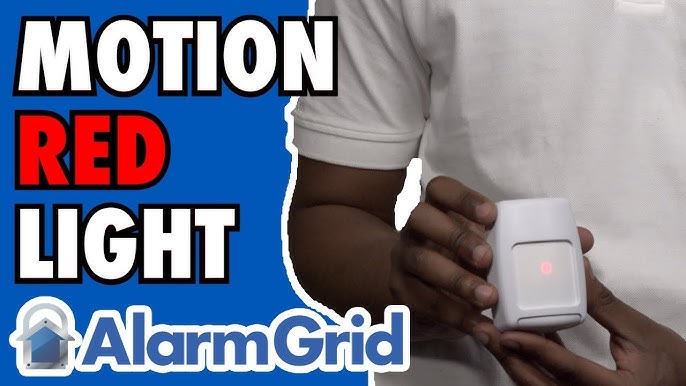
Motion sensors often show a blinking red light to signal activity or issues. This blinking can sometimes be caused by environmental interference. Reducing this interference improves sensor accuracy and reliability. Understanding and managing common sources of interference helps maintain smooth sensor function.
Identifying Interference Sources
First, find what causes the blinking. Common sources include nearby electronics, wireless devices, and physical obstacles. Metal objects and walls can block or reflect signals. Recognize these to reduce their impact. Testing sensor placement helps spot these problems.
Minimizing Electrical Noise
Electrical noise can confuse the sensor’s signals. Devices like routers, microwaves, and power tools create this noise. Keep the sensor away from such equipment. Use shielded cables or surge protectors to reduce interference. Clean wiring and proper grounding also lower electrical noise.
Managing Lighting Conditions
Bright or flashing lights can affect sensor performance. Avoid placing sensors near strong lights or direct sunlight. Use curtains or diffusers to soften light near sensors. Adjust sensor sensitivity to handle various lighting situations better. Proper lighting control helps stop false alerts.
When To Call A Professional
Knowing when to call a professional for a motion sensor blinking red light saves time and stress. Some issues need expert help to avoid damage or safety risks. Recognizing these signs helps you act quickly and correctly.
Signs Of Hardware Failure
A blinking red light might mean the sensor’s hardware is failing. Common signs include constant blinking, no response to motion, or random triggering. If the sensor stops working after resetting, it likely needs repair or replacement. Professionals can test and fix hardware problems safely.
Complex Wiring Issues
Wiring problems can cause the red light to blink. Faulty connections, damaged wires, or incorrect installation may be the cause. Troubleshooting wiring takes skill and special tools. Professionals can find and fix wiring issues without risking electrical hazards.
Warranty And Support Options
Check if your sensor is under warranty before trying repairs. Manufacturers often provide support or replacements for faulty devices. Calling a professional ensures any repair keeps your warranty valid. Experts also know the best service centers and support channels.

Credit: www.reddit.com
Frequently Asked Questions
Why Is My Motion Sensor Blinking A Red Light?
A blinking red light usually means the sensor is detecting motion. It can also show the sensor is active and working properly.
What Does A Steady Red Light On Motion Sensor Mean?
A steady red light often indicates the sensor is in test mode. It can also mean the sensor needs adjustment or is blocked.
How To Stop Motion Sensor From Blinking Red Light?
Check for any objects blocking the sensor’s view. Adjust the sensor settings or try resetting the device to stop blinking.
Can A Blinking Red Light On Motion Sensor Drain Batteries?
Yes, constant blinking can use more battery power. Turning off test mode or adjusting settings can save battery life.
Does Blinking Red Light On Motion Sensor Signal Low Battery?
A blinking red light can mean the battery is low. Replace the batteries to ensure the sensor works correctly.
Conclusion
A blinking red light on your motion sensor means it is working. It may signal movement or low battery. Check the sensor’s manual for exact meanings. Regularly clean and test the device for best results. Fix any issues quickly to keep your home safe.
Understanding these signals helps you avoid false alarms. Stay aware and maintain your sensor for reliable security. Simple steps keep your system running smoothly every day.