
Is your Samsung TV refusing to turn on? You’re not alone.
Many users face this issue, and it can be very frustrating. When a trusted device like your TV fails to start, it disrupts your routine. This problem could stem from various sources. From simple power issues to more complex hardware problems, the reasons can vary.
Understanding these can help you troubleshoot and find a solution. This guide will provide you with clear steps to identify and possibly fix the problem. Let’s explore the common causes and solutions for a Samsung TV that won’t turn on.
Common Issues
Experiencing issues with a Samsung TV not turning on? Check the power cord and outlet for any damage. Sometimes, a simple reset or unplugging for a few minutes can resolve the problem.
Experiencing problems with your Samsung TV not turning on can be frustrating. Understanding common issues can help diagnose the problem quickly. Below are some frequent reasons why your Samsung TV might not power up.Power Supply Problems
One of the most common issues is a faulty power supply. Ensure the power cord is properly connected to both the TV and the wall socket. Check for any visible damage on the power cord. A damaged cord can prevent the TV from receiving power. Try plugging the TV into a different outlet. This can help determine if the issue lies with the power source. If the problem persists, the internal power supply could be faulty. In this case, contacting a professional technician is advisable. They can diagnose and fix internal hardware issues.Remote Control Malfunctions
Another common issue is the remote control not functioning properly. First, check if the batteries are working. Replace them with new ones if necessary. Sometimes, the remote’s infrared sensor might be blocked. Ensure there are no obstructions between the remote and the TV sensor. You can also test the remote by using it with another device. If it works with other devices, the issue might be with the TV’s sensor. Resetting the remote can also solve the problem. Remove the batteries, press and hold the power button for 10 seconds, then reinsert the batteries. If the remote control is still malfunctioning, consider using the TV’s physical buttons. This helps determine if the issue is with the remote or the TV itself. “`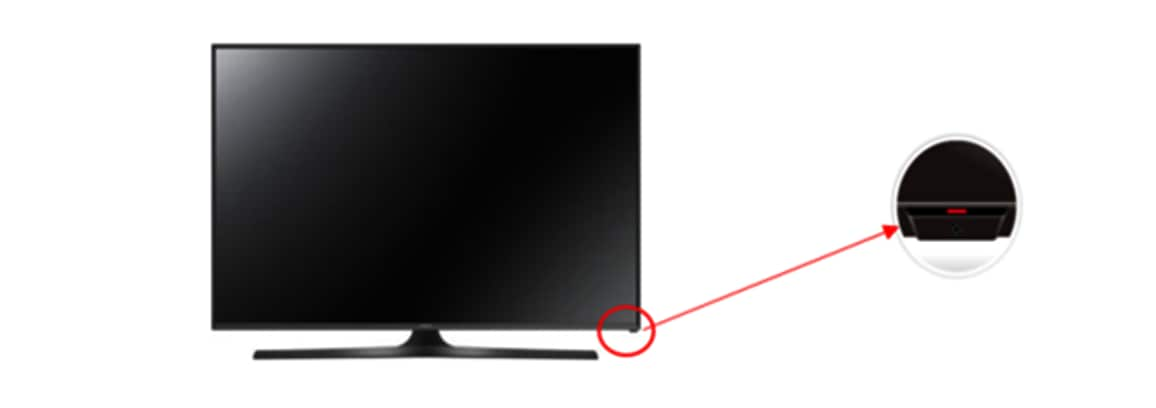
Credit: www.samsung.com
Basic Checks
Facing issues with your Samsung TV not turning on can be frustrating. Before diving into complex solutions, start with basic checks. Often, simple troubleshooting can resolve the problem quickly.
Inspect Power Cable
First, inspect the power cable. Ensure it’s securely connected to both the TV and the power outlet. A loose or damaged cable can prevent your TV from turning on. Look for visible signs of wear and tear. A frayed cable may need replacement.
Check Power Outlet
Next, check the power outlet. Plug another device into the same outlet to verify it works. If the outlet is faulty, your TV won’t receive power. Try using a different outlet to rule out any issues with the current one.
Resetting The Tv
When your Samsung TV won’t turn on, resetting it can solve the issue. There are two types of resets: soft and hard. These methods can help fix minor bugs or glitches. Let’s explore each method step-by-step.
Soft Reset
A soft reset is the first step in troubleshooting. It is simple and quick. Unplug the TV from the power source. Wait for about 30 seconds. Plug it back in. Turn on the TV. This often resolves minor problems.
Hard Reset
If the soft reset doesn’t work, try a hard reset. It restores the TV to factory settings. Be aware, it will erase all settings and saved data. To perform a hard reset, press the power button on the TV. Hold it for 10 seconds. Your TV will restart and revert to its original settings.
Both reset methods can help your Samsung TV turn on. Start with a soft reset. If needed, proceed with a hard reset. These steps can resolve common issues effectively.
Remote Control Troubleshooting
Is your Samsung TV not turning on? The issue might be with the remote control. Simple troubleshooting can solve the problem. Let’s explore some steps to fix your remote control. Check and replace batteries. You might also need to reprogram the remote.
Replace Batteries
First, check the remote’s batteries. Weak or dead batteries can cause issues. Open the battery compartment. Remove the old batteries. Insert new ones. Ensure they are placed correctly. Try turning on the TV again. This simple step often fixes the problem.
Reprogram Remote
Sometimes, the remote needs reprogramming. This can resolve connectivity issues. Follow these steps:
- Turn on the TV manually.
- Press and hold the “Return” and “Play/Pause” buttons on the remote.
- Wait for the TV to recognize the remote.
The TV should now respond to the remote. If not, consult the user manual for specific instructions.
Inspecting The Power Board
Inspecting the power board can help determine why a Samsung TV won’t turn on. Check for any visible damage or loose connections that might be causing the issue.
Inspecting the power board is crucial when your Samsung TV won’t turn on. This component is the heart of your TV’s electrical system, and any issues here can be the root cause of the problem. Let’s delve into the specifics of inspecting the power board.Signs Of Damage
Inspect the power board for visible signs of damage. Look for burnt areas, swelling, or leaking capacitors. These are common indicators that something is wrong. You may notice a distinct burnt smell if the board is damaged. This smell is a clear sign that you need to take action. A faulty power board can also cause intermittent power issues. If your TV sometimes turns on and sometimes doesn’t, this might be the culprit.Professional Repair
If you’re not comfortable inspecting the power board yourself, it might be best to seek professional help. TV repair technicians have the expertise to diagnose and fix these issues quickly. Professional repair can save you time and prevent further damage. Attempting a DIY fix without proper knowledge can sometimes make things worse. Consider the cost of repair versus replacement. Sometimes, replacing the power board or even the TV might be more cost-effective than a repair. — Have you ever faced a TV that refused to turn on? What did you do? Inspecting the power board can be a game-changer. If you spot signs of damage, remember that professional repair is always an option.Software Updates
When a Samsung TV won’t turn on, software updates might be the solution. Outdated software can cause various issues. Ensuring your TV has the latest updates can help fix this problem. Follow the steps below to check for updates and install the latest firmware.
Check For Updates
First, verify if any software updates are available. Use your remote to navigate to the settings menu. Select “Support” and then “Software Update.” Choose “Update Now.” The TV will search for available updates. If an update exists, it will prompt you to download it. Keep your TV connected to the internet for this process.
Install Firmware
If your TV found an update, proceed to install the firmware. Select “Yes” to start the installation. The TV might restart several times during this process. Do not turn off the TV until the update completes. Once finished, your TV will have the latest software. This might resolve the issue of your TV not turning on.
External Device Interference
Sometimes, your Samsung TV might not turn on because of external device interference. This can be quite frustrating, especially when you just want to relax and enjoy your favorite show. Don’t worry, though. There are a couple of things you can try that might solve the problem quickly.
Disconnect Devices
Begin by disconnecting all external devices from your Samsung TV. This includes devices like gaming consoles, streaming sticks, and DVD players. Sometimes, these devices can interfere with the TV’s power-on process.
Once all devices are disconnected, try turning on your TV again. If it powers up, one of the external devices might be the culprit. Reconnect each device one at a time to identify which one is causing the issue.
Check Hdmi Connections
Another common issue is faulty HDMI connections. These connections can sometimes prevent your TV from turning on. Ensure all HDMI cables are securely plugged into the correct ports.
Inspect the cables for any visible damage. If you find any, replacing the cable might solve the problem. You can also try using a different HDMI port on your TV to see if that makes a difference.
Have you ever experienced external device interference with your Samsung TV? What steps did you take to resolve it? Share your experience in the comments below. Your insights might help someone else facing the same issue.
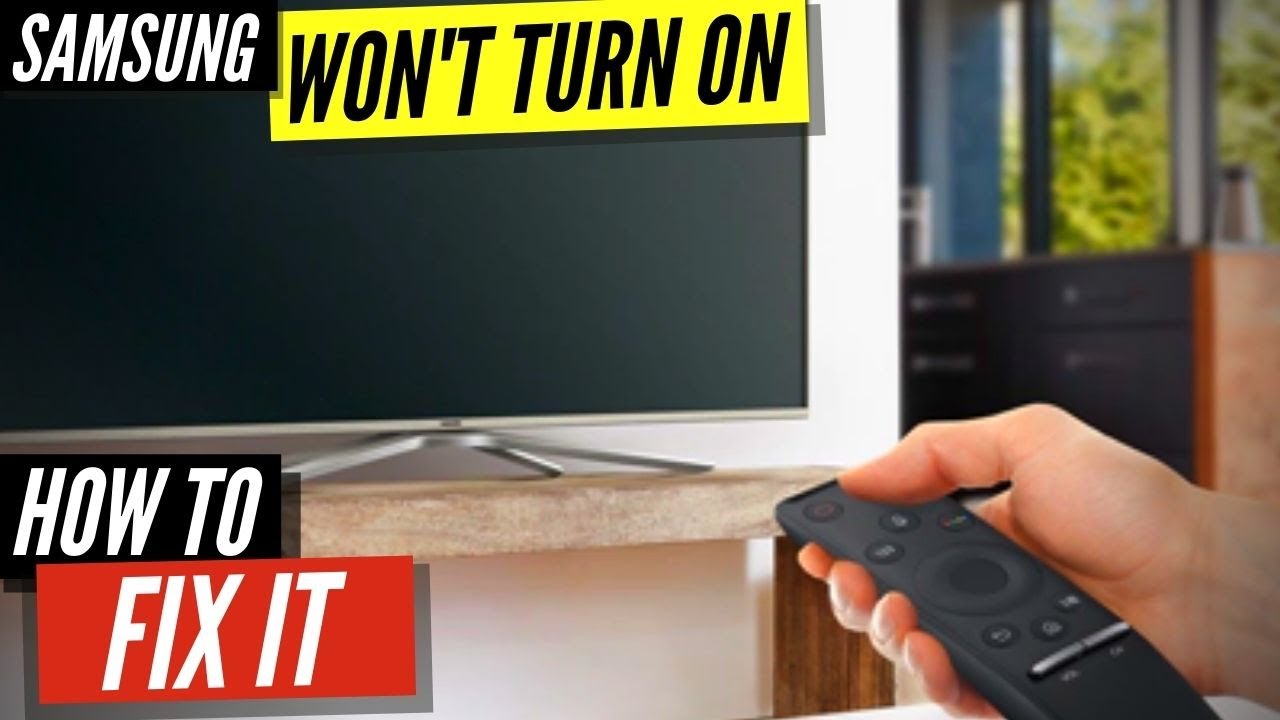
Credit: www.youtube.com
When To Call A Professional
You’ve tried everything, yet your Samsung TV won’t turn on. It’s frustrating, but it’s important to know when to seek professional help. Let’s dive into some specific situations where calling a professional is your best option.
Persistent Issues
If your TV repeatedly refuses to turn on despite troubleshooting, it’s time to call a professional. For instance, if you’ve checked the power source, tried different outlets, and even replaced the remote batteries, yet nothing works, this suggests a deeper issue.
A professional can diagnose and fix problems that aren’t immediately obvious. This saves you time and prevents further damage. Don’t let persistent problems linger; they can worsen over time.
Warranty And Support
Your Samsung TV may still be under warranty. Check the warranty details before calling a repair service. Samsung often provides support and may cover repair costs if the issue is within the warranty period.
Using the warranty can save you money and ensure the TV is repaired correctly. Contact Samsung support for guidance; they might offer remote troubleshooting before sending a technician.
Have you ever had a warranty save the day? It’s worth checking before you spend on repairs.
Don’t let a malfunctioning TV ruin your experience. Know when to call for professional help, especially with persistent issues or when warranty support is available. Your TV deserves expert care.
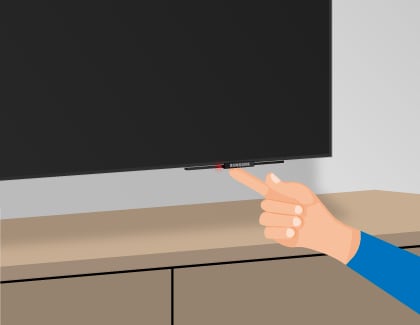
Credit: www.samsung.com
Frequently Asked Questions
How Do I Fix My Samsung Tv When It Won’t Turn On?
Check power cable connections. Ensure outlet works. Try a different outlet. Restart TV by unplugging for 60 seconds. Contact Samsung support if issue persists.
How Do I Force My Samsung Tv To Start?
Unplug the TV from the power outlet. Wait 30 seconds. Plug it back in. Press the power button.
What Causes The Samsung Tv Black Screen Of Death?
The Samsung TV black screen of death can be caused by faulty cables, outdated firmware, power supply issues, or internal hardware problems.
How Do You Reset An Unresponsive Samsung Tv?
To reset an unresponsive Samsung TV, unplug it for 30 seconds. Plug it back in and turn it on.
Why Is My Samsung Tv Not Turning On?
Your TV might not turn on due to a power issue. Check the power cable and outlet.
Conclusion
Troubleshooting a Samsung TV that won’t turn on can be simple. Start with basic checks like power connections. Check the remote’s batteries too. Sometimes, a reset can fix the issue. If these steps don’t work, consult a professional technician. Keeping your TV in good shape ensures a longer lifespan.
Regular maintenance helps avoid future issues. Always refer to the user manual for specific guidance. Thank you for reading, and good luck with your Samsung TV!