
Experiencing no sound on your Samsung TV can be frustrating. You want to enjoy your favorite show, but there’s no audio.
Let’s explore why this happens and how to fix it. A silent TV can ruin your viewing experience. It’s a common issue many Samsung TV users face. The good news is, it’s usually fixable with simple steps. From checking the volume settings to inspecting cables, there are several things you can do to restore the sound.
This guide will help you troubleshoot and resolve the problem, so you can get back to enjoying your favorite programs with ease. Read on to find out how to get your Samsung TV sound working again.

Credit: www.wikihow.com
Check Volume Settings
If your Samsung TV suddenly has no sound, it can be quite frustrating. Before diving into more complex solutions, start by checking the volume settings. Often, the issue is simpler than you think and can be resolved with a few quick adjustments.
Ensure Mute Is Off
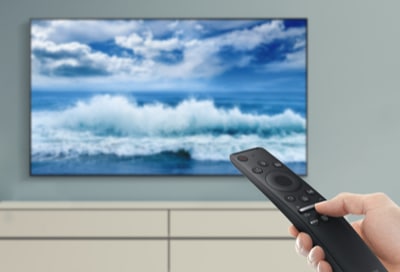
First, ensure your TV isn’t on mute. This might sound obvious, but it happens more often than you’d think. Look for the mute button on your remote; it usually has a speaker icon with a slash through it.
Press the mute button once and see if the sound returns. If it does, you’ve solved the problem. If not, proceed to the next step.
Increase Volume
Next, try increasing the volume. Sometimes the volume is accidentally turned down to zero or very low. Use the volume buttons on your remote to increase the sound level.
Watch the volume indicator on your TV screen to ensure it’s going up. If the volume is up but there’s still no sound, consider checking your connections and settings.
Have you ever faced a similar issue with another device? What did you do to resolve it? Share your experiences in the comments below!
Credit: www.samsung.com
Inspect Audio Output
Experiencing no sound on your Samsung TV can be frustrating. Before diving into complex solutions, start by inspecting the audio output. This ensures the problem isn’t due to something simple, like incorrect settings or connections.
Select Correct Audio Source
First, check if the TV is set to the correct audio source. Navigate to the audio settings menu using your remote control. Ensure the audio source matches your setup, whether you’re using HDMI, optical audio, or another connection.
Incorrect settings can lead to sound issues. For example, if you have a soundbar connected via HDMI, make sure the audio source is set to HDMI.
Does your TV sound work through other sources? If yes, the issue might be in the specific connection or device.
Switch Between Tv Speakers And External Speakers
If the correct audio source is selected but there’s still no sound, try switching between TV speakers and external speakers. This helps identify if the issue is within the TV or an external device.
Go to the sound settings and select TV speakers. Check if there’s sound. If not, switch to external speakers and test again.
Sometimes, simply toggling between these options can reset the audio output settings. This worked for me when my soundbar wasn’t producing sound.
Have you tried these steps and still no luck? It might be time to check the connections or contact support. What other solutions have worked for you in the past?
Examine Cable Connections
When your Samsung TV has no sound, it can be frustrating. One of the first steps to troubleshoot this issue is to examine cable connections. This simple step can help identify if the problem lies with the cables or the TV itself.
Check Hdmi Cables
HDMI cables are essential for transmitting audio and video signals from your devices to your TV. Ensure the HDMI cable is securely connected to both the TV and the external device. Sometimes, a loose connection can cause audio issues.
Try unplugging and replugging the HDMI cable. If that doesn’t work, test the HDMI cable with another device. This can help determine if the cable is faulty.
Consider using a different HDMI port on your TV. Some ports may have issues that prevent sound from being transmitted properly.
Inspect Optical Cables
Optical cables are often used for connecting sound systems to your TV. Check if the optical cable is firmly connected to both the TV and the sound system. A loose or damaged optical cable can lead to no sound.
Look for any visible damage on the cable. If you find any, replacing the cable might be necessary. You can also test the optical cable with another device to see if the issue persists.
Make sure the optical port on your TV is clean and free of dust. Dust can interfere with the connection and cause audio problems.
Have you ever had sound issues with your Samsung TV? How did you resolve them? Share your experiences in the comments below!
Update Tv Firmware
Updating the firmware on your Samsung TV can resolve sound issues. Ensure the TV is connected to the internet, then check for updates in the settings menu. This simple step can often restore audio functionality.
Updating your Samsung TV’s firmware can often resolve issues such as no sound. Firmware updates enhance your TV’s performance, fix bugs, and introduce new features. Taking the time to check and install the latest firmware can make a significant difference in your viewing experience.Check For Software Updates
First, ensure your TV is connected to the internet. Navigate to the Settings menu on your Samsung TV. Under the Support section, select Software Update. Here, you can choose Update Now to see if there are any available updates. Updating your TV’s firmware might seem daunting, but it’s quite straightforward. Have you ever wondered how often you should check for updates? Regularly checking can prevent minor issues from escalating.Install Latest Firmware
If an update is available, you will see a prompt to install it. Select Yes to begin the installation process. Your TV will automatically download and install the update. This might take a few minutes, so be patient. During this time, your TV may restart multiple times. After the update is complete, check if the sound issue is resolved. Have you noticed an improvement in your TV’s performance after an update? Share your experiences with us! Updating your Samsung TV’s firmware is a simple yet effective way to maintain optimal performance. It’s a practical step that anyone can do. So why wait? Ensure your TV is up to date and enjoy a seamless viewing experience.Reset Audio Settings
Experiencing no sound on your Samsung TV? Resetting audio settings might help. Access the audio settings menu and choose reset to restore default sound configurations.
Resetting the audio settings on your Samsung TV can be the ultimate solution to the frustrating issue of no sound. Imagine you’re all set for a cozy movie night, but the dialogue is missing. Resetting the audio settings is a straightforward way to bring your sound back to life.Restore Default Audio Settings
Sometimes, the best fix is to start fresh. Restoring default audio settings can undo any accidental changes that might have silenced your TV. To do this, go to the ‘Settings’ menu on your Samsung TV. Navigate to ‘Sound’ and select ‘Expert Settings’. Here, you’ll find the option to ‘Reset Sound’. Click it, and let your TV revert to its original audio settings. This method often resolves sound issues swiftly. It’s like giving your TV’s audio a clean slate.Reconfigure Sound Options
If restoring defaults doesn’t fix the issue, reconfiguring the sound options can help. You have control over various sound modes and features that might enhance your audio experience. Begin by checking the sound output settings. Ensure your TV is set to use its internal speakers if you’re not using external audio devices. Next, explore the ‘Sound Mode’ settings. You might find options like ‘Standard’, ‘Music’, ‘Movie’, and ‘Clear Voice’. Each mode is tailored for different types of content, so choose the one that best suits what you’re watching. Finally, adjust the ‘Equalizer’ settings. Boosting certain frequencies can make dialogues clearer or music richer. Have you tried customizing these settings? You might discover an audio setup that dramatically improves your viewing experience. Resetting audio settings can be a quick fix for sound issues. Whether restoring defaults or reconfiguring options, you have the tools to bring your Samsung TV’s sound back to optimal performance.Test With Different Devices
Experiencing sound issues with your Samsung TV can be frustrating. Testing with different devices helps identify if the problem is with the TV or the connected device. This method is simple and can save you time.
Connect Another Device
First, connect another device to your Samsung TV. This could be a DVD player, gaming console, or streaming device. Use the same HDMI port. Check if the sound works.
If you hear sound, the issue is likely with the original device. If there’s still no sound, the problem may be with the TV itself. This step helps you narrow down the source of the problem.
Use Different Media Source
Next, try playing different media on your TV. Switch to live TV, a different app, or a different streaming service. This helps determine if the issue is with a specific app or media file.
If sound works on other media, the problem is likely with the original media source. If there’s no sound across all sources, the issue might be with the TV’s audio settings or hardware.
Testing with different devices and media sources can quickly identify the root of sound issues. This method is practical and helps ensure your TV functions properly.
Check For External Interference
Sometimes, the issue with your Samsung TV sound might be external interference. This interference can come from various sources. It can disrupt the audio output, leading to no sound. To resolve this, follow the steps below.
Remove Nearby Electronics
Other electronic devices can cause interference with your Samsung TV’s sound. Move any devices such as radios, cordless phones, or microwaves away from the TV. These devices can emit signals that interfere with the TV’s audio system. Keep the area around the TV clear of these gadgets to ensure proper sound functioning.
Check For Signal Blockers
Physical objects can block the signal to your TV’s audio system. Ensure there are no large items in front of the TV’s speakers. Things like furniture, decorations, or even large books can obstruct sound waves. Clear the space to allow sound to travel freely. This can help restore your TV’s audio quality.
Credit: www.youtube.com
Contact Samsung Support
Experiencing no sound on your Samsung TV can be frustrating. Sometimes, the issue isn’t something you can fix on your own and you might need to contact Samsung Support for help. They can guide you through troubleshooting steps or arrange for a technician to visit. Here’s how you can get in touch with them.
Warranty Information
Before reaching out to Samsung Support, it’s important to check your TV’s warranty status. Knowing your warranty information can save you both time and money. You can find the warranty details in the user manual or on Samsung’s website.
Ensure you have your TV’s model number and serial number handy. These details are usually located on the back of the TV. If your TV is still under warranty, repairs or replacements might be free of charge.
Service Center Locations
If troubleshooting over the phone doesn’t resolve your issue, visiting a Samsung Service Center might be necessary. Samsung has numerous service centers globally, ensuring you can find one nearby.
Visit the official Samsung website and use their Service Center Locator tool. Simply enter your location to find the nearest center. It’s a good idea to call ahead and confirm their operating hours and whether they handle your specific model.
Have you ever contacted Samsung Support? What was your experience like? Share your stories in the comments below!
Frequently Asked Questions
How Do I Get Sound Back On My Samsung Tv?
Check your TV’s volume, mute status, and audio output settings. Ensure external speakers or sound systems are connected properly. Restart the TV. If the issue persists, update the TV’s firmware or perform a factory reset.
How Do I Get My Sound Back On My Samsung?
Check sound settings, ensure volume isn’t muted. Restart the device. Update software. If issue persists, contact Samsung support.
Why Has My Samsung Sound Stopped Working?
Your Samsung sound may have stopped working due to incorrect settings, outdated firmware, or hardware issues. Check audio settings, update software, and try restarting the device. If the issue persists, contact Samsung support.
How To Unmute Sound On Samsung Tv?
Press the “Mute” button on your Samsung TV remote to unmute the sound. Alternatively, increase the volume using the remote.
Why Is My Samsung Tv Sound Not Working?
Your Samsung TV sound might not work due to muted volume, incorrect settings, or faulty connections.
Conclusion
Fixing sound issues on a Samsung TV can be simple. Check your connections first. Try adjusting the audio settings. Restart the TV if needed. Update the software to the latest version. If the problem persists, consider contacting support. Resolving sound problems quickly improves your viewing experience.
Enjoy your favorite shows with clear audio. Follow these steps to ensure you don’t miss a moment. Sound issues can be frustrating, but solutions are often straightforward. Happy watching!