Is your Verizon router blinking red and leaving you frustrated? You’re not alone.
That red light can feel like a warning sign that something’s wrong with your internet connection. But don’t panic just yet. Understanding what the blinking red light means and how to fix it can save you time and stress. You’ll discover simple steps to get your router back to normal and your internet running smoothly again.
Keep reading—you’re just moments away from solving this common issue.
Credit: www.verizon.com
Reasons For Red Blinking Light
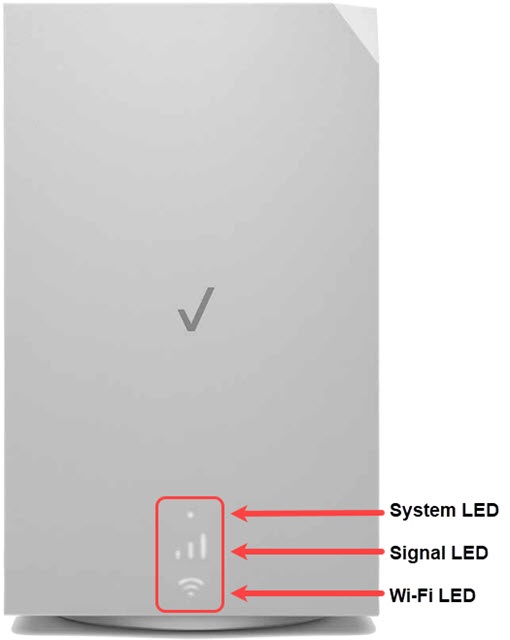
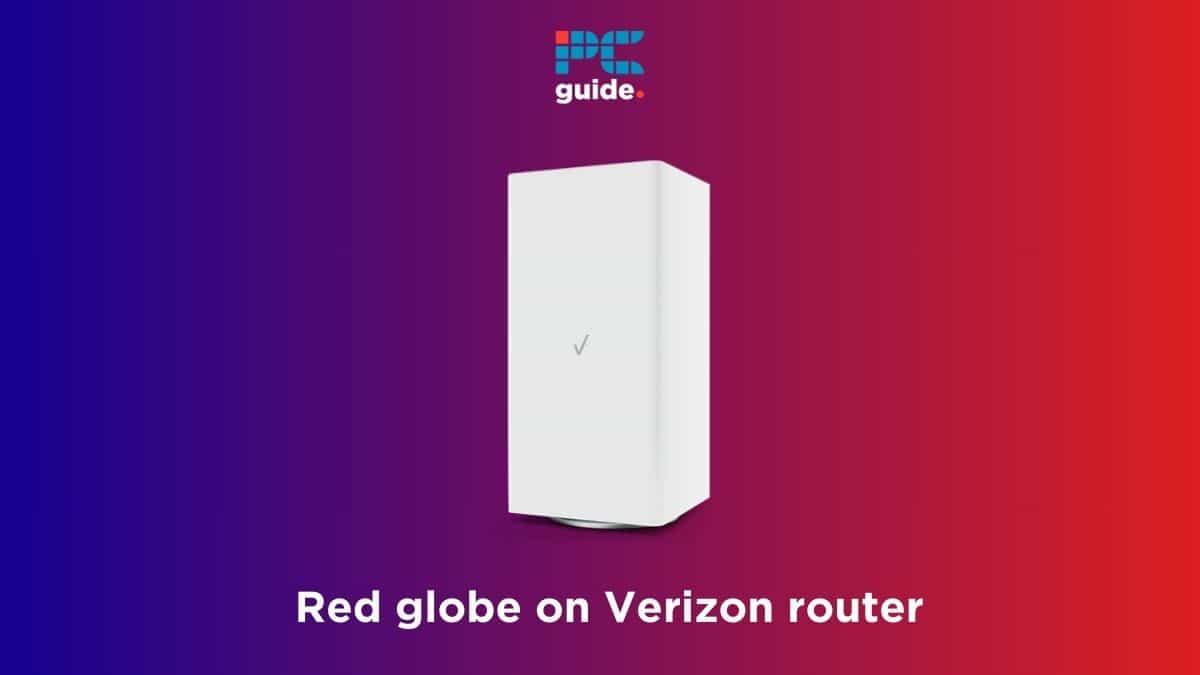
The red blinking light on your Verizon router signals a problem. It shows the device needs attention. Understanding the cause helps fix the issue faster. Several reasons can trigger this red light. Each points to a different problem with your internet setup.
Power Issues
Power problems often cause the red blinking light. The router may not get enough power. Loose plugs or faulty power adapters are common reasons. Power surges can also damage the device. Check the power source and cables carefully.
Internet Service Disruptions
Internet outages or service interruptions can make the light blink red. The router cannot connect to the network. This happens during maintenance or unexpected outages. Contact your provider to confirm if service is down.
Hardware Malfunctions
Hardware faults inside the router cause the red blinking light. Components like the modem or circuit board may fail. Physical damage or wear and tear also lead to malfunctions. A reset or replacement might be necessary.
Firmware Problems
Firmware issues can trigger the red light. Outdated or corrupted software affects the router’s performance. Firmware updates fix bugs and improve stability. Check for updates or reinstall the firmware if needed.
Basic Troubleshooting Steps
Seeing a red blinking light on your Verizon router can be frustrating. It often means the router is having trouble connecting to the internet. Before calling support, try some basic steps. These steps can fix simple issues quickly and get your internet back on.
Restarting The Router
Turn off the router using the power button. Wait for about 30 seconds. Turn it back on. This refreshes the router’s system. Many minor problems clear up after a restart.
Checking Cable Connections
Look at all cables connected to the router. Make sure they are plugged in tightly. Check the power cable and the internet cable. Loose cables often cause the red blinking light.
Power Cycling The Modem
Unplug the modem from the power source. Wait for one minute. Plug it back in and turn it on. This process resets the modem and can fix connection problems.
Resetting To Factory Settings
Find the reset button on the router. Hold it down for about 10 seconds. The router will reboot and return to default settings. Use this step only if others do not work. It will erase all custom settings.
Advanced Fixes
Advanced fixes can help solve the Verizon router blinking red issue. These steps need some technical knowledge but can improve your connection. They often fix deeper problems beyond basic troubleshooting.
Trying these methods may take time but can make your router work properly again. Follow the instructions carefully for the best results.
Updating Router Firmware
Firmware controls how your router works. Outdated firmware can cause errors and slow performance. Updating it often fixes bugs and improves stability. Check the Verizon website for the latest firmware. Download and install updates through the router’s settings page. Do not turn off the router during the update. This process can stop the red light from blinking.
Changing Wireless Channel
Wireless channels carry your Wi-Fi signals. Sometimes, channels overlap and cause interference. Changing your wireless channel can reduce interference and improve speed. Access the router’s admin page and find the wireless settings. Try different channels like 1, 6, or 11. Save your changes and restart the router. This can help clear the red blinking light.
Adjusting Network Settings
Incorrect network settings may lead to connection issues. Adjusting settings like IP address and DNS can fix problems. Open the router’s settings and locate network configuration. Use automatic settings or enter correct values provided by Verizon. Restart the router after changes. Proper network settings help the router connect without errors.
Credit: www.pcguide.com
When To Contact Verizon Support
Knowing when to contact Verizon support helps solve router problems faster. A red blinking light on your Verizon router can signal many issues. Some problems you can fix yourself. Others require professional help. Acting at the right time saves you from long internet downtime. Below are key moments to reach out to Verizon support.
Identifying Service Outages
A red blinking router light might mean a service outage. Check Verizon’s outage map online. You can also call their support line to confirm. If the area has a known outage, wait for service restoration. No need to troubleshoot during outages. Verizon will fix the problem on their end.
Requesting Technician Assistance
Try basic resets if the red light stays on. Power cycle the router and check connections. If the problem persists, contact Verizon for technician help. A technician can inspect wiring and signals. They can fix complex issues beyond your skill level. This step is crucial if your internet remains unstable.
Replacing Faulty Equipment
A blinking red light can mean broken or old equipment. Verizon support can test your router remotely. They may suggest replacing the device if it is faulty. Using a new router often restores a strong connection. Reach out to Verizon to arrange a replacement quickly.
Preventing Future Connection Issues
Preventing future connection problems helps keep your internet stable and fast. A few simple steps can stop the Verizon router blinking red issue from coming back. Regular care and smart setup make a big difference in your network’s health.
Regular Router Maintenance
Clean your router often. Dust and dirt can block vents and cause overheating. Turn off the router before cleaning. Use a dry cloth to wipe the outside. Avoid using liquids near the device. Restart your router once a week to clear minor bugs. Check cables for damage or loose connections regularly. Replace any faulty wires immediately to keep signals strong.
Keeping Firmware Up To Date
Router firmware controls how your device works. Updates fix bugs and improve performance. Log into your router settings to check for updates. Download and install the latest firmware version. Set your router to update automatically if possible. Staying current reduces security risks and connection drops. Updated firmware helps the router handle more devices smoothly.
Optimizing Router Placement
Place your router in an open, central spot at home. Avoid corners, metal objects, and thick walls that block signals. Keep the router away from other electronics that cause interference. Elevate the router on a shelf or table for better coverage. Clear space around the device for airflow and heat control. Better placement means stronger Wi-Fi and fewer connection errors.

Credit: www.youtube.com
Frequently Asked Questions
What Does A Red Blinking Light On Verizon Router Mean?
A red blinking light usually signals a connection or hardware problem. It means the router cannot connect to the internet properly. Checking cables and restarting the device often helps fix it.
How Can I Fix Verizon Router Blinking Red Light?
Try unplugging the router, wait 30 seconds, then plug it back in. Make sure all cables are secure and not damaged. If the light stays red, contact Verizon support for help.
Why Does My Verizon Router Keep Blinking Red Light?
A blinking red light often means the router lost its internet connection. It can happen due to service outages or faulty wiring. Resetting the router can sometimes restore the connection.
Is Blinking Red Light On Verizon Router A Hardware Issue?
Not always. It could be a simple network or power problem. But if the light stays red after resets, hardware might need repair or replacement.
Can A Firmware Update Fix Verizon Router Red Blinking Light?
Yes, updating firmware can solve bugs causing red blinking lights. Check Verizon’s website or app for update instructions. Keeping firmware current helps maintain a stable connection.
Conclusion
A Verizon router blinking red shows a connection problem. Check cables and restart your router first. Make sure your internet service is active and working. Resetting the device often fixes common issues. Contact Verizon support if the red light stays.
Staying calm helps you solve the problem faster. A steady green light means your router works fine. Keep these steps handy for any future issues. Simple actions can save time and frustration. Your internet should be back soon with little effort.