
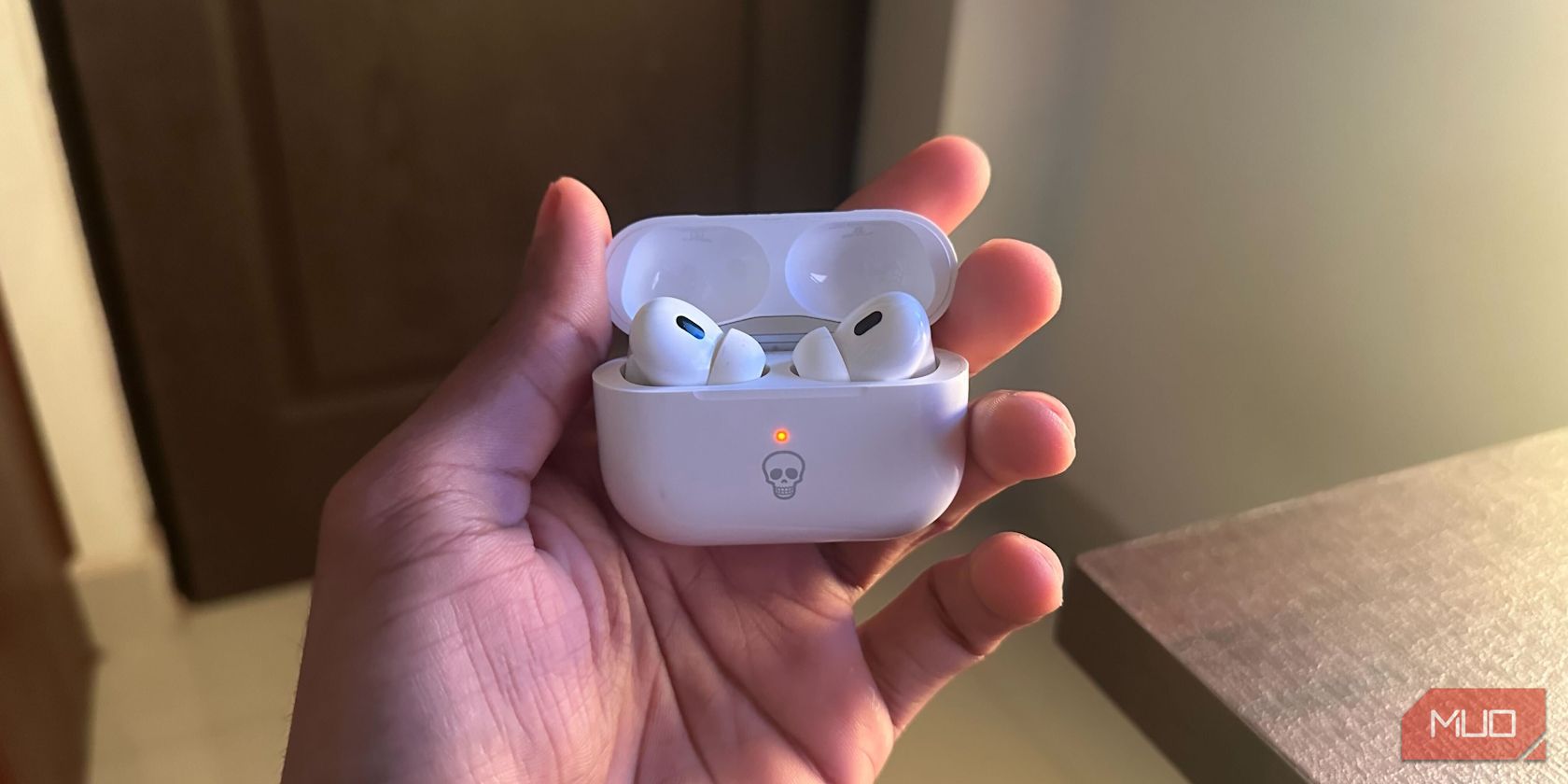
Are you seeing your AirPod Pro blinking orange and wondering what it means? It can be confusing and frustrating when your earbuds start acting up without any clear explanation.
But don’t worry—this blinking orange light is actually a signal your AirPods are trying to give you. You’ll discover exactly why this happens and, most importantly, how to fix it quickly. Keep reading to get your AirPods back to perfect working order and enjoy your music without interruption.
Why Airpod Pro Blinks Orange
The AirPod Pro blinking orange light can cause worry. It signals an issue that needs attention. Understanding why this happens helps fix the problem quickly.
Several reasons cause the AirPod Pro to blink orange. It could be battery trouble, charging problems, firmware glitches, or connection errors. Each issue has clear signs and solutions.
Battery Issues
The orange light often means low battery. The AirPods might not hold charge well anymore. Battery health can decline after long use. This causes the light to blink as a warning. Recharging fully or replacing the battery may help.
Charging Problems
Charging troubles can trigger the orange blinking. Dirt or debris in the charging case stops proper contact. Damaged cables or faulty chargers can also cause this. The AirPods may not charge correctly or at all. Cleaning the case and using original chargers can solve the issue.
Firmware Glitches
Firmware bugs might make the light blink orange. These glitches affect how AirPods communicate with devices. Outdated software or failed updates can cause errors. Resetting or updating the firmware often fixes the problem.
Connection Errors
Connection problems with your device can cause blinking. The AirPods may struggle to pair or stay connected. Wireless interference or Bluetooth issues affect the signal. Restarting devices or re-pairing the AirPods usually stops the blinking.

Credit: www.youtube.com
Basic Troubleshooting Steps
The AirPods Pro blinking orange can be confusing. This light usually signals a problem. Basic troubleshooting can fix many common issues. Follow these simple steps to try and solve the blinking orange light.
Check Battery Level
Low battery often causes the orange light. Place your AirPods Pro in the charging case. Connect the case to power using a proper charger. Wait a few minutes and check the light again. A green light means fully charged. An orange light means charging or low battery.
Clean Charging Case And Airpods
Dirt or debris can block charging contacts. Use a soft, dry cloth to clean the case and AirPods. Avoid using water or liquids. Check the charging contacts inside the case. Remove any dust or lint gently. Clean AirPods tips and stems carefully. Proper cleaning ensures good connection for charging.
Reset Airpods Pro
Resetting can fix software glitches causing the orange light. Put AirPods Pro in the charging case and close the lid. Wait 30 seconds, then open the lid. Press and hold the setup button on the back for 15 seconds. The light will flash amber, then white. Release the button. Reconnect AirPods Pro to your device.
Advanced Fixes To Try
Advanced fixes help resolve persistent AirPod Pro blinking orange issues. These steps go beyond basic troubleshooting. They target firmware, device connections, and compatibility. Follow these methods carefully for the best results.
Update Firmware
Updating your AirPods Pro firmware can fix many issues. Connect your AirPods to your iPhone or iPad. Ensure the device has internet access. Keep the AirPods in the charging case with the lid open. Place the case near the device. The update will install automatically if available.
Check the firmware version in the Bluetooth settings. This step confirms the update was successful. New firmware often improves battery and connection stability.
Reconnect To Device
Reconnecting your AirPods Pro may clear connection errors. Open Bluetooth settings on your device. Select your AirPods and choose “Forget This Device.” Turn Bluetooth off and on again. Put the AirPods back in the case, then open the lid.
Press and hold the setup button until the light flashes white. This resets the connection mode. Find your AirPods in the Bluetooth list and reconnect them. This can resolve pairing glitches causing the orange light.
Test With Different Device
Testing AirPods Pro with another device helps isolate the problem. Use a different iPhone, iPad, or Mac. Connect your AirPods to this device as usual. Check if the blinking orange light continues.
If the issue disappears, your original device may cause the problem. If the light persists, your AirPods may need service. This step narrows down the source of the problem quickly.
Credit: crackwits.com
When To Contact Apple Support
Knowing when to contact Apple Support is important if your AirPods Pro keep blinking orange. This light often signals an issue that needs expert help. Trying simple fixes is good. But some problems require professional care. Understanding the right time to get help can save time and avoid damage.
Persistent Blinking After Fixes
If your AirPods Pro still blink orange after trying resets or charging, it may be a deeper problem. Persistent blinking means the device cannot fix itself. This signals a need for expert diagnosis. Contact Apple Support to avoid worsening the issue. They can run tests and guide you through the next steps.
Physical Damage Concerns
Visible damage like cracks or water exposure can cause blinking. Physical harm may stop AirPods from working properly. Apple Support can check if damage affects the internal parts. They can advise if repair or replacement is needed. Do not ignore signs of physical damage.
Warranty And Repair Options
Your AirPods Pro might be covered under warranty. Apple Support can confirm your warranty status. They also explain repair and replacement options. Using authorized service keeps your warranty valid. It ensures quality repairs and parts. Contacting Apple Support helps protect your investment.
Preventing Future Blinking Issues
Preventing future blinking issues with your AirPods Pro can save time and avoid frustration. Small steps help keep your earbuds in good condition. These easy habits protect the battery and the device’s software. Careful use extends the life of your AirPods and stops blinking problems from happening again.
Proper Charging Habits
Charge your AirPods Pro regularly but avoid overcharging. Use the original charger or a certified replacement. Keep the charging case clean and free from dust. Disconnect the charger once fully charged to protect the battery. Avoid charging in very hot or cold places to prevent damage.
Regular Firmware Updates
Check for firmware updates often. Updates fix bugs and improve device performance. Connect your AirPods Pro to your iPhone or iPad to update them automatically. Keeping software current reduces blinking and other errors. Updates also add new features and enhance battery life.
Safe Storage Tips
Store your AirPods Pro in their case when not in use. Keep the case in a dry, cool place. Avoid leaving them in direct sunlight or hot cars. Protect them from water and dust. Proper storage stops physical damage and keeps the battery healthy.
Credit: crackwits.com
Frequently Asked Questions
Why Is My Airpod Pro Blinking Orange Light?
A blinking orange light means your AirPods need charging or face a connection issue. Check the charging case and AirPods for power. Try resetting the AirPods if the problem continues.
How Do I Fix Airpods Pro Blinking Orange Light?
Place AirPods back in the charging case and close the lid. Wait for 30 seconds, then open the case near your device. If it still blinks orange, reset your AirPods by pressing the setup button.
Can A Blinking Orange Light Mean Airpods Pro Battery Problem?
Yes, blinking orange often signals low battery or charging issues. Ensure the charging case has enough power and the AirPods fit correctly in the case. Replace cables or chargers if needed.
What Does Blinking Orange On Airpods Pro Case Mean?
The case blinking orange shows it needs charging or the AirPods aren’t connecting properly. Make sure the case is plugged into power. Reset the AirPods if blinking continues after charging.
How Long Should Airpods Pro Blink Orange Before Fixing?
The blinking orange light usually stops after charging or resetting within a few minutes. If it blinks longer than 5-10 minutes, check for hardware or software issues. Contact Apple support if problems persist.
Conclusion
The AirPod Pro blinking orange means a connection or charging issue. Try resetting your AirPods or cleaning the charging case. Check if the case has power and the AirPods fit correctly. These simple steps often fix the problem quickly. If it keeps blinking orange, visit an Apple store or contact support.
Don’t ignore the blinking light; it helps protect your device. Stay patient and follow these tips to enjoy your AirPods again.