
Is your Samsung TV blinking a red light and leaving you puzzled? That tiny flashing signal is trying to tell you something important about your TV’s health.
If you’ve noticed this blinking red light, you might wonder what it means and how to fix it. Don’t worry—this guide breaks down the common red light codes and what they reveal about your Samsung TV. By understanding these signals, you can save time, avoid frustration, and get your TV back to working smoothly.
Keep reading to unlock the secrets behind those blinking red light codes and take control of your viewing experience.

Credit: www.reddit.com
Red Light Blinking Patterns
Samsung TVs use a red light blinking pattern to show error codes. These codes help identify problems with the TV. Watching the red light blink can guide you to the issue quickly.
Each pattern has a specific meaning. It may indicate power problems, hardware issues, or other faults. Understanding these patterns can save time and avoid unnecessary repairs.
Common Blink Codes
Most Samsung TVs show red light blinks in a pattern of long and short flashes. For example, 2 blinks followed by a pause, then repeating. Another common pattern is 8 blinks in a row.
Some models use different blink counts to signal various issues. The number of blinks usually ranges from 2 to 8. The blink patterns repeat until the TV is reset or repaired.
What Each Pattern Means
Two blinks often point to a power supply problem. This could mean the TV is not getting enough power or the power board is faulty.
Four blinks usually indicate a problem with the backlight. The LED or LCD backlight might be damaged or disconnected.
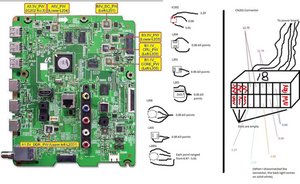
Eight blinks can signal a main board failure. This may require professional repair or board replacement.
Other blink patterns can mean issues with the T-Con board, temperature sensor, or other components. Each pattern guides you to the right part to check first.
Credit: www.ifixit.com
Basic Troubleshooting Steps
Basic troubleshooting steps can help fix the Samsung TV blinking red light issue. These steps are simple and can be done at home. They often solve common problems without needing expert help. Follow each step carefully to check your TV’s condition.
Power Cycle The Tv
Turn off your Samsung TV using the remote or power button. Unplug the TV from the wall outlet. Wait at least 60 seconds. Plug the TV back in and turn it on. This resets the TV’s internal systems and can clear minor errors.
Check Power Connections
Look closely at the power cord and plug. Make sure the cord is fully connected to the TV and the outlet. Check for any damage or frayed wires. Use a different outlet if needed. Secure power connections help the TV work correctly.
Reset The Tv Settings
Go to the TV menu using your remote. Find the “Settings” or “Support” option. Select “Reset” or “Restore Factory Settings.” Confirm your choice. This clears software glitches causing the blinking red light. Note that this may erase saved preferences.
Fixing Software Issues
Software problems often cause the Samsung TV blinking red light issue. These problems can stop the TV from working properly. Fixing software issues can help solve the blinking light and bring the TV back to normal. Two main methods help fix these problems: updating the firmware and doing a factory reset.
Update Firmware
Firmware controls the TV’s basic functions. Outdated firmware can cause errors like blinking red lights. Updating firmware can fix bugs and improve TV stability. To update, open the TV menu and find the software update option. Connect the TV to the internet to download the latest version. Follow the on-screen steps to complete the update. After updating, the TV often works better and blinking stops.
Factory Reset Process
Factory reset returns the TV to its original settings. This step removes any software glitches causing the blinking light. To start, open the TV’s settings menu. Look for the reset or system reset option. You may need to enter a PIN, usually 0000 or 1234. Confirm the reset and wait as the TV restarts. This process deletes all custom settings and apps. The TV will work like new, and many software issues disappear.
Hardware Problems And Solutions
Hardware problems often cause the Samsung TV blinking red light error. These issues affect the TV’s power and display systems. Identifying the exact hardware fault helps fix the problem quickly. Below are common hardware issues and how to solve them.
Inspect Power Supply Board
The power supply board controls the TV’s electricity flow. A faulty board may cause the red light to blink. Check for burnt components or swollen capacitors. Use a multimeter to test voltage output. Replace the board if it shows damage or no power output.
Check Main Board Issues
The main board manages the TV’s functions and signals. Problems here can trigger blinking red lights. Look for loose cables or damaged connectors on the board. Inspect for visible signs of damage or burnt chips. Reset the board by unplugging the TV for a few minutes. Replace the main board if resets do not help.
Screen And Backlight Troubles
The screen or backlight faults cause display issues and blinking lights. Check the LED strips for damage or loose connections. Test the backlight with a flashlight in a dark room. Replace broken LED strips or the entire screen if needed. Backlight inverter failure also leads to blinking red lights and requires repair or replacement.
When To Contact Samsung Support
Seeing the Samsung TV blinking red light can be confusing and worrying. This signal often means the TV has a problem that needs fixing. Knowing when to contact Samsung support can save time and avoid further damage. Some issues are easy to fix at home, but others require expert help.
Contact Samsung support if the blinking red light does not stop after simple troubleshooting. Also, call if the TV shows no picture or sound, or if it keeps turning off. Persistent blinking means the TV might have a serious hardware or software issue. Samsung experts can provide the right solutions and guide you through repairs.
Warranty And Repair Options
Check if your TV is still under warranty before contacting support. A valid warranty can cover repairs at no extra cost. Samsung often offers repairs or replacements depending on the problem. Support staff will ask for your purchase details and model number. They can also explain what repairs are included in the warranty. Outside warranty, they may suggest authorized service centers for repair.
Professional Service Costs
Professional repairs may have a cost if your warranty expired. Service fees depend on the issue and the parts needed. Samsung provides estimates before starting any work. Repair costs can be worth it compared to buying a new TV. Always ask about the total price to avoid surprises. Professional service ensures the problem is fixed correctly and safely.
Preventing Future Blinking Issues
Preventing blinking red light issues on your Samsung TV saves time and stress. These blinking signals usually indicate a problem inside the TV. You can avoid many causes by following simple steps. Proper care helps your TV work longer and better.
Power Surge Protection
Power surges can harm your TV’s electronics. Use a surge protector to keep your TV safe. A good surge protector stops sudden electricity spikes. Plug your TV into a surge protector, not directly into the wall. This small step can stop many blinking light problems.
Regular Software Updates
TV software controls its functions and fixes bugs. Samsung often releases updates to improve performance. Check for updates in your TV’s settings menu. Installing updates keeps your TV running smoothly. It reduces errors that cause blinking red lights. Set your TV to update automatically for ease.
Credit: www.youtube.com
Frequently Asked Questions
What Does A Blinking Red Light On Samsung Tv Mean?
A blinking red light usually signals an error or a power issue. It helps identify what part of the TV needs attention or repair.
How Many Times Does Samsung Tv Blink Red?
The red light blinks a certain number of times to show specific error codes. Counting these blinks helps diagnose the exact problem.
Can I Fix Samsung Tv Blinking Red Light Myself?
Some fixes include unplugging the TV or resetting it. More complex issues may need professional help for safety.
Why Does Samsung Tv Keep Blinking Red Then Turns Off?
This often means the TV is overheating or has a power supply problem. It shuts down to protect itself from damage.
Does Blinking Red Light Affect Samsung Tv Picture Quality?
Usually, the blinking red light means the TV has a fault and may not show any picture. Fixing the error should restore normal display.
Conclusion
Samsung TV blinking red light codes point to specific issues. Knowing these codes helps you understand the problem quickly. Some issues need professional help, while others you can fix yourself. Always check the user manual for guidance. Keeping your TV clean and updated can prevent many errors.
Stay calm and follow the steps carefully. This way, you can enjoy your TV without much trouble. Remember, small fixes often save time and money. Don’t ignore blinking lights; they are your TV’s way of talking.