
Is your CenturyLink modem blinking green and leaving you frustrated? You’re not alone.
That blinking light can signal many things, from a simple connection hiccup to a bigger issue that stops your internet from working. But don’t worry—understanding what this green blink means is the first step to fixing it fast. You’ll discover clear, easy solutions to get your internet back up and running smoothly.
Keep reading to take control of your connection and say goodbye to the blinking green light for good.

Credit: www.youtube.com
Why The Modem Blinks Green
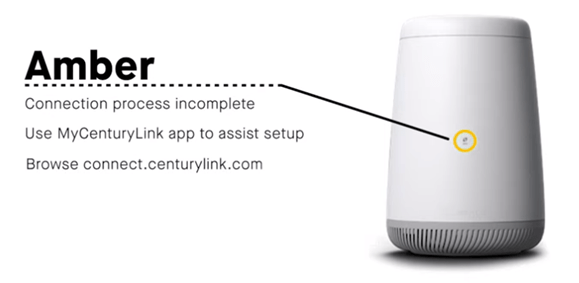
The Centurylink modem blinks green for several reasons. This light shows the modem’s current status. Understanding why it blinks green helps you know if your internet is working well. It can also guide you to fix any problems quickly.
Normal Blinking Patterns
A steady green blinking light usually means the modem is working correctly. The light flashes when the modem sends or receives data. This pattern shows your internet connection is active. Slow blinking often means the modem is ready but not transferring much data. Fast blinking means heavy data traffic. These patterns are normal and show the modem is online.
What Green Blinking Means
Green blinking indicates the modem is powered on and connected. It shows the modem is syncing with the internet service provider. The green light means the modem is trying to get or keep a connection. A blinking green light is better than no light or red light. It means the modem is functioning but may be busy or working on a task.
Common Causes Of Green Blinking
The green blinking light can appear because of firmware updates. Modems blink green while restarting or syncing with the network. A slow internet connection might cause the light to blink continuously. Sometimes, cable issues or loose connections trigger the blinking green light. Power interruptions or modem overheating also cause this behavior. Checking cables and restarting the modem often fixes the problem.
Quick Troubleshooting Steps
The blinking green light on your CenturyLink modem can be a sign of connection trouble. Quick checks can help fix common issues fast. Try these simple steps before calling support. They often solve the problem right away.
Restarting The Modem
Turn off the modem by unplugging its power cord. Wait about 30 seconds. Plug it back in and turn it on. This resets the device and clears minor errors. Watch if the green light stops blinking. This step fixes many issues.
Checking Cable Connections
Look at all cables connected to your modem. Make sure each cable is tight and secure. Loose or damaged cables cause connection problems. Replace any worn or broken cables. Proper connection helps the modem work correctly.
Verifying Service Outages
Check if CenturyLink has a service outage in your area. Visit their website or call customer service. Outages can cause the green light to blink. Knowing about outages saves time and avoids unnecessary troubleshooting.
Resetting The Modem
Resetting the modem is a common step to fix the blinking green light issue on your CenturyLink modem. It helps clear minor glitches that may cause connectivity problems. This process can restore the device’s normal function without much hassle.
There are two main ways to reset your modem. A soft reset restarts the device without changing settings. A factory reset erases all settings and restores the modem to its original state. Choose the method depending on the problem you face.
Soft Reset Procedure
To perform a soft reset, locate the power button on your modem. Turn off the modem by pressing this button or unplugging the power cable. Wait for about 30 seconds. This pause helps clear the device memory.
After the wait, turn the modem back on. Watch the lights carefully. The blinking green light should stop after a few minutes. If it continues, try the factory reset next.
Factory Reset And Its Effects
Find the small reset button on the back of your modem. Use a paperclip or thin object to press and hold the button. Hold it for about 10 seconds. Release the button once the lights start flashing.
This process wipes all custom settings, including Wi-Fi names and passwords. You need to set up the modem again. Only use factory reset if soft reset does not solve the blinking green light.

Credit: www.reddit.com
Firmware Updates And Modem Settings
Firmware updates and modem settings play a key role in fixing a blinking green light on your CenturyLink modem. Firmware is the software inside the modem. It controls how the device works. Keeping it updated helps the modem run smoothly and avoid connection issues.
Modem settings control how the device connects to the internet. Sometimes, wrong settings can cause the green light to blink. Adjusting these settings can restore a stable connection. This section explains how to update your modem’s firmware and change its settings safely.
How To Update Firmware
Check your modem’s current firmware version in the settings menu. Visit the CenturyLink support site for the latest firmware files. Download the correct file for your modem model.
Open your modem’s web interface by typing its IP address in a browser. Usually, it is 192.168.0.1 or 192.168.1.1. Log in with your username and password. Find the firmware update section. Upload the downloaded firmware file and start the update.
Wait until the update finishes. Do not turn off the modem during this process. The modem will restart automatically after updating.
Adjusting Modem Configuration
Access the modem settings through the web interface. Look for options like connection type, IP address, and DNS servers. Ensure the settings match those provided by CenturyLink.
Reset any changed settings to default if unsure. Save the changes and reboot the modem. This can fix configuration errors causing the blinking green light.
Check the modem’s status after adjusting settings. A steady green light usually means the connection is stable.
When To Contact Centurylink Support
Knowing when to contact CenturyLink support can save time and avoid frustration. The blinking green light on your modem might signal a problem beyond simple fixes. Some issues need expert help to restore your internet connection quickly. Understanding these signs helps you decide the right moment to reach out.
Identifying Hardware Issues
Hardware problems often cause the modem’s green light to blink. This could mean a faulty cable, loose connection, or damaged device. If you tried restarting the modem and the light still blinks, hardware might be the cause. Check for physical damage or unusual heat on the modem. These signs point to a deeper issue that requires professional support.
Scheduling A Technician Visit
When the modem keeps blinking green after basic troubleshooting, schedule a technician visit. A technician can inspect the hardware and wiring on-site. They have tools to diagnose and fix problems that remote support cannot. Booking a visit ensures the problem gets the right attention. This step often restores your service faster and avoids prolonged outages.
Preventive Measures For Stable Connection
Maintaining a stable internet connection is vital for smooth online activities. Preventive steps can reduce modem issues and keep the connection steady. These simple actions help avoid blinking green lights on your CenturyLink modem.
Proper Modem Placement
Place your modem in an open area. Avoid enclosed spaces like cabinets or drawers. Keep it away from walls and metal objects. These can block the wireless signal. Position the modem in a central spot in your home. This helps the signal reach all rooms evenly.
Keep the modem away from electronic devices. Devices like microwaves and cordless phones may cause interference. Elevate the modem off the floor. A higher place often gives a stronger signal. Check that cables are secure and not bent or damaged.
Regular Maintenance Tips
Clean your modem regularly. Dust can block vents and cause overheating. Use a soft, dry cloth to wipe the modem’s surface. Avoid liquids or sprays near the device. Restart the modem once a week. This refreshes its system and improves performance.
Update the modem’s firmware if updates are available. Updates fix bugs and improve stability. Check your CenturyLink account or support site for instructions. Monitor the modem’s lights daily. Early notice of unusual blinking helps catch problems fast.
Credit: www.centurylink.com
Frequently Asked Questions
Why Is My Centurylink Modem Blinking Green?
A blinking green light means the modem is trying to connect to the network. It shows the device is powering up or searching for a signal.
How Long Should Centurylink Modem Blink Green?
The green blinking usually lasts a few minutes during startup. If it blinks for over 10 minutes, there might be a connection issue.
What To Do If Centurylink Modem Keeps Blinking Green?
Try restarting the modem by unplugging it for 30 seconds. Check all cables are secure and the outlet works.
Does Blinking Green Mean Internet Is Working On Centurylink?
No, blinking green indicates the modem is still connecting. A solid green light usually means the internet is active.
Can A Firmware Update Fix Blinking Green On Centurylink Modem?
Yes, updating firmware can help fix connection problems. Contact Centurylink support for instructions on updating your modem.
Conclusion
A blinking green light on your CenturyLink modem signals a connection issue. Start by checking all cables and restarting the modem. Sometimes, a simple reset fixes the problem quickly. If the light keeps blinking, contact CenturyLink support for help. Staying patient helps during troubleshooting steps.
Your internet should work fine soon. Understanding these steps makes fixing the blinking green light easier. Don’t let the issue frustrate you—solutions are within reach.