
Is your Cox modem showing a blue blinking light, and you’re not sure what it means? You’re not alone.
That blinking light can be confusing and even frustrating, especially when your internet isn’t working right. But don’t worry—understanding why the blue light blinks and what you can do about it is easier than you think. Keep reading to find out what that blinking blue light means for your Cox modem and how you can fix it quickly to get your connection back on track.
Blue Blinking Light Meaning
The blue blinking light on a Cox modem can tell you a lot about your internet connection. It acts like a signal, showing the modem’s current status. Understanding what this light means helps you know if your internet is working well or if there is a problem.
Sometimes, the blue light blinks in a certain pattern. This blinking is a message. It could mean the modem is trying to connect or there is a small issue. Paying attention to these signals can save time and frustration.
Normal Status Indicators
A steady blue light usually means the modem is connected properly. It shows the internet is ready to use. Slow blinking can mean the modem is searching for a signal. This happens when the modem is starting up or reconnecting.
Fast blinking means data is being sent or received. This is a good sign that your internet is active. No light or a red light often indicates a problem with the connection or power.
Common Causes Of Blinking
The blue light may blink because the modem is rebooting. Power outages or manual restarts cause this. Another cause is a weak or lost signal from your internet provider. This makes the modem try to reconnect.
Firmware updates can also cause blinking. These updates improve the modem’s software. Finally, loose cables or bad connections can trigger the blinking light. Checking cables can often fix the issue quickly.

Credit: www.wikihow.com
Basic Troubleshooting Steps
Seeing a blue blinking light on your Cox modem can be confusing. It often means the modem is trying to connect or has a minor issue. Basic troubleshooting can fix many common problems quickly. These simple steps help check the most usual causes of the blinking light.
Restarting The Modem
Turn off your modem by unplugging it from the power source. Wait about 30 seconds before plugging it back in. This reset helps clear temporary errors and refreshes the connection. After restarting, watch the light to see if it stops blinking.
Checking Cable Connections
Make sure all cables are securely connected to the modem. Loose or damaged cables can cause connection issues. Check the coaxial cable, Ethernet cable, and power cable for any signs of wear. Tighten or replace cables if needed to ensure proper contact.
Verifying Power Supply
Check that the power adapter is plugged into a working outlet. Avoid using power strips that might be faulty. A steady power supply keeps the modem running smoothly. Replace the adapter if the modem does not power on or the blue light keeps blinking.
Network Issues And Solutions
The blue blinking light on a Cox modem often signals network issues. These problems can disrupt your internet connection. Understanding common causes helps fix the problem fast. Below are key network issues and simple solutions to try.
Signal Interference
Signal interference can weaken your modem’s connection. Household devices like microwaves and cordless phones cause interference. Thick walls and large metal objects block signals too. Move your modem away from such devices. Place it in an open, central area for better signal. This often stops the blue blinking light problem.
Service Outages
Service outages happen when Cox’s network is down. These outages affect many users in your area. Check Cox’s website or call customer support to confirm. Wait for the service to come back online. Outages usually resolve within a few hours. Patience is key during these times.
Resetting Network Settings
Resetting network settings can clear modem errors. Unplug the modem’s power cable for 30 seconds. Plug it back in and wait for it to restart. This refreshes the connection and may stop the blinking light. Use this step if other fixes do not work. It often solves minor network glitches quickly.

Credit: www.youtube.com
Advanced Fixes
Advanced fixes help solve tricky issues with the blue blinking light on your Cox modem. These steps go beyond basic checks and need careful attention. Follow them to improve your modem’s performance and internet connection.
Firmware Updates
Firmware controls how your modem works. Outdated firmware can cause the blue light to blink. Check Cox’s website for the latest firmware updates. Download and install updates to fix bugs and improve stability. Keep your modem’s software current to avoid connection problems.
Modem Factory Reset
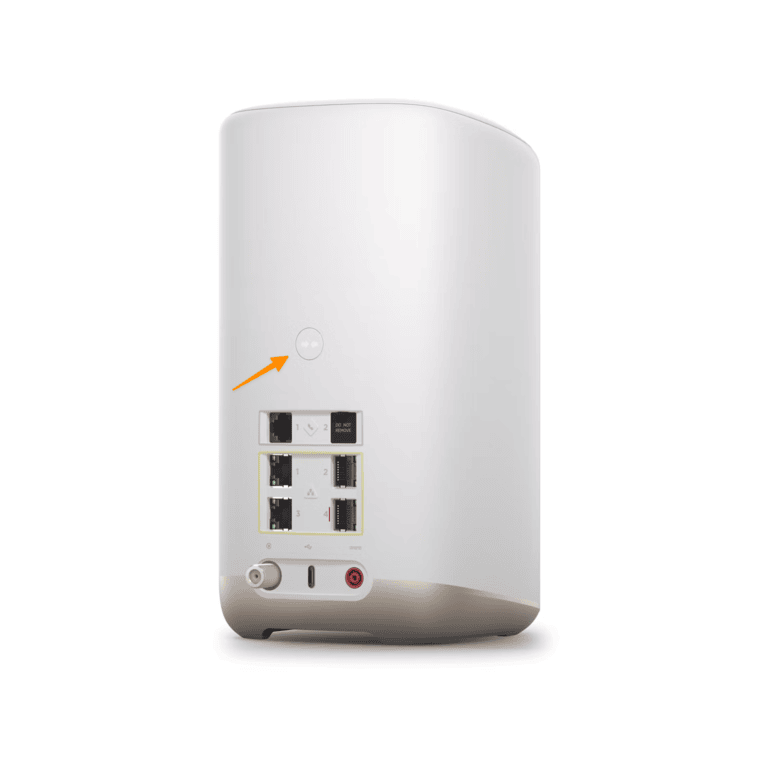
A factory reset clears all settings and returns the modem to its original state. This step can fix persistent blinking issues. Find the reset button on the back of the modem. Press and hold it for about 10 seconds. Wait for the modem to restart and check if the blue light stops blinking. Remember, a reset will erase your custom settings.
Contacting Cox Support
If advanced fixes don’t work, contact Cox customer support. Provide details about the blinking blue light and your troubleshooting steps. Support agents can run remote diagnostics and help you fix the problem. They may also schedule a technician visit if needed. Getting expert help ensures your connection returns quickly.
Preventive Tips
Preventing issues with your Cox modem can save time and frustration. Simple steps help keep the blue blinking light from appearing. These tips improve modem performance and extend its life.
Proper Modem Placement
Place your modem in an open area. Avoid tight spaces or behind furniture. Keep it away from walls and metal objects. These block signals and cause the blue light to blink. Also, keep the modem off the floor to reduce dust buildup.
Regular Maintenance
Clean your modem regularly using a dry cloth. Dust and dirt can cause overheating and signal problems. Restart the modem once a week to refresh the connection. Check cables to ensure they are secure and not damaged. Replace any worn-out cords immediately.
Using Surge Protectors
Connect your modem to a surge protector. Power spikes damage the modem’s internal parts. Surge protectors stop sudden electrical surges. This prevents the blue blinking light issue caused by power problems. Always use a reliable surge protector for safety.
Credit: datafeature.com
Frequently Asked Questions
What Does A Blue Blinking Light Mean On Cox Modem?
A blue blinking light on your Cox modem shows it is trying to connect. It means the modem is powering up or syncing with the network. Wait a few minutes for it to stop blinking.
How Long Should Blue Blinking Light Last On Cox Modem?
The blue blinking light usually lasts about 5 to 10 minutes. If it blinks longer, the modem may have trouble connecting to the internet. Restarting the modem can help fix this.
Why Is My Cox Modem Blue Blinking And No Internet?
A blue blinking light with no internet means the modem is not fully connected. This could be caused by service outages, loose cables, or modem issues. Check cables and contact Cox support if the problem continues.
Can I Use Cox Modem With Blue Blinking Light?
Using the internet while the blue light blinks is unlikely. The blinking means the modem is not ready for internet use. Wait until the light turns solid or white for a stable connection.
How To Fix Blue Blinking Light On Cox Modem?
Try unplugging the modem for 30 seconds and plugging it back in. Check all cables to ensure they are secure. Contact Cox support if the blue blinking continues after restarting.
Conclusion
A blue blinking light on your Cox modem means it is trying to connect. This often happens during startup or after a reset. Patience helps as the modem usually fixes itself soon. If blinking lasts too long, check your cables or restart the device.
Contact Cox support if problems continue. Understanding this simple sign keeps your internet running smoothly. Stay calm and follow basic steps to fix the issue quickly.