
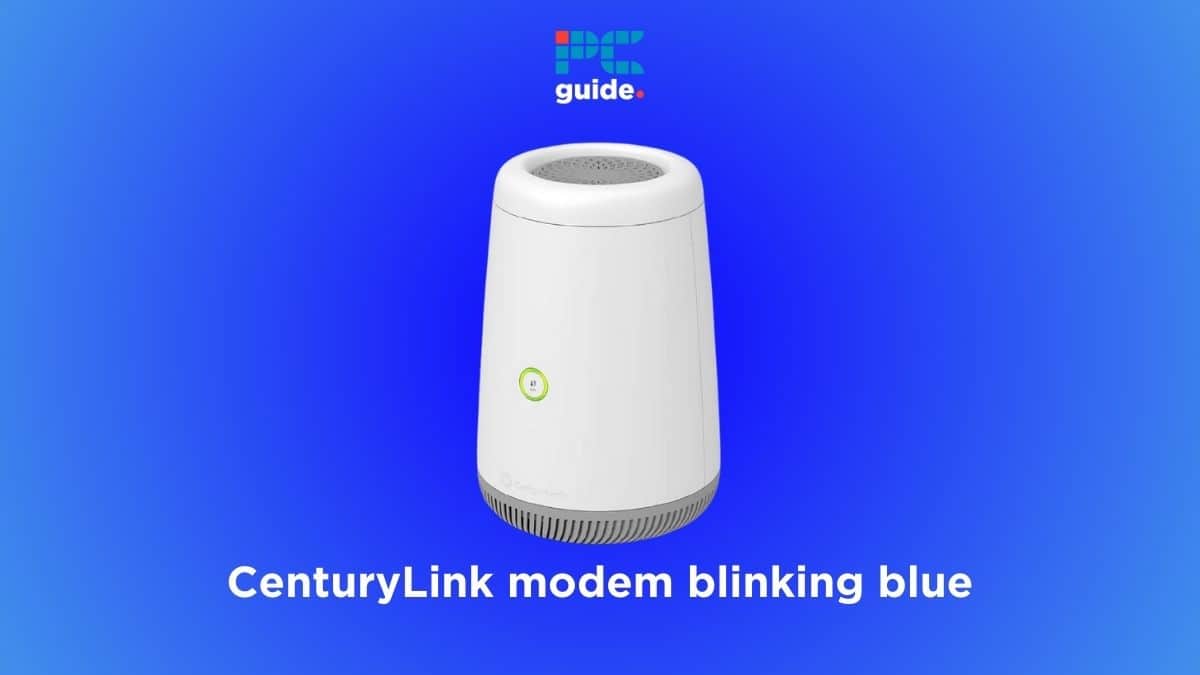
Is your Centurylink modem showing a blinking blue light, and you’re not sure what it means? You’re not alone.
That blinking blue can be confusing and even frustrating when you just want your internet to work smoothly. But don’t worry—understanding why the blue light is blinking and what you can do about it is easier than you think. Keep reading, and you’ll learn simple steps to fix the issue and get your connection back on track fast.
Credit: www.pcguide.com
Causes Of Blinking Blue Light
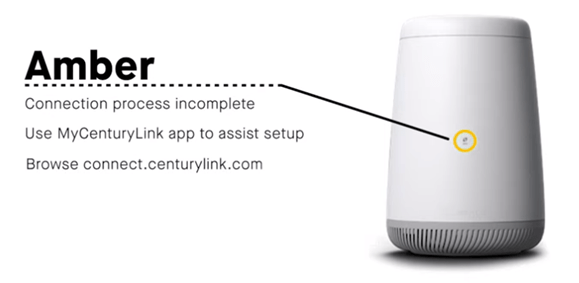
The blinking blue light on your CenturyLink device signals specific activities or issues. Understanding what causes this blinking helps you know what to do next. Different reasons can trigger the blinking blue light, from system updates to network problems.
Recognizing these causes makes troubleshooting easier. This section explains the main reasons behind the blinking blue light.
Firmware Updates In Progress
The blinking blue light often means the device is updating its firmware. Firmware is the software inside the device that controls its functions. Updates improve performance and fix bugs. During this process, the blue light blinks to show the update is running. Do not turn off or unplug the device while updating. Interrupting updates can cause errors or damage.
Connectivity Issues
The blue light can blink if the device struggles to connect to the internet. This happens when the signal is weak or unstable. Loose cables or poor Wi-Fi signals may cause this. The device tries to re-establish a good connection. Check all wires and move closer to the router to fix this. The blinking stops when the connection improves.
Hardware Malfunctions
A blinking blue light can also signal hardware problems. Internal parts may fail or overheat. Dust or damage could affect performance. Hardware issues often need professional repair or replacement. If the blinking continues despite troubleshooting, contact CenturyLink support. They can diagnose and solve hardware faults.
Network Outages
Sometimes, the blinking blue light means there is a network outage. This means the internet service is down in your area. Outages happen due to maintenance or unexpected problems. The device cannot connect to the network during an outage. Check for alerts from CenturyLink about service status. The blue light stops blinking once the network is restored.
Credit: www.centurylink.com
Basic Troubleshooting Steps
The blinking blue light on your CenturyLink modem can mean different things. It often signals a connection problem. Basic troubleshooting can fix many issues quickly. Follow these simple steps to try and restore your internet connection.
Restarting Your Modem And Router
Turn off your modem and router by unplugging them. Wait 30 seconds before plugging them back in. This allows the devices to reset. Restarting clears minor errors that cause blinking lights. Watch the lights as the devices power back on. The blue light should stop blinking if the issue is fixed.
Checking Cable Connections
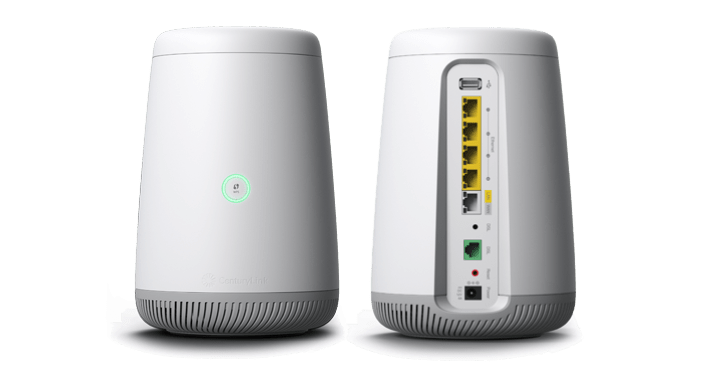
Inspect all cables connected to your modem and router. Make sure each cable is firmly plugged in. Loose or damaged cables can cause connection problems. Replace any cable that looks worn or broken. Proper cable connections help maintain a steady internet signal.
Verifying Service Status
Visit the CenturyLink service status page online. Check if there is an outage in your area. Service interruptions can cause the blinking blue light. If there is an outage, wait for the company to fix it. This step saves time and avoids unnecessary troubleshooting.
Advanced Fixes For Persistent Issues
Some issues with the CenturyLink blinking blue light need more than simple fixes. These advanced steps help solve persistent problems. They reset the device, update software, or adjust settings. Each step improves your internet connection and router performance.
Resetting To Factory Settings
Resetting the router clears all custom settings. It returns the device to its original factory state. Press and hold the reset button for about 10 seconds. The router will restart automatically. This fix solves many stubborn problems and refreshes the system.
Updating Router Firmware Manually
Firmware controls how your router works. Old firmware can cause blinking blue light issues. Download the latest firmware from the CenturyLink website. Log in to your router’s admin page. Upload the new firmware file and start the update. This process improves stability and security.
Adjusting Network Settings
Incorrect network settings may cause connection problems. Access your router’s admin panel to check settings. Change IP address, DNS, or wireless channels as needed. Save changes and restart the router. Proper settings can stop the blinking blue light and improve speed.
When To Contact Customer Support
Knowing when to contact CenturyLink customer support can save time and reduce frustration. The blinking blue light on your modem often signals a problem. Some issues you can fix alone. Others need expert help. Recognizing these moments helps keep your internet running smoothly.
Identifying Hardware Failures
The blinking blue light may mean a hardware problem. Check if cables are loose or damaged. If everything looks fine but the light keeps blinking, hardware might be faulty. Problems with the modem or router often cause connection issues. Contact support if you suspect hardware failure. They can guide you through tests or repairs.
Scheduling Technician Visits
Some problems need a technician’s visit. If customer support can’t fix the issue remotely, they schedule a visit. This happens when hardware inside your home needs repair or replacement. A technician checks wiring, modem, and other equipment. Booking a visit ensures the problem gets fixed quickly and safely.
Exploring Replacement Options
Sometimes, the blinking blue light means your device is old or broken. Customer support can help with replacement options. They explain available models and costs. Replacing faulty equipment often restores your internet connection. Discuss options with support to find the best fit for your needs.
Preventive Measures For Stable Connection
Keeping your CenturyLink connection stable avoids the frustration of blinking blue lights. Preventive measures help maintain smooth internet and reduce interruptions. Simple actions protect your device and improve signal quality.
Regular Firmware Updates
Firmware updates fix bugs and improve device performance. Check for updates often and apply them. Updated firmware helps your router run smoothly and avoid connection drops.
Proper Device Placement
Place your router in an open, central location. Avoid walls, metal objects, and electronics that cause interference. Good placement boosts signal strength and prevents blinking blue issues.
Using Quality Cables
Use high-quality Ethernet and power cables. Cheap cables cause signal loss and connection problems. Quality cables ensure steady data flow and reduce blinking blue light errors.
Credit: www.centurylink.com
Frequently Asked Questions
What Does A Blinking Blue Light On Centurylink Mean?
A blinking blue light on CenturyLink usually shows the device is starting up. It can also mean the modem is trying to connect to the internet.
How To Fix Centurylink Blinking Blue Light Issue?
Try restarting your modem by unplugging it for 30 seconds, then plug it back in. Check all cables are connected properly and not damaged.
How Long Should Centurylink Blue Light Blink?
The blue light should blink for a few minutes during startup. If it blinks for more than 10 minutes, there could be a connection problem.
Can Blinking Blue Light Affect Internet Speed?
Yes, a blinking blue light can mean the modem is not fully connected. This may cause slow or no internet until the light turns solid.
When To Call Centurylink Support For Blinking Blue Light?
Call support if the blue light keeps blinking after restarting the modem twice. Also, reach out if internet does not work despite the light status.
Conclusion
A blinking blue light on your CenturyLink device can signal several issues. Checking your connection and restarting the modem often helps. Keep cables secure and avoid interference from other devices. If the light keeps blinking, contact CenturyLink support for advice.
Staying calm and following simple steps saves time and frustration. Your internet should work smoothly soon.