
Is your modem’s light blinking, and you’re not sure what it means? That little blinking light can be more than just a flicker—it’s trying to tell you something about your internet connection.
You might be wondering if it’s a sign of a problem or just normal activity. Understanding what those blinking lights mean can save you time and frustration. You’ll learn exactly why your modem’s lights blink and what steps you can take to fix common issues.
Keep reading to get your internet back on track quickly and easily.
Why Modem Lights Blink
Modem lights blink to show their status and activity. These lights tell you if the modem is working correctly or if there is an issue. Understanding why the lights blink helps you know what is happening with your internet connection.
Power And Connectivity Signals
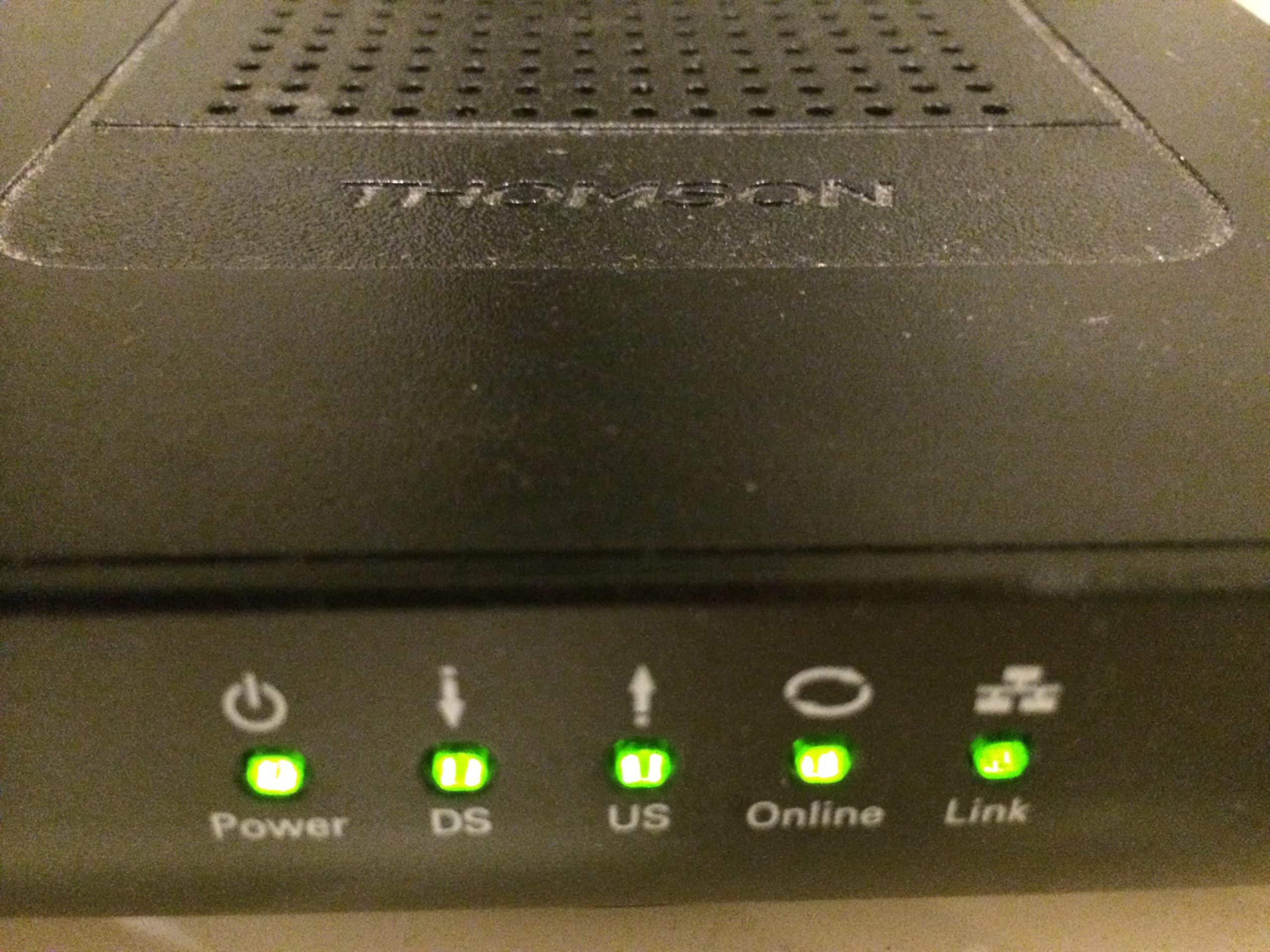
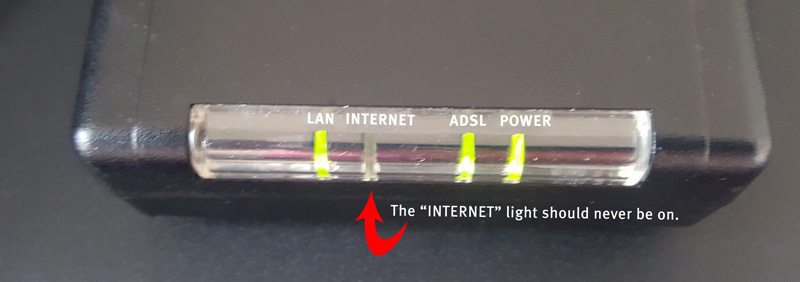
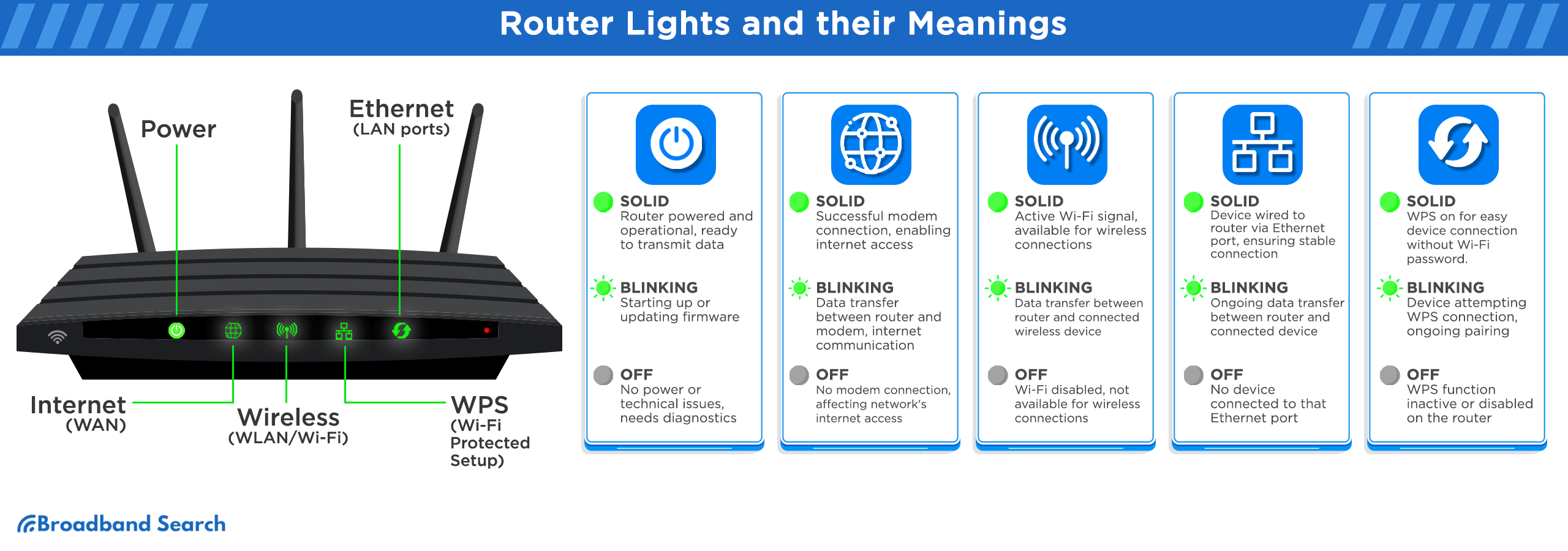
The power light shows if the modem is on. A steady light means the modem has power. A blinking power light can mean the modem is starting up or has a problem.
Connectivity lights indicate if the modem connects to your internet provider. Blinking means the modem is trying to connect. A steady light shows a stable connection.
Common Blinking Patterns
Different blinking speeds and colors mean different things. Slow blinking often shows the modem is searching for a signal. Fast blinking can mean data is being sent or received.
Red or orange blinking lights usually warn of an error. Green or blue blinking lights often show normal activity.
What Blinking Indicates
Blinking lights mean the modem is active and working. They show power status, network connection, and data transfer. Watching the blinking helps find connection problems early.
Constant blinking without a steady light may mean no internet. Irregular blinking can signal hardware or line issues. Checking the blinking pattern helps fix problems faster.
Credit: www.joshvamos.com
Troubleshooting Power Issues
Power issues often cause modem lights to blink unexpectedly. Troubleshooting these problems can help restore your internet quickly. Start by checking the power source and connections. Small fixes can make a big difference.
Check Power Supply
Ensure the power outlet is working. Plug another device into the same outlet. If the device does not work, try a different outlet. Avoid using power strips with multiple devices. Sometimes, outlets can lose power due to circuit breakers.
Reset The Modem
Resetting the modem can clear minor glitches. Unplug the modem from the power source. Wait for about 30 seconds. Plug it back in and wait for the lights to stabilize. This process refreshes the device’s connection and settings.
Inspect Power Cables
Look closely at the power cables for damage. Check for cuts, bends, or frayed wires. Loose cables can cause blinking lights. Firmly reconnect both ends of the power cable. Use a different cable if you find any damage.
Fixing Connectivity Problems
Fixing connectivity problems can be simple if you follow a few key steps. A blinking modem light often means the internet connection is unstable or lost. This section helps you troubleshoot the issue quickly. You can restore your internet without extra tools or tech help.
Verify Cable Connections
Check all cables connected to your modem and router. Make sure they are plugged in tightly. Look for any damaged or frayed wires. Replace any cables that look worn out. Loose or broken cables cause the modem light to blink and lose connection.
Restart Network Devices
Turn off your modem and router. Wait 30 seconds before turning them back on. Restarting clears temporary glitches and refreshes the connection. This step often fixes blinking light issues fast. Your devices will reconnect to the internet after rebooting.
Check Internet Service Status
Contact your internet service provider or visit their website. Confirm if there are outages or maintenance work in your area. Service disruptions can cause modem lights to blink. Knowing the status helps you decide if you need to wait or take more action.
Credit: www.atcnet.net
Advanced Modem Settings
Advanced modem settings help you fix blinking lights on your modem. These settings give you control over your device. You can change important options to improve performance and stability. Understanding these settings can solve many connection issues.
Access Modem Admin Panel
Accessing the modem admin panel lets you see and change settings. Open a web browser and type your modem’s IP address. Usually, it is 192.168.1.1 or 192.168.0.1. Enter your username and password. These details are on the modem label or in the manual. Inside the panel, you can check connection status and logs.
Update Firmware
Firmware is the software inside your modem. Updating it fixes bugs and improves features. Find the firmware update option in the admin panel. Download the latest version from your modem maker’s website. Follow the instructions carefully. Keep the modem powered on during the update. A successful update may stop the blinking light issue.
Reset To Factory Defaults
Resetting your modem restores original settings. It removes all custom changes and fixes errors. Locate the reset button, usually a small hole on the back. Use a paperclip to press and hold the button for 10 seconds. The modem will restart automatically. After reset, set up your modem again. This step often clears blinking light problems caused by misconfigurations.
When To Contact Your Isp
Knowing when to contact your Internet Service Provider (ISP) is key if your modem’s lights keep blinking. This blinking can mean many things. Some issues you can fix yourself. Others need expert help. Contacting your ISP at the right time saves you stress and downtime.
Persistent Blinking Issues
If the modem’s lights blink nonstop for a long time, it may signal a problem. Restart your modem first. Unplug it, wait 30 seconds, then plug it back in. If blinking continues, your modem might have a fault. Contact your ISP for a check or replacement.
Service Outages
Sometimes, blinking lights show an outage in your area. Check your ISP’s website or social media for updates. If they report a problem, wait for them to fix it. If no info is available but the blinking persists, call your ISP to report the issue.
Requesting Technical Support
Technical support can help with complex blinking problems. Have your account details ready. Describe the blinking pattern clearly. This helps the technician diagnose the issue faster. They may guide you through steps or send a technician to your home.
Preventing Future Connection Drops
Preventing future connection drops helps keep your internet stable and fast. Simple steps can stop your modem lights from blinking and losing connection. Regular care and smart tools protect your network and improve performance.
Regular Modem Maintenance
Clean your modem and its vents often. Dust can cause it to overheat and fail. Restart your modem weekly to clear temporary glitches. Update the modem’s firmware to fix bugs and improve speed. Check cables for damage and replace any that look worn out.
Use Surge Protectors
Plug your modem into a surge protector. Power surges can damage electronics and cause connection problems. Surge protectors absorb sudden spikes in electricity. This keeps your modem safe during storms or power outages. A small investment can save expensive repairs later.
Monitor Network Performance
Use simple apps or tools to check your internet speed and stability. Spot slowdowns or interruptions early. Keeping an eye on performance helps you act before problems get worse. Track your usage to see if too many devices affect your connection. Change settings or upgrade plans if needed for better service.
Credit: www.broadbandsearch.net
Frequently Asked Questions
What Does A Blinking Light On My Modem Mean?
A blinking light usually shows that your modem is trying to connect. It may also mean data is being sent or received. This is often normal during startup or heavy internet use.
Why Does My Modem Light Keep Blinking Constantly?
Constant blinking can indicate a weak internet signal or connection problem. Check your cables and restart the modem. If it continues, contact your internet service provider.
How Can I Fix A Blinking Modem Light Issue?
Try unplugging your modem for 30 seconds, then plug it back in. Ensure all cables are tight and undamaged. If the light still blinks, reset the modem or call support.
Is A Blinking Light On The Modem A Sign Of Internet Outage?
Yes, blinking lights often signal connection troubles or outages. Your modem struggles to reach the network during these times. Wait a few minutes or check with your provider.
Can A Blinking Modem Light Affect Internet Speed?
Yes, a blinking modem light can mean unstable connections that slow down speed. Poor signal or interference may cause this. Fixing the blinking issue can improve performance.
Conclusion
A blinking light on your modem often signals a connection issue. Check cables and restart your device to fix it. Sometimes, the problem lies with your internet service provider. Keep an eye on the modem’s lights to spot troubles early.
Staying calm and following simple steps can restore your connection quickly. Don’t ignore blinking lights—they help you understand your internet status. Understanding these signs makes troubleshooting easier for everyone.