
Have you ever noticed an amber blinking light on your Dell computer and wondered what it means? That little light might seem harmless, but it’s actually trying to tell you something important about your device.
Ignoring it could lead to bigger problems down the road. You’ll learn exactly what the amber blinking light on your Dell means, why it happens, and most importantly, how you can fix it quickly. Keep reading to save yourself time, stress, and maybe even a costly repair.
Credit: www.dell.com
What The Amber Blinking Light Means
The amber blinking light on a Dell device signals a problem. It acts as a warning to users. This light helps identify hardware or system issues quickly. Understanding its meaning can guide you to the right fix. It saves time and avoids further damage.
Common Causes
The amber blinking light often points to power problems. It may show up if the battery is low or faulty. Another cause is an issue with the power adapter or cable. Overheating can trigger the warning as well. Loose or damaged internal parts might also cause it.
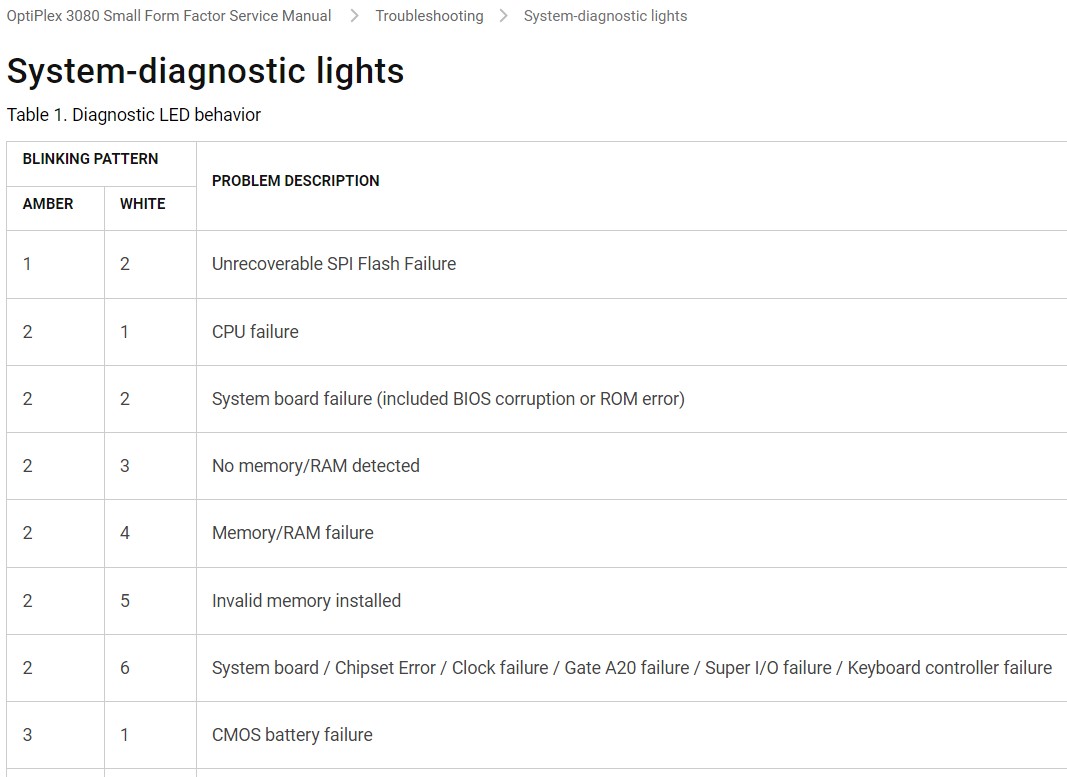
Error Codes And Patterns
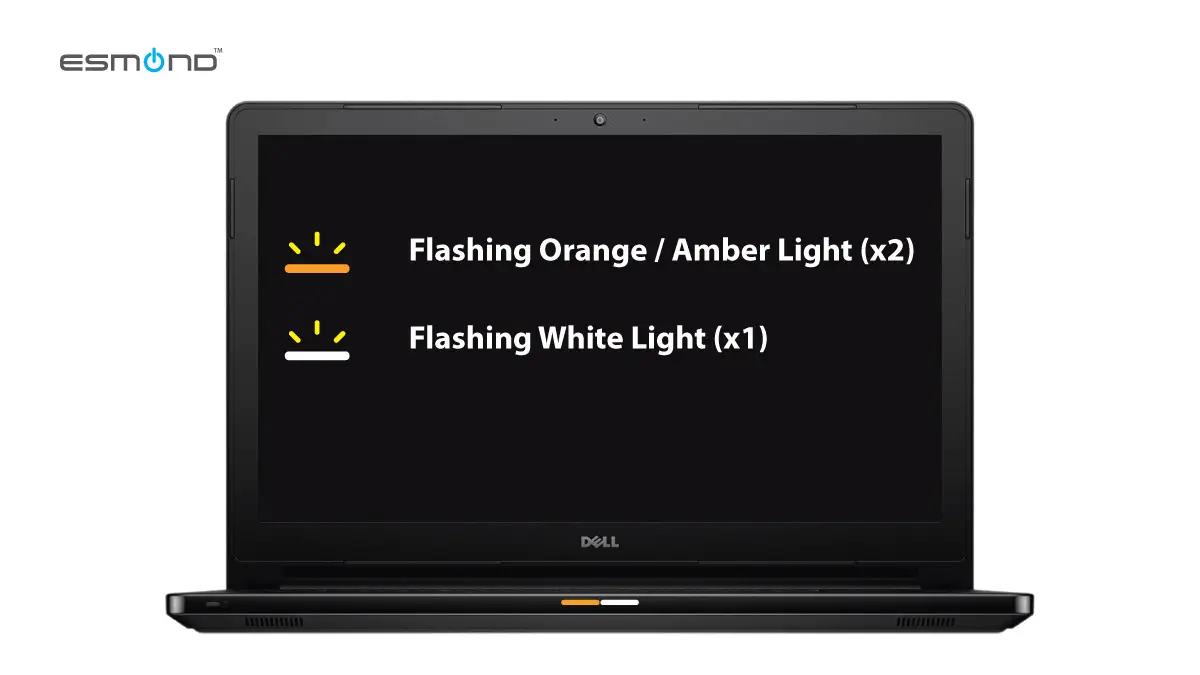
Dell devices use specific blink patterns to show errors. The number of blinks helps identify the issue type. For example, two blinks often mean a memory problem. Three blinks may indicate a motherboard failure. Counting the blinks helps narrow down the exact fault. This system makes troubleshooting easier and faster.
Initial Troubleshooting Steps
The amber blinking light on a Dell device signals a hardware issue. Start with simple steps to find the problem. These steps help avoid bigger troubles later. Follow each step carefully. They may solve the issue quickly.
Begin with power-related checks. Power problems cause many amber light errors. Check these first for easy fixes.
Power Cycle Your Dell Device
Turn off your Dell device completely. Unplug the power cord from the outlet. Wait for about 60 seconds. Press and hold the power button for 15 seconds. This clears any residual power. Plug the power cord back in. Turn on your device. See if the amber light stops blinking.
Check Power Connections
Look at the power cable and adapter. Make sure they are firmly connected. Check both ends of the power cord. Inspect for any damage or frayed wires. Try using a different power outlet. Avoid using power strips or extension cords. Loose or faulty connections cause power issues. Secure and undamaged connections improve device performance.
Diagnosing Hardware Issues
The amber blinking light on a Dell laptop often signals hardware problems. Diagnosing these issues helps identify the exact cause. Early detection can prevent bigger damage. This section focuses on two common hardware checks: RAM and memory, and battery and charger.
Inspecting Ram And Memory
RAM problems cause amber blinking lights on Dell laptops. Start by turning off the laptop and unplugging it. Open the back cover carefully to access the RAM slots. Remove each RAM stick and check for dust or damage. Reinsert the RAM sticks firmly back into their slots.
Use built-in diagnostics to test the memory. Restart the laptop and press the F12 key during boot. Select “Diagnostics” from the menu. The tool checks RAM errors and other hardware issues. Note any error codes shown on the screen. These codes help identify faulty memory modules.
Testing The Battery And Charger
A faulty battery or charger also triggers an amber blinking light. Check the charger cable for visible damage or frayed wires. Try using another compatible charger to see if the light stops blinking. If the light stays on, the problem might be the battery.
Remove the battery from the laptop. Connect the charger and power on the laptop without the battery. If the laptop works, the battery likely needs replacement. Use Dell’s battery health tool to check battery status. This tool reports if the battery holds a charge properly.
Software-related Fixes
The amber blinking light on a Dell laptop can signal software issues. Fixing these problems often starts with software-related steps. These steps can help the system run smoothly again. They focus on updating essential software and checking for hidden errors.
Updating Bios And Drivers
The BIOS controls the basic functions of your Dell laptop. Outdated BIOS can cause hardware and software conflicts. Updating the BIOS can fix bugs and improve stability. Drivers connect your hardware to the operating system. Old drivers may cause errors and blinking lights. Check Dell’s official website for the latest BIOS and drivers. Download and install updates carefully. Restart your laptop after updating to apply changes.
Running Dell Diagnostics Tools
Dell provides built-in tools to find software problems. These diagnostics can check hardware and software status. Access the Dell diagnostics from the boot menu. Run a full test to detect errors causing the blinking light. The tool shows detailed reports after scanning. Follow the recommended actions to fix detected issues. Running diagnostics regularly helps keep your laptop healthy.
When To Seek Professional Help
The amber blinking light on a Dell device signals a problem that needs attention. Sometimes, simple fixes work. Other times, the issue is complex. Knowing when to seek professional help saves time and stress.
Persistent blinking, unusual sounds, or failure to start indicate deeper issues. Attempting repairs without knowledge can cause more damage. Experts have the tools and skills to diagnose and fix problems safely.
Warranty And Support Options
Check your Dell device warranty first. Many repairs may be covered at no cost. Dell offers official support through phone, chat, or service centers. Using authorized services keeps warranty valid.
Expired warranty? Dell still provides paid repair options. Third-party repair shops can help too. But beware of unofficial repairs that may void warranty or cause further issues.
Preparing For Repair Services
Back up important files before sending your device for repair. Remove any accessories or external devices. Note down device details like model and serial number.
Describe the problem clearly to help technicians diagnose faster. Keep your proof of purchase and warranty info ready. This preparation ensures smooth and quick service.
Credit: elservicecentre.com

Credit: www.youtube.com
Frequently Asked Questions
What Does An Amber Blinking Light Mean On A Dell Laptop?
An amber blinking light on a Dell laptop usually signals a hardware issue. It often points to battery or power problems that need attention.
How To Fix The Amber Blinking Light On A Dell Computer?
Try restarting your Dell and checking the power cable connection first. If it still blinks, test the battery or consult Dell support.
Can A Blinking Amber Light Indicate A Battery Failure?
Yes, a blinking amber light often means the battery is failing or not charging properly. Replacing the battery may solve the issue.
Does The Amber Blinking Light Affect Dell Laptop Performance?
The blinking light itself doesn’t affect performance but signals a problem. Untreated, it may lead to power or hardware failures.
Is It Safe To Use A Dell Laptop With Amber Blinking Light?
Using the laptop might be safe short-term but not recommended long-term. Address the issue soon to avoid damage or sudden shutdowns.
Conclusion
The amber blinking light on your Dell signals a hardware issue. It helps you identify problems quickly. Check your device manual or Dell’s website for specific codes. Restart your computer to see if the light stops blinking. If it continues, seek professional help or contact Dell support.
Don’t ignore the warning; it protects your device from damage. Understanding this light keeps your computer running smoothly. Stay calm and follow the steps carefully. Your Dell will be back to normal soon.