
Is your YouTube TV not working on your Samsung TV? You’re not alone.
Many Samsung TV users face this issue. YouTube TV is a popular streaming service, offering various channels and shows. But technical issues can ruin the experience. If your YouTube TV isn’t functioning well on your Samsung TV, it’s frustrating. This blog will explore common problems and solutions.
We’ll guide you on how to get back to enjoying your favorite shows without interruptions. Stay tuned to learn how to fix YouTube TV on your Samsung TV.

Credit: www.youtube.com
Common Issues
Experiencing issues with YouTube TV on your Samsung TV can be frustrating. Understanding common problems can help you troubleshoot effectively. Here are some frequent issues users face.
App Not Loading
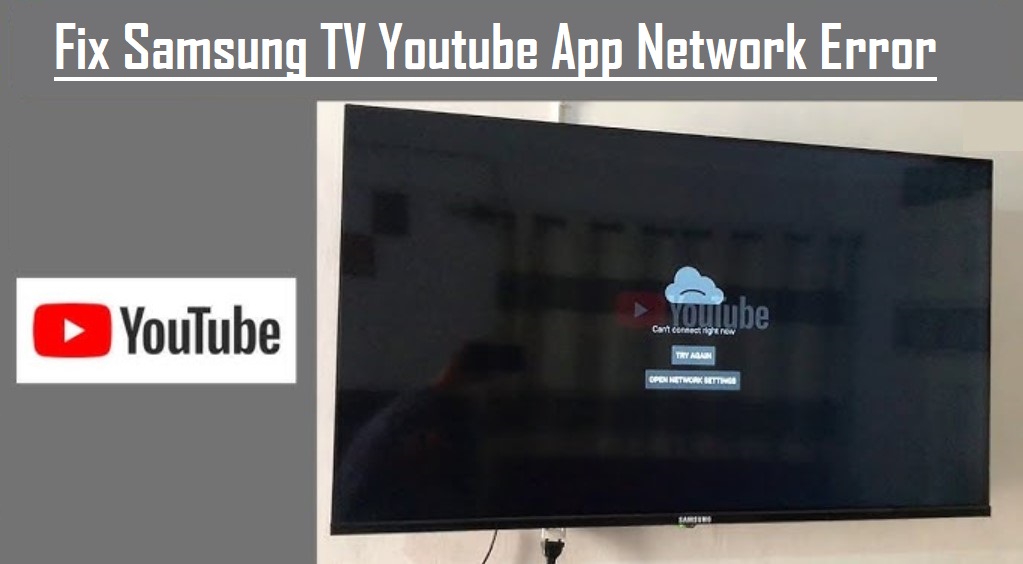
The YouTube TV app may sometimes fail to load on Samsung TVs. This can happen due to outdated software or network issues. Ensure your TV software is up-to-date. Restarting your TV and router can also help. If the app still doesn’t load, try reinstalling it.
Video Playback Errors
Video playback errors can disrupt your viewing experience. These errors often occur due to slow internet speeds or connection problems. Check your internet connection and speed. Restarting your router can fix minor connectivity issues. Clearing the app’s cache can also resolve playback errors. If the problem persists, contact Samsung support.

Credit: www.electronicshub.org
Basic Troubleshooting
Experiencing issues with YouTube TV on your Samsung TV can be quite frustrating, especially when you’re ready to unwind with your favorite show or catch up on the latest news. But before you panic, there are some basic troubleshooting steps that you can take to potentially resolve these issues.
Restarting The Tv
One of the simplest yet most effective troubleshooting steps is restarting your TV. Sometimes, a quick restart can resolve minor glitches and connectivity issues.
To restart your Samsung TV, turn it off, wait for about 30 seconds, and then turn it back on. This might clear any temporary issues with YouTube TV.
Have you ever had a tech problem that was solved by simply turning the device off and on? It’s surprising how often this works!
Checking Internet Connection
Your internet connection is crucial for streaming services like YouTube TV. If your connection is slow or unstable, YouTube TV may not work properly.
Check if other devices in your home are connected to the internet. If they are, but your TV isn’t, there may be an issue with your TV’s network settings.
You can also test your internet speed using online tools. A strong and stable connection ensures uninterrupted streaming.
Are you noticing that your TV is the only device struggling to connect? It might be time to delve into your TV’s network settings and ensure everything is configured correctly.
By addressing these basic troubleshooting steps, you might find that your YouTube TV issues are resolved quickly and easily. Don’t let a minor hiccup ruin your viewing experience!
Software Updates
Dealing with YouTube TV not working on your Samsung TV can be frustrating. Often, the root of the problem lies in outdated software. Keeping the YouTube TV app and your Samsung TV firmware up-to-date can solve many issues and improve your viewing experience. Below, we’ll explore how to ensure both are updated.
Updating Youtube Tv App
First, let’s tackle the YouTube TV app itself. Keeping apps updated is crucial for smooth performance.
Navigate to the Samsung Smart Hub and select ‘Apps.’ Locate the YouTube TV app.
If you see an ‘Update’ button, click it. This ensures you’re running the latest version with all the bug fixes and new features.
It’s a simple step but often overlooked. Regular updates can significantly enhance your streaming quality.
Updating Samsung Tv Firmware
Next, let’s update your Samsung TV firmware. Firmware updates can fix compatibility issues and improve overall performance.
Go to ‘Settings’ and select ‘Support.’ From there, choose ‘Software Update.’
Click ‘Update Now’ to check for and install the latest firmware. This process might take a few minutes.
I once struggled with buffering issues, only to find out that my TV firmware was outdated. Updating it resolved the problem instantly.
Don’t forget to set your TV to auto-update. This ensures you always have the latest software without manual checks.
Have you tried updating both the app and firmware yet? It’s a quick fix that can save you from a lot of hassle.
App Reinstallation
Experiencing issues with YouTube TV on your Samsung TV? Try reinstalling the app to resolve performance problems quickly.
### App Reinstallation Sometimes, the simplest solution to get YouTube TV working on your Samsung TV is to reinstall the app. This process can resolve a variety of issues, from crashes to connectivity problems. Let’s walk through the steps to uninstall and then reinstall the app.Uninstalling The App
First, you’ll need to remove the YouTube TV app from your Samsung TV. Go to the Home screen and navigate to the Apps section. Once there, find the YouTube TV app. Highlight it and press the “Tools” button on your remote. A menu will pop up. Select “Delete” to uninstall the app. Confirm your choice, and the app will be removed from your TV.Reinstalling The App
Now, it’s time to reinstall the app. Navigate back to the Apps section on your Samsung TV. Use the search bar to find “YouTube TV.” Select the app from the search results. Click on the “Install” button to download and install the app. Once the installation is complete, open the app and sign in to your account. Reinstalling the app can often solve glitches and improve performance. Have you tried this method before? What was your experience? Share your thoughts in the comments!Clearing Cache
Experiencing trouble with YouTube TV on your Samsung TV can be frustrating. One simple yet effective solution is clearing the cache. Cache files can sometimes interfere with the proper functioning of apps, and clearing them can help resolve these issues.
Clearing App Cache
First, let’s talk about clearing the app cache. It’s a straightforward process and can often solve your problem.
Start by accessing the settings on your Samsung TV. Navigate to the “Apps” section and find YouTube TV. Select the app and choose the “Clear Cache” option. It’s as simple as that!
Have you ever noticed how your smartphone runs better after clearing the cache? The same principle applies here. This quick fix might be all you need to get YouTube TV working smoothly again.
Clearing Tv Cache
Next, let’s clear the TV cache. Sometimes, the issue isn’t just with the app but with the TV itself.
To clear the TV cache, go to the “Support” section in your TV settings. Find the option labeled “Self Diagnosis” and select “Clear Cache.” This can help improve overall performance.
Imagine your TV is like a cluttered desk. Clearing the cache is akin to tidying up and removing the unnecessary items. It creates more room for your TV to operate efficiently.
Have you tried these steps before? Did you notice a significant improvement? Share your experiences in the comments below!
Clearing the cache is a simple yet powerful tool. It’s like giving your TV a fresh start. Why wait? Give it a try and see the difference it makes.
Credit: www.hollyland.com
Network Settings
Having trouble with YouTube TV not working on your Samsung TV? One common issue could be related to your network settings. Ensuring your network settings are properly configured can often resolve streaming issues. Let’s explore some practical steps you can take to troubleshoot this.
Resetting Network Settings
Resetting your network settings can often solve connectivity issues. To do this, navigate to the ‘Settings’ menu on your Samsung TV. Select ‘General’, then ‘Network’, and choose ‘Reset Network’.
This will disconnect your TV from the Wi-Fi network and reset all network settings to their default state. Reconnect to your Wi-Fi by entering your network credentials again. This simple reset can often clear up any minor glitches.
Configuring Dns Settings
If resetting the network settings didn’t work, you may need to configure your DNS settings. Go to ‘Settings’ > ‘General’ > ‘Network’ > ‘Network Status’. Select ‘IP Settings’ and then ‘DNS Settings’.
Change the DNS setting from ‘Auto’ to ‘Manual’. Enter ‘8.8.8.8’ or ‘8.8.4.4’ as the DNS server. These are Google’s public DNS servers and can often resolve connectivity issues.
Have you ever tried this method? It’s surprisingly effective and could be the key to getting YouTube TV back up and running smoothly.
Have you recently dealt with network issues on your Samsung TV? What solutions worked best for you? Share your experiences in the comments below!
Factory Reset
Experiencing issues with YouTube TV on a Samsung TV? Performing a factory reset can help. Restoring your TV to default settings often resolves streaming problems.
When your YouTube TV app stops working on your Samsung TV, it can be a frustrating experience. Sometimes, the solution might be simpler than you think. A factory reset can often resolve issues and get your streaming back on track.Performing A Soft Reset
A soft reset is the first step you should try. Unplug your Samsung TV from the power source. Wait for about 30 seconds. This helps clear any minor glitches. After waiting, plug your TV back in and turn it on. Open the YouTube TV app and see if it’s working. This quick fix can often resolve many issues without any data loss.Performing A Hard Reset
If the soft reset didn’t work, a hard reset might be necessary. Be cautious, as this will erase all data and settings on your TV. To perform a hard reset, go to the Settings menu on your Samsung TV. Navigate to Support, then select Self Diagnosis, and finally, Reset. You will be prompted to enter your PIN (the default is usually 0000). Confirm the reset and wait for the TV to restart. After the hard reset, you’ll need to set up your TV again. Reinstall the YouTube TV app and check if it’s working properly. Have you ever had to reset your TV? It might seem daunting, but it’s often the quickest way to resolve persistent issues.Contacting Support
Facing issues with YouTube TV on your Samsung TV can be frustrating. Sometimes, the best solution is to contact support. This section will guide you on how to reach out to both Samsung and YouTube TV support teams for assistance.
Reaching Samsung Support
First, visit the official Samsung website. Navigate to the support section. Here, you can find many helpful resources. You can search for solutions in the FAQ section. If you don’t find a solution, consider a live chat with a support agent.
Another option is to call Samsung customer service. They are available to help you with any technical issues. Make sure to have your TV model number ready. This information helps the support team provide better assistance.
Reaching Youtube Tv Support
If the issue lies with YouTube TV, contact their support team. Start by visiting the YouTube TV Help Center. This page has many articles that may solve your problem.
If you need further help, use the “Contact Us” option. You can chat with a support agent or send an email. Make sure to describe your issue clearly. Include your device details for a quicker resolution.
You can also check YouTube TV’s social media pages. Sometimes, they post updates about ongoing issues. This can help you know if others face similar problems.
Frequently Asked Questions
Why Is Youtube Not Working On Tv Samsung Tv?
YouTube may not work on Samsung TV due to outdated software, network issues, or app glitches. Update your TV’s firmware and YouTube app, then restart your TV.
Why Did My Youtube Tv Stop Working On My Tv?
Your YouTube TV might stop working due to internet issues, app updates, or device compatibility problems. Restart your device and router.
How To Reset Youtube Tv App On Samsung Smart Tv?
To reset the YouTube TV app on your Samsung Smart TV, open Settings, select Apps, choose YouTube TV, and click Clear Data.
Is Youtube Tv Down On Samsung?
Check the YouTube TV status on Samsung’s official website or social media. Issues may arise due to server or app updates.
Why Is My Youtube Tv Not Working On Samsung Tv?
There might be an app issue. Try updating the app. Restart your TV too.
Conclusion
Experiencing issues with YouTube TV on your Samsung TV can be frustrating. Follow the steps shared in this guide. Most problems get resolved quickly. Check your internet connection. Ensure your TV software is up to date. Restart your devices if needed.
Simple fixes often work best. Contact support if issues persist. Your viewing experience matters. Enjoy smooth streaming on YouTube TV again. Thank you for reading.