
Experiencing a flickering screen on your Samsung TV can be frustrating. This issue can ruin your viewing experience and may indicate a deeper problem.
Samsung TVs are known for their high quality and reliability. Yet, like all electronics, they can have issues. One common problem is screen flickering. This can distract you while watching your favorite show or movie. Understanding the causes of this issue can help you find a solution.
In this blog post, we will explore the reasons behind a flickering Samsung TV screen. We will also discuss simple fixes you can try at home. Stay tuned to learn how to get your TV back to perfect working order.
Common Causes Of Samsung Tv Flickering
Dealing with a flickering Samsung TV can be incredibly frustrating. The flickering can disrupt your viewing experience and sometimes even cause headaches. Understanding the common causes can help you troubleshoot and fix the issue.
Power Supply Issues
One of the main reasons for Samsung TV flickering is power supply issues. If your TV isn’t receiving a steady flow of electricity, it can result in flickering. This could be due to a faulty power outlet or an unstable power source.
You can test this by plugging your TV into a different outlet. Using a surge protector can also help stabilize the power supply. Don’t overlook the importance of a stable power source for your electronics.
Loose Connections
Another common cause is loose connections. If the cables connecting your TV to other devices are not properly connected, flickering can occur. This is especially common with HDMI and power cables.
Make sure all cables are securely plugged in. Sometimes, simply unplugging and re-plugging the cables can solve the problem. Pay close attention to any visible damage to the cables as well.
Outdated Firmware
Outdated firmware can also be a culprit. Samsung frequently releases updates to fix bugs and improve performance. If your TV’s firmware is outdated, it can cause flickering.
Check for updates in your TV’s settings menu. Keeping your firmware up to date ensures your TV runs smoothly. Have you checked for updates recently?
Understanding these common causes can go a long way in solving the flickering issue. Try these simple solutions before considering more drastic measures. Has your Samsung TV ever flickered? What was the solution that worked for you?
Initial Troubleshooting Steps
Are you experiencing flickering issues with your Samsung TV? This can be very annoying. Thankfully, there are some initial troubleshooting steps you can take. These steps can help you identify and fix the problem.
Check Power Cables
First, check the power cables. Make sure they are securely plugged in. Loose connections can cause flickering. Inspect the cables for any visible damage. If you see frayed wires or cuts, replace the cable. This simple step can often solve the problem.
Inspect Hdmi Connections
Next, inspect the HDMI connections. Ensure each HDMI cable is firmly connected to the TV and device. Loose HDMI connections can cause screen flickering. Try unplugging and re-plugging the cables. This can sometimes improve the connection. Also, check if the HDMI cables are in good condition. Damaged cables should be replaced.
Restart The Tv
Finally, try restarting the TV. Turn off the TV and unplug it from the power source. Wait for about 60 seconds before plugging it back in. Turn the TV back on and see if the flickering has stopped. Restarting the TV can reset the system and fix minor issues.
Adjusting Picture Settings
Adjusting the picture settings on your Samsung TV can help resolve flickering issues. By fine-tuning certain settings, you can enhance your viewing experience and reduce flickering. Below are some key adjustments to consider.
Brightness And Contrast
Adjusting brightness and contrast levels can impact flickering. Lower the brightness to reduce strain on the eyes. Try setting the contrast to a balanced level. This can help minimize flickering and improve picture quality.
Backlight Settings
The backlight setting controls the intensity of the light behind the screen. Reducing the backlight can lessen flickering. Experiment with different levels to find the optimal setting for your environment. A moderate backlight setting often works best.
Eco Mode
Eco Mode adjusts settings to save energy. This mode can sometimes cause flickering. Turn off Eco Mode to see if it reduces flickering. Disabling this feature can improve picture stability. Always check if Eco Mode is affecting your TV’s performance.
Updating Samsung Tv Firmware
Fix Samsung TV flickering by updating the firmware. This simple step can improve your viewing experience. Keep your TV software up-to-date for the best performance.
Updating Samsung TV Firmware Experiencing flickering on your Samsung TV can be frustrating. Often, this issue can be resolved by updating the TV’s firmware. Firmware updates can fix bugs, improve performance, and add new features. Here’s a quick guide on how to update your Samsung TV firmware.Using The Tv Menu
Updating your TV’s firmware directly from the TV menu is straightforward. Turn on your Samsung TV. Navigate to the ‘Settings’ menu using your remote. Select ‘Support’, and then ‘Software Update’. Choose ‘Update Now’. Your TV will search for any available updates. If an update is available, follow the on-screen instructions to complete the process. This method ensures your TV is always running the latest firmware. It’s convenient and requires no additional devices.Usb Update Method
If your TV is not connected to the internet, you can update the firmware using a USB drive. First, visit the Samsung Support website on your computer. Search for your TV model and download the latest firmware update. Extract the downloaded file and save it to a USB drive. Insert the USB drive into your TV. Navigate to ‘Settings’ > ‘Support’ > ‘Software Update’. Select ‘Update Now’ and choose ‘USB’. Your TV will detect the firmware file on the USB drive and start updating. This method is helpful if your TV has connectivity issues. It’s also a good option if you prefer manual updates. Updating your Samsung TV’s firmware can solve many issues, including flickering. It’s a simple process that can enhance your viewing experience. Have you tried updating your TV’s firmware? How did it go? Let us know in the comments below.Resetting The Tv To Factory Settings
Experiencing flickering on your Samsung TV can be frustrating. Resetting your TV to factory settings often resolves such issues. Follow the on-screen instructions to complete the reset process.
Experiencing flickering on your Samsung TV can be frustrating. Sometimes, resetting the TV to factory settings can solve the issue. This process will return your TV to its original state. It can be a helpful step in troubleshooting persistent problems.Backup Important Data
Before resetting, make sure to backup your important data. This includes saved settings, apps, and personal preferences. Use an external storage device or cloud service for this purpose. You don’t want to lose any valuable information.Factory Reset Process
To start the factory reset process, navigate to the TV’s menu. Select Settings, then General. Look for Reset and select it. You will be prompted to enter a PIN. If you haven’t set a PIN, use the default code, which is usually 0000. Follow the on-screen instructions to complete the reset. After the reset, the TV will restart. It will be in its original factory condition. This should resolve the flickering issue. You can now restore your saved data. “`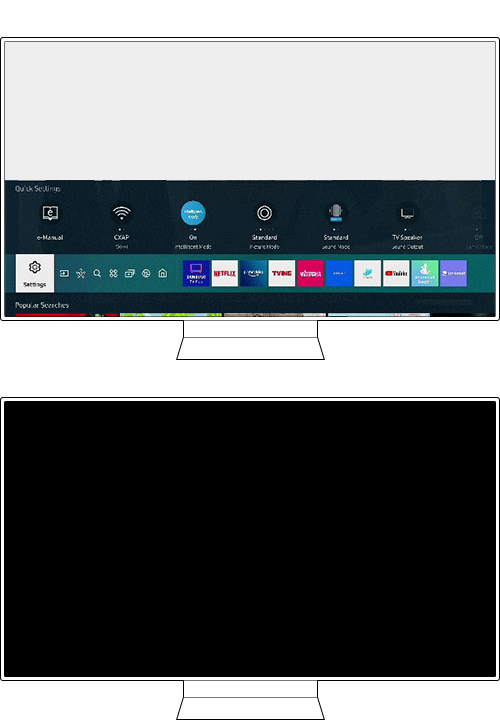
Credit: www.samsung.com
Advanced Troubleshooting Tips
Experiencing flickering on your Samsung TV can be frustrating. Sometimes, basic solutions do not work. You may need advanced troubleshooting tips. Below, we cover key steps to help you fix the issue.
Check For Software Conflicts
Software conflicts can cause flickering. Ensure your TV’s firmware is up to date. Outdated software may have bugs. Go to your TV settings. Look for software updates. Install any available updates. This can often resolve the flickering.
Another step is to check for app conflicts. Uninstall any recently added apps. Test your TV after each removal. This helps identify if a specific app causes the issue.
Test With Different Devices
Your TV may flicker due to connected devices. Disconnect all external devices. This includes gaming consoles and streaming sticks. Then, reconnect them one by one. Observe if the flickering stops.
Try connecting a different device, like a DVD player. If flickering occurs with one device, it may be the cause. Use different cables to rule out cable issues. Faulty cables can cause signal problems.
When To Contact Samsung Support
Samsung TVs offer great picture quality. But sometimes, you might face issues like flickering. When should you contact Samsung Support? Knowing when to ask for help can save you time and frustration.
Identifying Persistent Problems
If your Samsung TV flickers often, it’s not normal. First, check the power cable. Make sure it’s secure. Try a different outlet. If the flickering persists, it might be a bigger issue.
Reset the TV settings to default. This can solve many problems. If the flickering continues, note when it happens. Does it occur on all channels? Or only some? This information helps support staff diagnose the problem.
Warranty And Repair Options
Check your TV’s warranty status. Most Samsung TVs come with a standard warranty. This covers many repairs. If your TV is under warranty, repairs might be free.
If the warranty has expired, Samsung Support can still help. They can guide you through paid repair options. They might also offer troubleshooting tips. Sometimes, a simple fix can resolve the issue without a technician.

Credit: m.youtube.com
Preventing Future Flickering Issues
Fix Samsung TV flickering issues by checking cable connections and updating firmware. Adjust picture settings to reduce screen flicker.
Samsung TVs are known for their stunning visuals, but flickering issues can disrupt your viewing experience. If you’ve faced this problem, you’re not alone. Luckily, there are practical steps you can take to prevent future flickering issues.Regular Firmware Updates
Regularly updating your TV’s firmware is crucial. Updates often include bug fixes and performance improvements that can address flickering. Check for updates in the settings menu. Set your TV to auto-update to ensure you never miss an important firmware release.Proper Cable Management
Cable management isn’t just for aesthetics; it can prevent flickering too. Loose or damaged cables can cause signal interruptions. Use cable ties to keep everything secure. Double-check connections to ensure they are snug and undamaged.Optimal Tv Placement
Where you place your TV can affect its performance. Avoid areas with direct sunlight or excessive humidity, as these can contribute to flickering. Consider mounting your TV on a wall or using a stand that allows good airflow. Keep electronic devices that could cause interference at a distance. Now, think about your TV setup. Could a few tweaks prevent future issues? Taking these steps can help you enjoy a flicker-free viewing experience.
Credit: eu.community.samsung.com
Frequently Asked Questions
How Do You Fix A Flickering Samsung Tv?
Check power supply and cables. Update the TV firmware. Adjust the brightness settings. Disable the energy-saving mode. Factory reset the TV.
How Do I Stop My Samsung Screen From Flickering?
Reduce screen brightness, turn off adaptive brightness, update apps and software, clear cache, and perform a factory reset if needed.
Why Is My Tv Suddenly Flickering?
Your TV may flicker due to loose cables, outdated software, or issues with the power supply. Check connections and update software.
Why Is My Screen Suddenly Flickering?
Screen flickering can result from outdated drivers, loose connections, or software issues. Check cables, update drivers, and restart your device.
Why Is My Samsung Tv Screen Flickering?
Samsung TV screen may flicker due to loose cables, outdated software, or settings issues.
Conclusion
A flickering Samsung TV can be frustrating. Fixing it improves your viewing experience. Check cables, settings, and power sources. Simple steps can solve most issues. Don’t hesitate to contact support for persistent problems. Regular maintenance keeps your TV in good condition.
Enjoy clearer, more stable pictures. Happy watching!