
Seeing your Zmodo camera blinking green can be confusing. Is it a problem or just a signal?
Let’s clear the air. Understanding the reasons behind the green blinking light is crucial. It can indicate various states like setup mode or network issues. Knowing what each light signal means helps you troubleshoot effectively. This guide will walk you through the common causes and solutions.
You’ll get a clear idea of what your camera needs. So, let’s dive in and solve the mystery of the green blinking light on your Zmodo camera.

Credit: www.youtube.com
Common Causes
Experiencing your Zmodo camera blinking green can be frustrating. Understanding the common causes can help you troubleshoot and resolve the issue. Let’s dive into some of the typical reasons behind this problem.
Network Issues
One of the primary reasons your Zmodo camera blinks green is network issues. If your Wi-Fi signal is weak, the camera may struggle to maintain a stable connection. This can cause the camera to blink green as it tries to reconnect.
Another common issue is interference from other devices. Electronics like microwaves or cordless phones can disrupt your Wi-Fi signal. Ensure your camera is placed in an area with minimal interference. Using a different Wi-Fi channel can also help.
Firmware Updates
Firmware updates are crucial for the proper functioning of your Zmodo camera. Sometimes, the camera blinks green during a firmware update. This indicates the camera is in the process of updating its software.
Ensure you have the latest firmware installed. Check the Zmodo app or website for available updates. If your camera is stuck in the blinking green state, a manual firmware update might be necessary.
Checking Connections
Experiencing a Zmodo camera blinking green can be frustrating. Checking connections is crucial. This ensures the camera works properly. Below, we will explore two main aspects: Power Supply and Wi-Fi Signal.
Power Supply
First, inspect the power supply. Ensure the camera is plugged in correctly. Check the power outlet for any issues. Sometimes, a loose connection can cause problems. Confirm the power adapter is working. Try plugging it into another device. If the device works, the adapter is fine. If not, consider replacing the adapter.
Wi-fi Signal
Next, examine the Wi-Fi signal. Weak signals can disrupt the connection. Place the camera closer to the router. Check the router for any issues. Restart the router if needed. Ensure there are no obstructions. Walls and electronic devices can block signals. Use a Wi-Fi extender for better coverage. This can help strengthen the signal.
Resetting The Camera
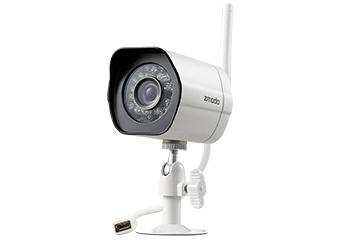
Sometimes, your Zmodo camera might start blinking green. This indicates a connection issue. Resetting the camera can resolve this problem. There are two types of resets you can perform: a soft reset and a hard reset. Let’s explore both methods in detail.
Soft Reset
A soft reset is the simplest method. It doesn’t erase your settings.
- Ensure the camera is powered on.
- Locate the reset button on the camera.
- Press and hold the reset button for 10 seconds.
- Release the button and wait for the camera to reboot.
The camera will reconnect to your WiFi automatically. If it still blinks green, you may need a hard reset.
Hard Reset
A hard reset restores the camera to factory settings. This process erases all configurations.
- Turn off the camera by unplugging it.
- Press and hold the reset button.
- While holding the button, plug the camera back in.
- Continue holding the button for 20 seconds.
- Release the button and wait for the camera to restart.
After the hard reset, you need to set up the camera again. Follow the initial setup instructions to reconnect the camera to your network.
Resetting your Zmodo camera can resolve many issues. Choose the right reset method based on your needs.
Credit: www.dder.org
Updating Firmware
Updating the firmware of your Zmodo Camera is important. It ensures your camera has the latest features and security updates. This process can be done automatically or manually. Below, we will explore both methods.
Automatic Updates
Zmodo cameras can update firmware automatically. This is the easiest way to ensure your camera stays current.
- Open the Zmodo app on your phone.
- Go to the Device Settings.
- Select Firmware Update.
- Enable Automatic Updates.
With this setting, your camera will check for updates regularly. It will install new firmware without any action needed from you.
Manual Updates
Sometimes, you may need to update your camera manually. This can happen if an automatic update fails or if you prefer to control the process.
- Open the Zmodo app on your phone.
- Go to the Device Settings.
- Select Firmware Update.
- If an update is available, you will see a Download button.
- Tap Download to start the update.
Wait for the update to complete. Do not turn off your camera during this process. Once done, your camera will restart with the new firmware.
Contacting Support
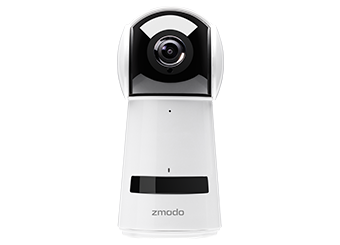
If your Zmodo camera is blinking green, it may be a sign of a connection issue. You might need to contact support for help. This section will guide you through the steps.
Gathering Information
Before contacting support, gather all necessary information. This will help them understand the issue faster.
- Camera model and serial number
- Firmware version
- Steps you have already taken to fix the problem
- Any error messages displayed
Having these details ready will make the process smoother.
Reaching Out
Once you have gathered all required information, it’s time to contact support. Here are the common ways to reach them:
- Email: Send a detailed email to support@zmodo.com.
- Phone: Call their support line at 1-888-551-6881.
- Live Chat: Use the live chat feature on their website.
Use the method that works best for you. Make sure to include all the gathered information. This will help the support team diagnose the issue quickly.
Credit: support.zmodo.com
Frequently Asked Questions
Why Is My Zmodo Camera Blinking Green?
A blinking green light on your Zmodo camera indicates that it is in pairing mode. This means it’s ready to connect to your Wi-Fi network.
How Do I Stop The Green Light Blinking?
To stop the green light blinking, ensure the camera is connected to Wi-Fi. Follow the setup instructions in the Zmodo app.
What Does Pairing Mode Mean?
Pairing mode means the camera is ready to connect to your network. It allows the camera to be discovered by your device.
How Can I Reset My Zmodo Camera?
To reset your Zmodo camera, press and hold the reset button for 10 seconds. This will restore factory settings.
Conclusion
A blinking green light on your Zmodo camera can be frustrating. But now, you know what it means and how to fix it. Follow the steps we discussed, and your camera should work smoothly. Stay patient and check each step carefully.
Your Zmodo camera will soon be back to normal. Keep this guide handy for any future issues. Enjoy peace of mind with a fully functional security camera. Thanks for reading!