
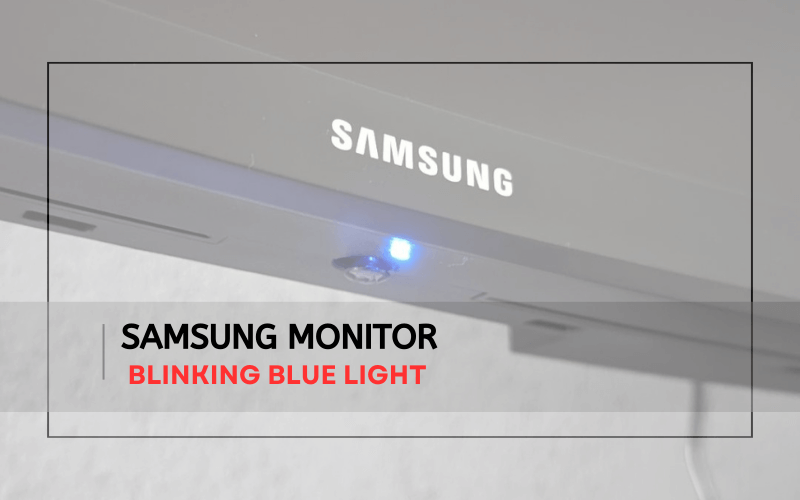
A blinking blue light on your Samsung monitor can be frustrating. It often signals an issue that needs quick attention.
Many Samsung monitor users encounter this blinking blue light problem. It can disrupt your work or entertainment. This issue might be due to various reasons, from minor glitches to more serious problems. Understanding the cause is essential for finding a solution.
This guide aims to help you identify and fix the blinking blue light on your Samsung monitor. With clear steps and simple explanations, you can get your monitor back to normal. Whether you’re tech-savvy or a beginner, this blog will guide you through the process. So, let’s dive in and resolve that annoying blinking blue light.
Common Causes
Experiencing a blinking blue light on your Samsung monitor can be frustrating. Understanding the common causes can help you troubleshoot the issue effectively. Below are some of the usual reasons behind this problem.
Power Supply Issues
One of the main causes of a blinking blue light is power supply issues. Ensure your monitor is connected to a stable power source. An unstable power supply can cause the monitor to blink.
- Check the power cable for any damage.
- Verify the power outlet with another device.
- Consider using a surge protector.
Loose Connections
Loose connections between the monitor and the computer can also cause the blinking blue light. Double-check all connections to ensure they are secure.
- Inspect the HDMI or VGA cable for any wear and tear.
- Make sure the cable is firmly plugged into both the monitor and the computer.
- Try using a different cable to rule out any faults.
Initial Checks
Experiencing a blinking blue light on your Samsung monitor can be frustrating. Often, a few initial checks can resolve the issue quickly. Below are some essential steps to get your monitor back to normal.
Check Power Cable
Ensure the power cable is securely connected to both the monitor and the power outlet. A loose cable can cause the blinking light.
- Unplug the power cable from the monitor.
- Wait for 30 seconds.
- Plug it back in securely.
If the blinking continues, try a different power outlet to rule out a faulty socket.
Inspect Hdmi/displayport
Check the HDMI or DisplayPort connection. A poor connection can also cause the blinking light.
- Unplug the HDMI/DisplayPort cable from both the monitor and the computer.
- Inspect the cable for any visible damage.
- Reconnect the cable securely.
If you have another HDMI/DisplayPort cable, try using it to see if the issue persists.
Ensuring these connections are secure can often resolve the blinking blue light issue. If the problem continues, further troubleshooting may be needed.
Monitor Settings
If your Samsung monitor’s blue light is blinking, monitor settings might need adjustment. Incorrect settings can often cause this issue. Adjusting or resetting the monitor settings can help resolve the blinking light problem.
Reset Monitor
A simple reset can fix many issues with your Samsung monitor. Here’s how to reset your monitor:
- Turn off the monitor.
- Unplug the power cord.
- Wait for a few minutes.
- Plug the power cord back in.
- Turn the monitor on.
Resetting the monitor can refresh its settings and may stop the blue light from blinking. This is often the first step in troubleshooting any monitor issue.
Adjust Brightness
Sometimes, the brightness settings can affect the monitor’s performance. Adjusting the brightness might help stabilize the monitor’s functionality:
- Press the Menu button on your monitor.
- Navigate to the Brightness settings.
- Adjust the brightness level using the arrow buttons.
- Press the Menu button to save changes.
A properly adjusted brightness level can ensure the monitor operates efficiently. This might also prevent the blue light from blinking.
Monitor settings are crucial for the proper function of your Samsung monitor. Resetting and adjusting brightness are simple steps that can help solve the blinking blue light issue.

Credit: www.youtube.com
Software Updates
Experiencing a blinking blue light on your Samsung monitor can be frustrating. Often, the issue can be resolved with a few simple software updates. Here, we’ll discuss two key updates: monitor firmware and graphics drivers.
Update Monitor Firmware
Outdated firmware can cause various issues with your Samsung monitor. Follow these steps to update your monitor firmware:
- Go to the Samsung support website.
- Search for your monitor model.
- Download the latest firmware update.
- Follow the provided instructions to install the firmware.
Updating your firmware can fix bugs and improve performance. Make sure to check for updates regularly.
Update Graphics Drivers
Graphics drivers are essential for your monitor’s functionality. An outdated driver can lead to display issues. To update your graphics drivers, follow these steps:
- Open the Device Manager on your computer.
- Find the display adapters section and expand it.
- Right-click on your graphics card and select Update driver.
- Choose to search automatically for updated driver software.
You can also visit the manufacturer’s website for the latest drivers. Always ensure your drivers are up-to-date to avoid any display problems.
Hardware Issues
Experiencing a blinking blue light on your Samsung monitor can be frustrating. Often, this issue is related to hardware problems. Understanding these issues can help you diagnose and fix your monitor. Let’s delve into some common hardware-related causes.
Faulty Capacitors
Capacitors are crucial for the proper functioning of your monitor. They store and release electrical energy. Faulty capacitors can cause the blue light to blink. Over time, capacitors can fail due to heat or age. A visual inspection can reveal swollen or leaking capacitors.
Here are some signs of faulty capacitors:
- Swollen tops
- Leaking fluid
- Bulging sides
Replacing faulty capacitors may solve the blinking light problem. Consider consulting a professional for capacitor replacement.
Damaged Display
Another hardware issue could be a damaged display. A damaged screen can affect the monitor’s functionality. Physical damage or internal faults can cause the blue light to blink.
Check your display for:
- Cracks or breaks
- Lines or dead pixels
- Discoloration
If you find any damage, the screen may need repair or replacement. Consult a professional to assess and fix the damage.
| Issue | Symptoms |
|---|---|
| Faulty Capacitors | Swollen tops, leaking fluid, bulging sides |
| Damaged Display | Cracks, lines, dead pixels, discoloration |
Testing With Another Device
Is your Samsung monitor blinking a blue light? This can be quite frustrating. One effective way to diagnose the problem is by testing with another device. This method helps rule out issues with your current device. Let’s dive into the steps you should follow.
Connect To Different Computer
First, connect your Samsung monitor to a different computer. This helps check if the problem lies with the monitor or the original computer. Follow these steps:
- Turn off the monitor and unplug it from the current computer.
- Connect the monitor to a different computer using the same cable.
- Turn on the monitor and the other computer.
- Check if the blue light is still blinking.
If the blue light stops blinking, your original computer might be the problem.
Test With Different Cable
If connecting to a different computer does not solve the issue, try using a different cable. Sometimes, cables can be faulty or damaged. Here’s how:
- Turn off the monitor and unplug the current cable.
- Get a new or different cable that is compatible with your monitor and computer.
- Connect the monitor to the computer using the new cable.
- Turn on the monitor and the computer.
- Check if the blue light is still blinking.
If the blue light stops blinking with a new cable, the old cable was likely the issue.
By following these steps, you can narrow down the cause of your monitor’s blinking blue light. This ensures you know whether to fix or replace the monitor, computer, or cable.
Professional Help
Sometimes, technical issues with your Samsung monitor, like a blinking blue light, need professional help. This section provides guidance on how to get expert assistance.
Contact Samsung Support
If your Samsung monitor’s blue light keeps blinking, contacting Samsung Support is the first step. They have a team of experts ready to help you.
- Visit the Samsung Support website.
- Search for your monitor model.
- Check the FAQs and troubleshooting guides.
- Use the live chat for immediate assistance.
Samsung Support can provide detailed instructions. They may also schedule a repair if needed.
Visit Authorized Service Center
Sometimes, a visit to an authorized service center is necessary. Samsung has many service centers worldwide.
- Go to the Samsung Service Center locator.
- Enter your location to find the nearest center.
- Contact the center to check availability.
- Bring your monitor and any necessary documents.
Technicians at these centers are trained to handle Samsung products. They can diagnose and repair your monitor on-site.
| Action | Steps |
|---|---|
| Contact Samsung Support |
|
| Visit Authorized Service Center |
|
Getting professional help ensures your Samsung monitor works correctly. Don’t hesitate to reach out to the experts.
Preventive Measures
To ensure your Samsung monitor lasts longer and avoids issues like the blinking blue light, it’s crucial to take some preventive measures. These steps can help maintain the monitor’s performance and extend its life.
Regular Maintenance
Performing regular maintenance on your Samsung monitor can prevent many issues. Clean the screen and vents weekly to avoid dust build-up. Use a soft, dry cloth for the screen. For vents, use a small vacuum or can of compressed air.
Check the monitor’s connections monthly. Ensure all cables are securely connected. Look for any signs of wear or damage. Replace any faulty cables immediately to avoid interruptions.
| Maintenance Task | Frequency | Tools Needed |
|---|---|---|
| Clean Screen | Weekly | Soft, dry cloth |
| Clean Vents | Weekly | Vacuum or compressed air |
| Check Connections | Monthly | None |
Use Quality Surge Protectors
Always use a quality surge protector for your Samsung monitor. Power surges can damage the internal components of your monitor. A surge protector helps to absorb excess electricity and protect your device.
Choose a surge protector with a high joule rating. This indicates the amount of energy the surge protector can absorb. A higher joule rating means better protection. Look for surge protectors with at least a 1000 joule rating.
- Protects against power surges
- Extends monitor life
- Prevents internal damage
Follow these preventive measures to keep your Samsung monitor in top condition. Regular maintenance and using quality surge protectors can help avoid issues and prolong the life of your monitor.
Frequently Asked Questions
Why Is My Samsung Monitor Blinking Blue?
A blinking blue light on a Samsung monitor usually indicates a connectivity issue. Check the cables and connections to ensure they are secure. Restarting the monitor and computer can also help resolve the issue.
How Do I Fix A Blinking Blue Light On My Samsung Monitor?
To fix a blinking blue light, first, check all cable connections. Make sure they are secure. Restart your monitor and computer. If the issue persists, try using a different cable or port.
Is A Blinking Blue Light On A Samsung Monitor Normal?
No, a blinking blue light is not normal. It usually signals a connection problem or hardware issue. Checking and securing all connections can often resolve the issue. Restarting the devices may also help.
Can A Firmware Update Stop The Blinking Blue Light?
Yes, updating the firmware can sometimes resolve the blinking blue light issue. Visit Samsung’s official website to download and install the latest firmware for your monitor. Follow the provided instructions carefully.
Conclusion
Resolving the Samsung monitor blinking blue light issue is easier than it seems. Follow the steps outlined in this guide. Check cables, update drivers, and reset settings. These simple actions can solve the problem. Still facing issues? Consider reaching out to Samsung support.
Your monitor should work smoothly with these tips. Stay patient and troubleshoot step by step. Enjoy a hassle-free viewing experience.